Lesson 1: Install & configure Umbraco AI
⏱️ Timebox: ~17 minutes · Starting branch:
init· Finished branch:lesson-1-end
Requirements tracker
⬜ Transcribe podcast audio · ⬜ Generate a summary and show notes · ⬜ Cross-link mentioned episodes · ⬜ Validate guest details
Objective
Install Umbraco AI into The Rabbit Hole and set up the building blocks the rest of the workshop depends on:
- a connection to your AI provider: OpenAI or Microsoft Foundry
- a chat profile and a speech-to-text profile
- a Brand Voice context so everything the AI writes sounds like the show
No C# yet (apart from one line in a project file). This lesson is all about the concepts from Lecture 2: Connection → Profile → Context, with your code asking for a profile by alias.
What you'll change
src/TheRabbitHole.Web/TheRabbitHole.Web.csproj: add theUmbraco.AIandUmbraco.AI.OpenAIpackagessrc/TheRabbitHole.Core/TheRabbitHole.Core.csproj: addUmbraco.AI.Coreand suppressMEAI001- User secrets: check the API key and two endpoints you saved in Lesson 0
- Backoffice → AI: two connections, two profiles, one context, and one setting
Steps
Step 1: Stop the site
If the site is running from Lesson 0, press Ctrl+C in its terminal. You can't add packages while it's running.
Step 2: Add the Umbraco AI packages
The web project gets the Umbraco AI core package (backoffice section, database, services) plus a provider package that knows how to talk to a particular AI service. Run these from the repo root:
dotnet add src/TheRabbitHole.Web package Umbraco.AI --version 17.3.5
dotnet add src/TheRabbitHole.Web package Umbraco.AI.OpenAI --version 17.2.1
Our own code lives in the TheRabbitHole.Core class library. It only needs the core abstractions (the services and base
classes we'll code against), so it gets the lighter Umbraco.AI.Core package:
dotnet add src/TheRabbitHole.Core package Umbraco.AI.Core --version 17.3.5
Note
Why the OpenAI provider? Umbraco AI is provider-agnostic, but providers differ in what they can do. Today only the OpenAI provider supports speech-to-text, which we need in Lesson 2. It also isn't limited to api.openai.com: it works with any OpenAI-compatible endpoint, including Microsoft Foundry's. So the same provider serves both key paths: OpenAI and Microsoft Foundry.
Step 3: Suppress the experimental speech-to-text warning
Umbraco AI is built on Microsoft.Extensions.AI, which marks its speech-to-text types as experimental (diagnostic
MEAI001). Using them without opting in is a build error, so opt in once for the class library.
Open src/TheRabbitHole.Core/TheRabbitHole.Core.csproj and add the NoWarn line to the PropertyGroup:
    <PropertyGroup>
        <TargetFramework>net10.0</TargetFramework>
        <ImplicitUsings>enable</ImplicitUsings>
        <Nullable>enable</Nullable>
        <!-- Serve wwwroot/App_Plugins/... at /App_Plugins/... instead of /_content/<Assembly>/... -->
        <StaticWebAssetBasePath>/</StaticWebAssetBasePath>
        <!-- Microsoft.Extensions.AI marks its speech-to-text types as experimental (MEAI001). -->
        <NoWarn>$(NoWarn);MEAI001</NoWarn>
    </PropertyGroup>
Step 4: Check your key and endpoints
In Lesson 0, Step 8 you saved three user secrets. Here's why they're set up the way they are.
API keys never go in the repo or the database. Umbraco AI connection settings can instead reference configuration
with a $ prefix, for example $Umbraco:AI:Secrets:ApiKey, and resolve the real value at runtime from appsettings,
environment variables, a key vault, or (for local development) .NET user secrets.
We use references for three values. The API key goes under Umbraco:AI:Secrets, because it's sensitive. The two
endpoints go under Umbraco:AI:Variables. They aren't secret, but they differ from person to person: yours point at
OpenAI or at a Foundry resource. Keeping them in configuration means the same backoffice setup works for everyone, and
it's why every lesson branch's database snapshot works on your machine, whichever provider you use.
Check all three are there:
dotnet user-secrets list --project src/TheRabbitHole.Web
You should see Umbraco:AI:Secrets:ApiKey, Umbraco:AI:Variables:ChatEndpoint and
Umbraco:AI:Variables:TranscriptionEndpoint. Missing one? Go back to
Lesson 0, Step 8 and pick your path.
Important
These values must live under Umbraco:AI:Secrets or Umbraco:AI:Variables. For security, Umbraco AI only resolves
$ references under those allowed prefixes. Any other path fails with "Configuration key … is not permitted".
User secrets are stored in your user profile, not in the repo. So they stay with you when you switch lesson branches, and they can never be committed by accident.
Step 5: Run the site and meet the AI section
dotnet run --project src/TheRabbitHole.Web
On first start, Umbraco AI creates its database tables and gives the Administrators group access to a new AI section. Open https://localhost:44339/umbraco (reload it if it was already open) and click AI in the top navigation.
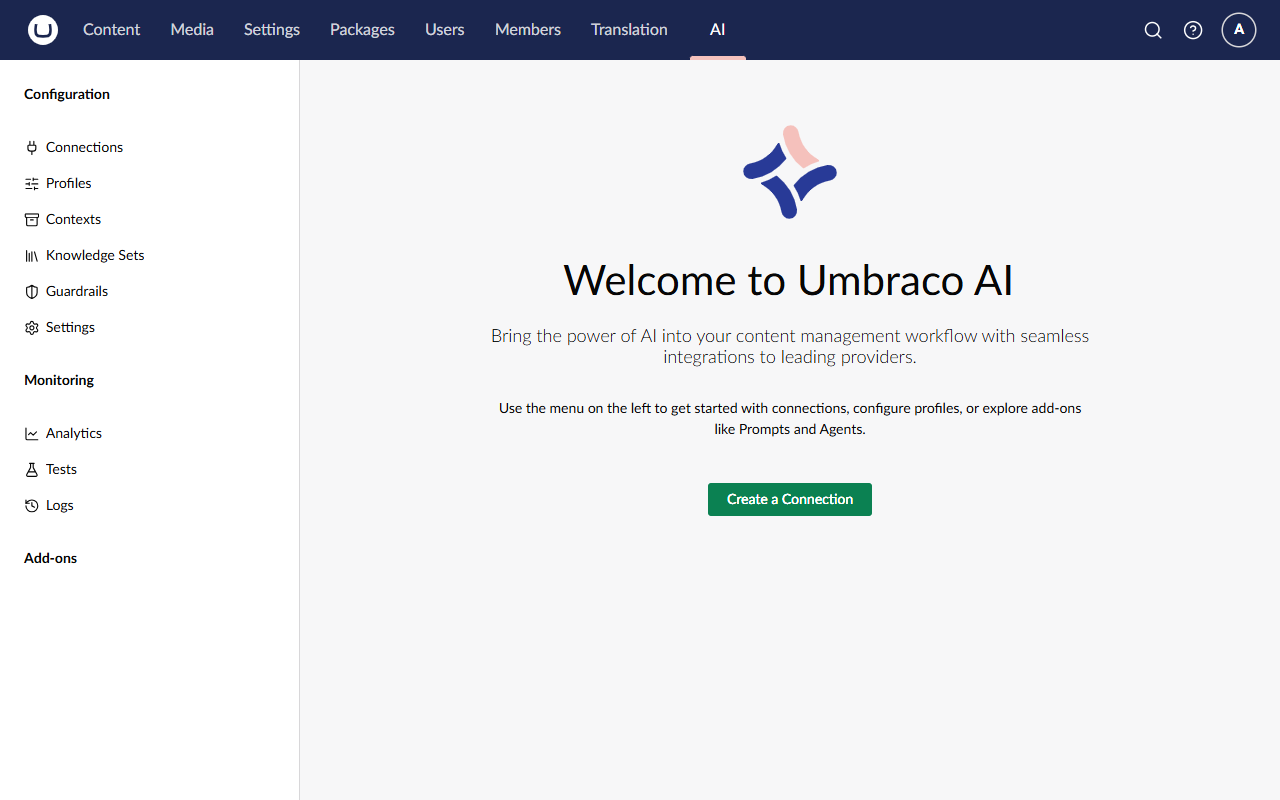
Take a moment to look around. The tree is grouped into:
- Configuration:
- Connections: credentials and an endpoint for one provider
- Profiles: a model plus settings for exactly one capability
- Contexts: reusable knowledge you layer onto profiles
- Knowledge Sets: searchable content for retrieval
- Guardrails: rules that block, warn or redact
- Settings: defaults such as the default speech-to-text profile
- Monitoring: Analytics (usage and tokens), Tests (automated evaluations) and Logs (every AI request, in detail).
- Add-ons: where extra packages such as Agents appear. We'll add that in Lesson 5.
Step 6: Create the connection
A connection holds the credentials and endpoint for one provider. Profiles use connections, and connections are never referenced from code, so you can rotate keys or switch environments without touching a line of C#.
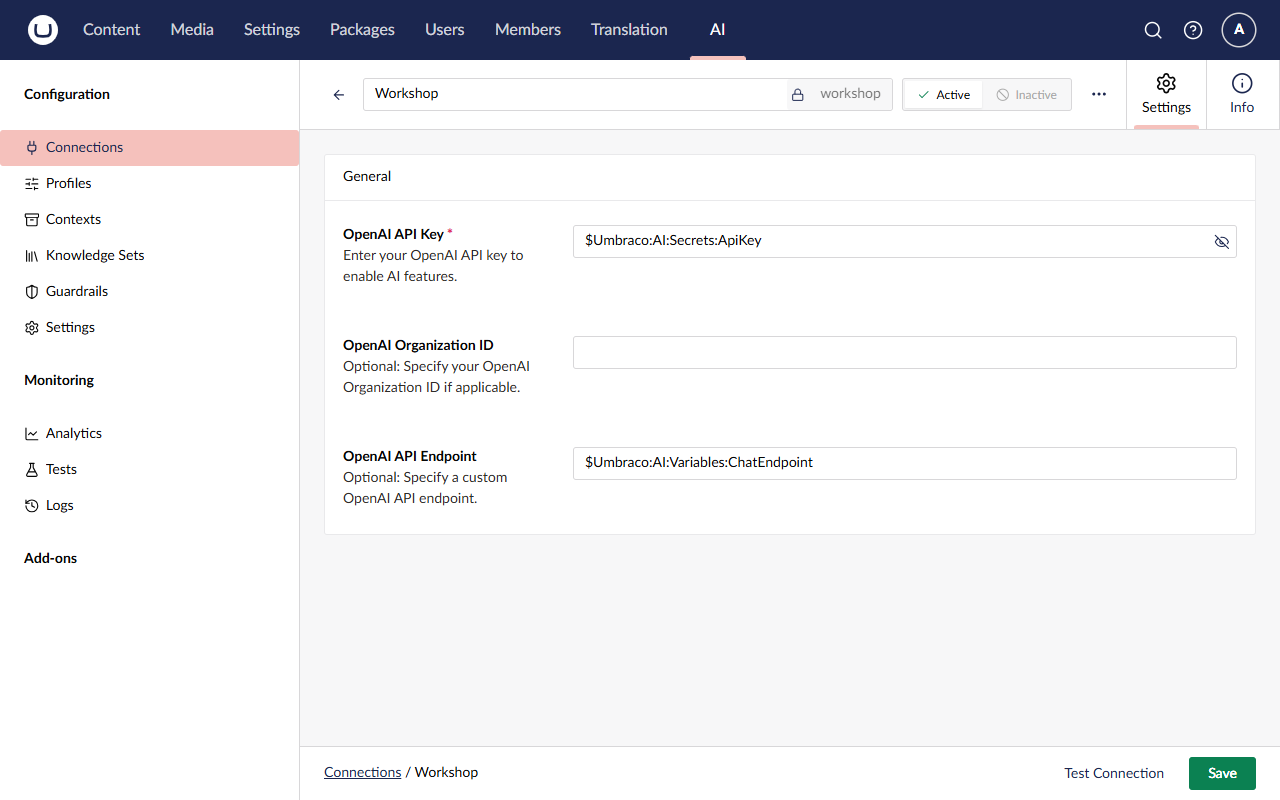
- Go to AI → Connections, click Create, and choose OpenAI. The menu lists every provider package you've installed.
- In the name box at the top, type
Workshop. The alias fills itself in asworkshop. - Fill in the settings:
- OpenAI API Key:
$Umbraco:AI:Secrets:ApiKey(type exactly this, including the$. It's a reference to your user secret, not the key itself) - OpenAI Organization ID: leave empty
- OpenAI API Endpoint: replace the default with another reference:
$Umbraco:AI:Variables:ChatEndpoint
- OpenAI API Key:
- Click Save.
- Click Test Connection, which appears after the first save. You should see Connection test successful, which proves Umbraco found your secrets and reached the provider.
Note
Nothing in this connection says which provider you're using. Your ChatEndpoint secret decides whether it talks to
openai.com or to a Foundry resource. Foundry serves OpenAI's API shape, so Umbraco's OpenAI provider works with either
without knowing the difference.
Step 7: Create the Podcast Profile (chat)
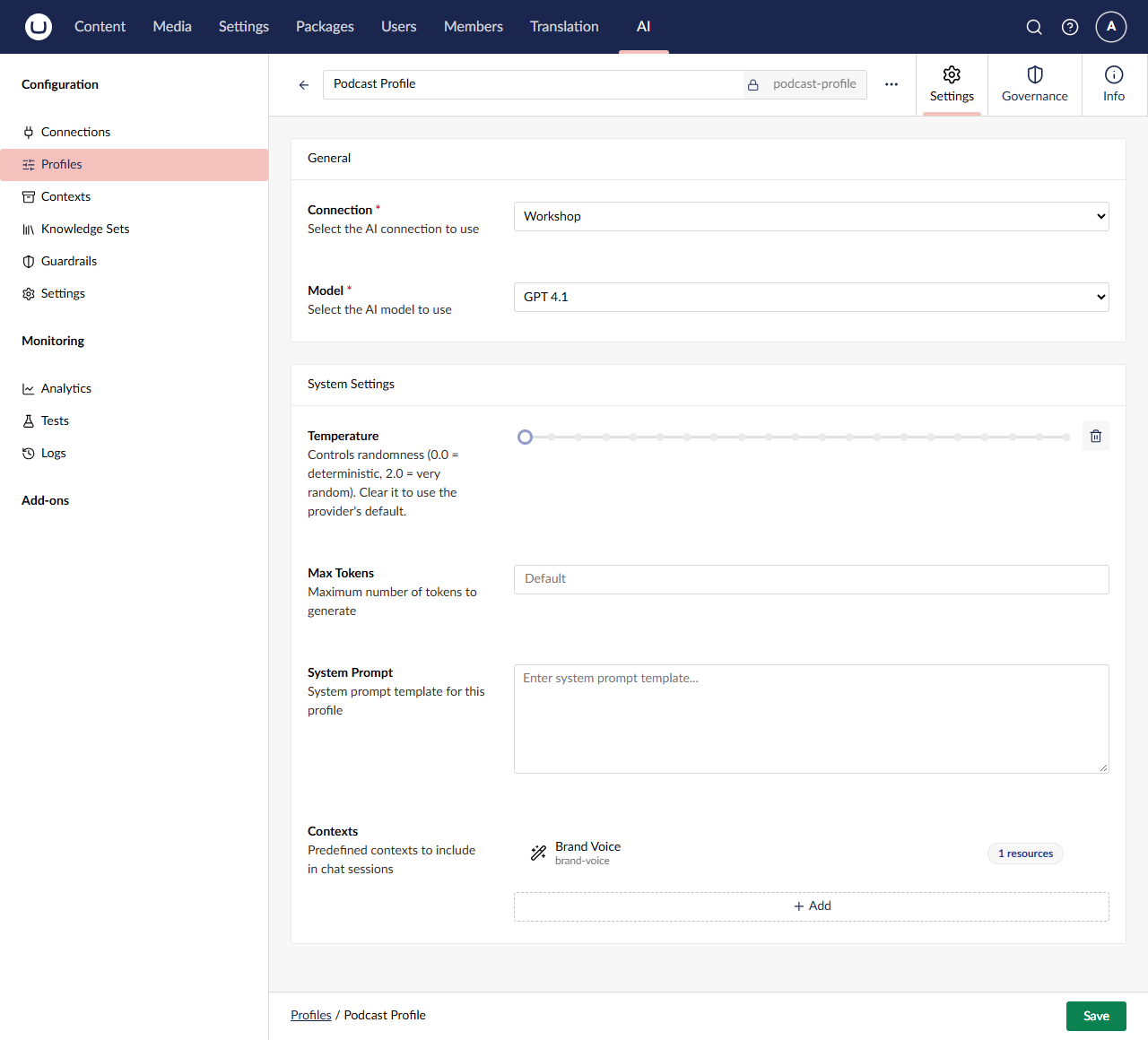
A profile pairs a connection with a model and its settings, for exactly one capability. Our code will ask for this one by its
alias, podcast-profile, to write summaries and show notes.
Go to AI → Profiles, click Create, and choose Chat.
In the name box, type
Podcast Profile. Check the alias ispodcast-profile.Connection:
WorkshopModel: GPT 4.1
Important
The model list can be long. OpenAI lists every model your account can use, and Foundry lists every model in its catalog, not just the ones you've deployed. Pick the entry named exactly GPT 4.1, not GPT 4.1 Mini, GPT 4.1 Nano or a dated version such as GPT 4.1 2025 04 14. On Foundry, anything else fails later with a "deployment not found" error.
Leave the System Settings alone for now, and click Save.
Warning
The alias matters. Our C# refers to podcast-profile. If yours differs, the code won't find it.
Step 8: Create the transcription connection and the Transcriber Profile
On OpenAI, one endpoint does everything. Microsoft Foundry serves chat through the
OpenAI-compatible endpoint you just used, but serves transcription only through a URL that points straight at the
transcription deployment. That's your TranscriptionEndpoint secret.
That URL has a catch: it can't list models, and Umbraco needs a model list to fill the profile's Model dropdown. So everyone sets transcription up in the same order, whatever their provider: create the connection on the chat endpoint, build the profile, then switch the connection to the transcription endpoint. On OpenAI the switch changes nothing, because both secrets hold the same URL.
Note
This is a real-world lesson in itself. Providers have quirks, and connections are where you absorb them. The profile, and every line of code that uses it, never needs to know.
8a. Create the connection (on the chat endpoint for now)
- AI → Connections → Create → OpenAI.
- Name it
Workshop Transcription(aliasworkshop-transcription). - OpenAI API Key:
$Umbraco:AI:Secrets:ApiKey - OpenAI API Endpoint: the chat endpoint reference, as before:
$Umbraco:AI:Variables:ChatEndpoint - Click Save.
8b. Create the Transcriber Profile
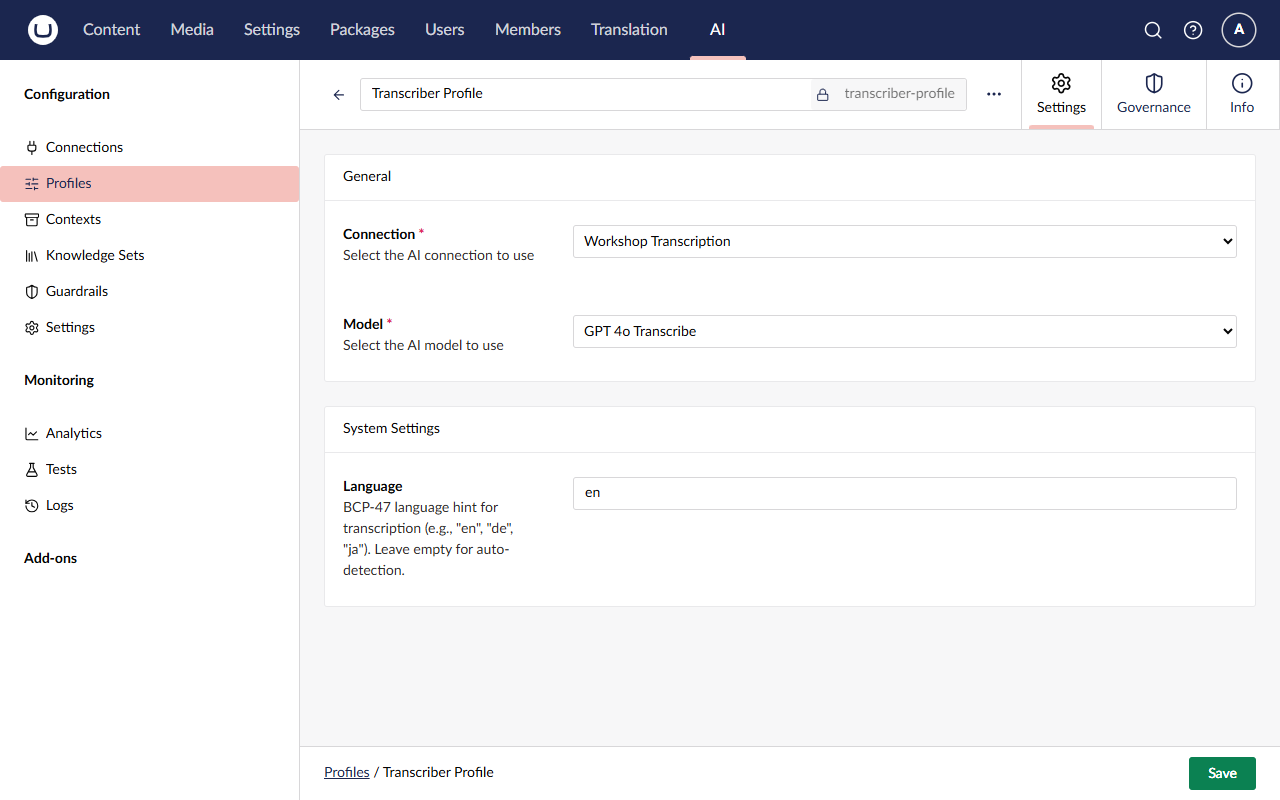
- AI → Profiles → Create, and choose Speech to Text.
- Name it
Transcriber Profile(aliastranscriber-profile). - Connection:
Workshop Transcription - Model: GPT 4o Transcribe (exactly that entry, not GPT 4o Mini Transcribe, GPT 4o Transcribe Diarize or GPT Transcribe)
- Language:
en. It's a hint that improves accuracy; leave it empty to auto-detect. - Click Save.
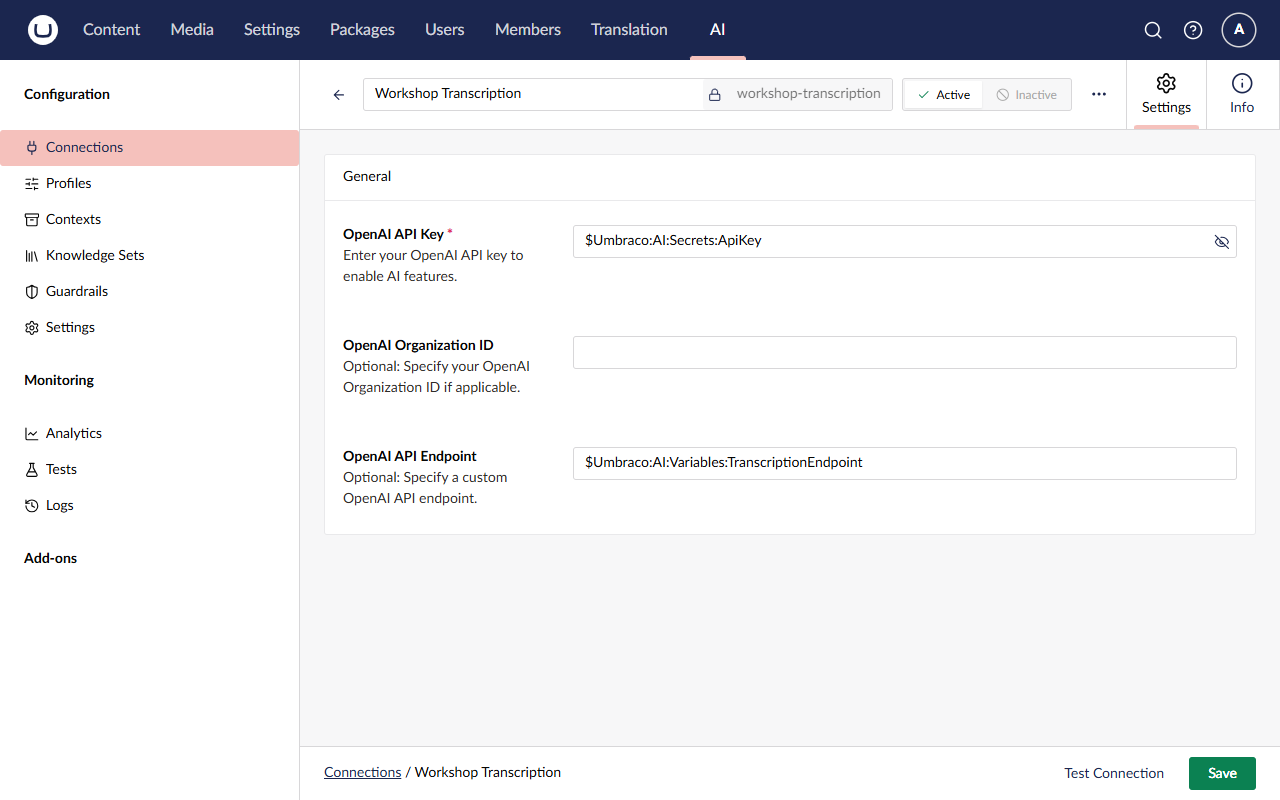
8c. Switch the connection to the transcription endpoint
- Open AI → Connections → Workshop Transcription.
- Replace the OpenAI API Endpoint with:
$Umbraco:AI:Variables:TranscriptionEndpoint - Click Save.
Warning
On Foundry, Test Connection now fails on Workshop Transcription. That's expected. The test works by listing models, which the deployment URL can't do. Transcription itself works, and you'll prove it in Lesson 2. The Workshop connection's test should still succeed. (On OpenAI, both tests succeed.)
Also, don't change the Transcriber Profile's connection after this step. On Foundry, the model list would come back
empty and the profile wouldn't save. If you ever need to, switch the connection back to ChatEndpoint first.
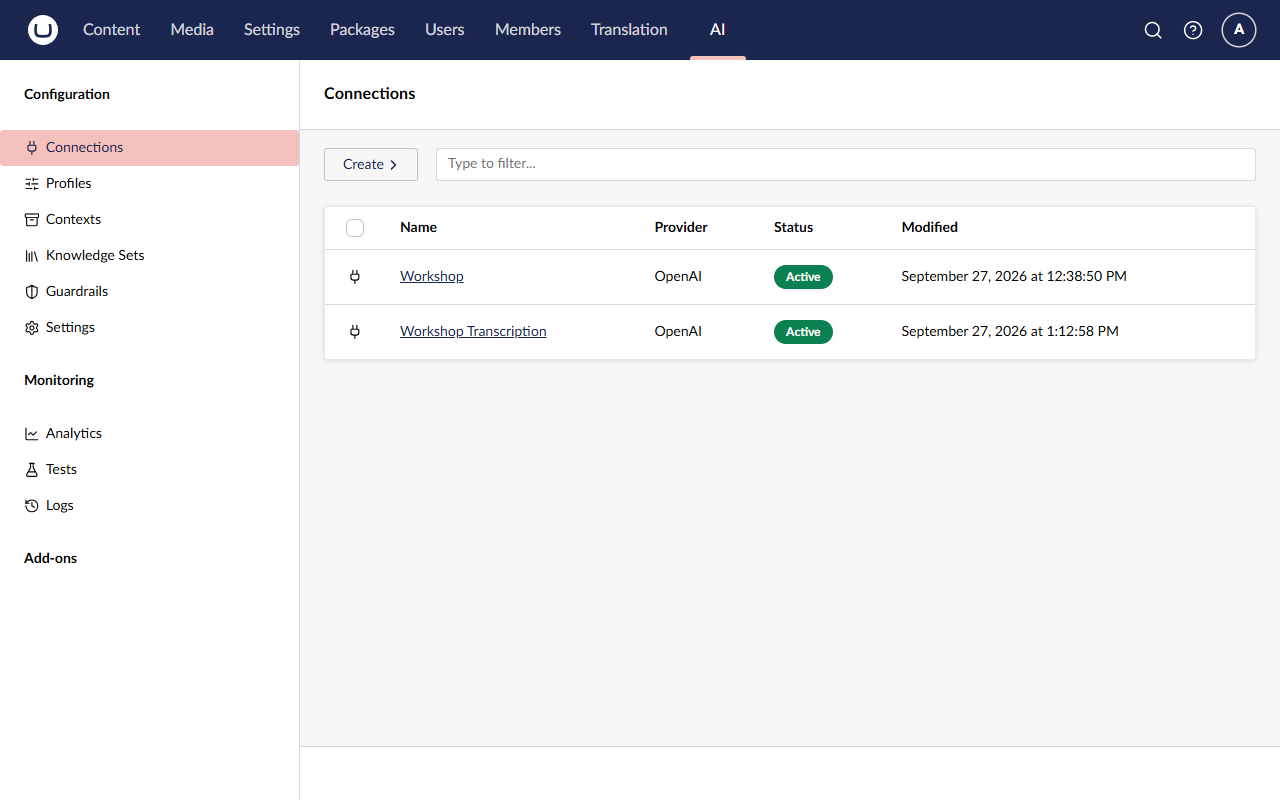
You now have two connections:
Step 9: Create the Brand Voice context
A context is reusable knowledge that Umbraco AI injects into the prompt whenever a profile that uses it is called. The built-in Brand Voice resource type captures tone, audience and style, so every piece of generated copy sounds like us.
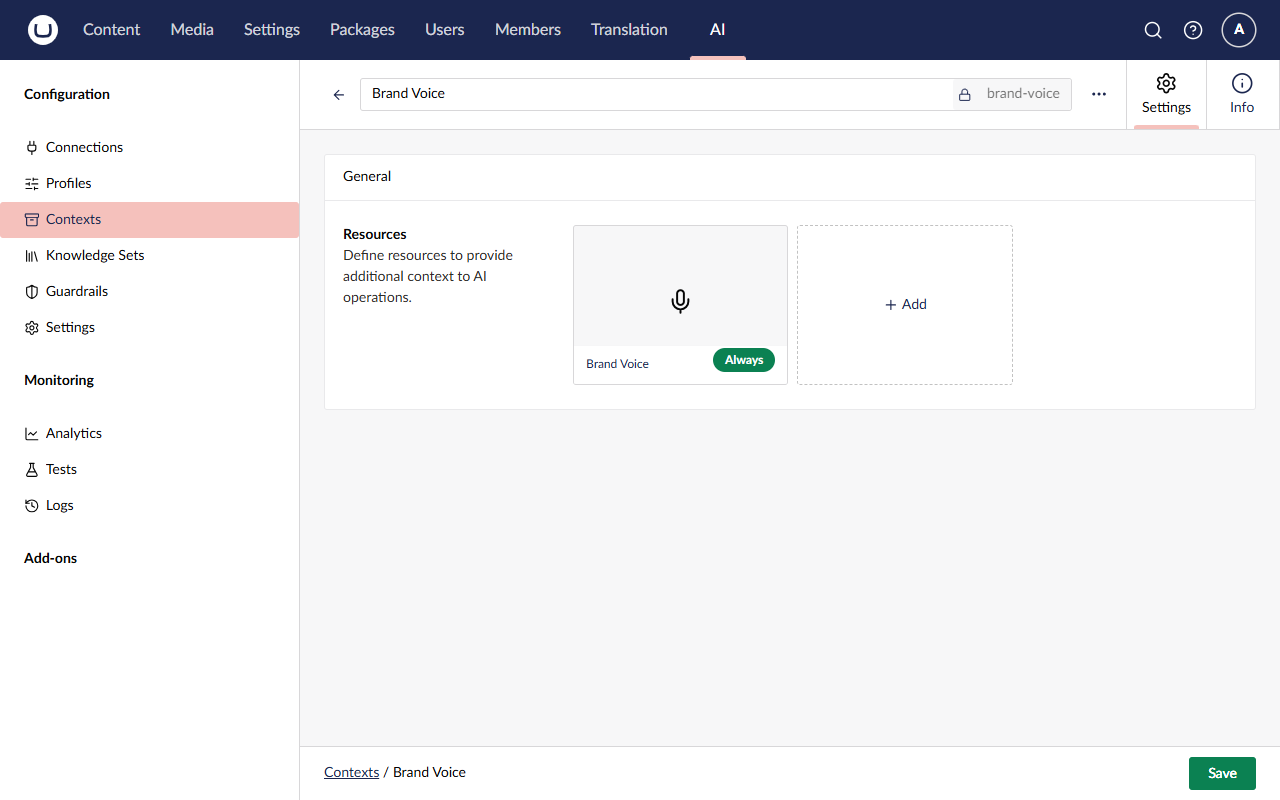
Go to AI → Contexts and click Create.
In the name box, type
Brand Voice(aliasbrand-voice).Under Resources, click + Add. In Select Resource Type, choose Brand Voice. It sits alongside Text, the other built-in type. You'll add your own type to this list in Lesson 3.
The Add Brand Voice dialog opens. Leave Name as
Brand Voiceand Injection Mode as Always - Include in every request, then fill in the Settings:Tone:
Curious, warm and conversational, like two friends who love the Umbraco community talking over coffee. Confident but never smug, and happy to say "we don't know yet".Target audience:
Umbraco developers, content editors and agency folks, often listening on their commute. Some are deeply technical and some aren't, so write so both can follow.Style guidelines:
Use active voice and short sentences. Lead with why the episode matters to the listener. Use sentence case for headings. Refer to guests by their full name on first mention. Use bullet points for lists of three or more items.Patterns to Avoid:
Marketing buzzwords (leverage, synergy, game-changing), clickbait, exclamation marks, emoji, and filler phrases such as "in today's episode".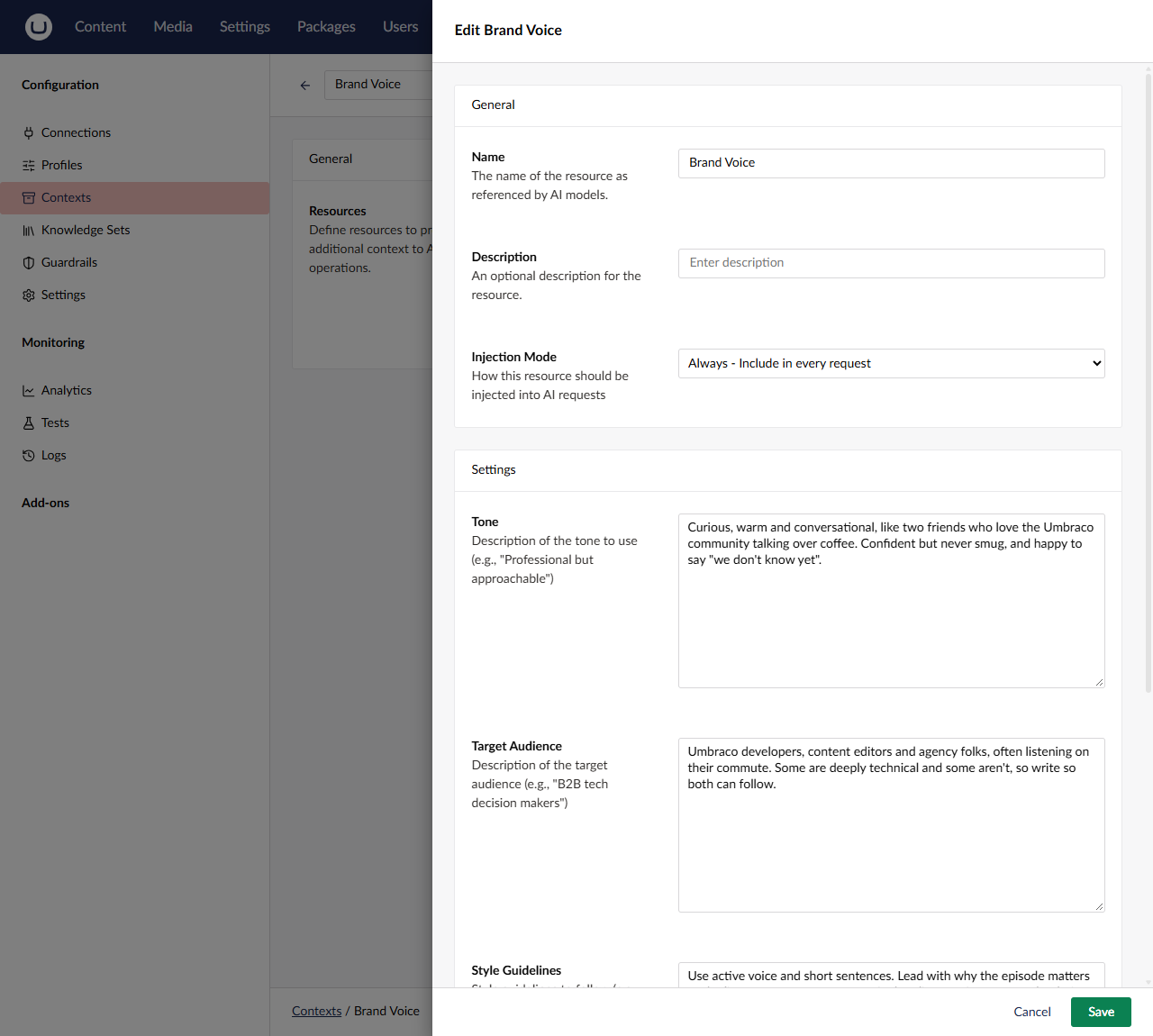
Click Add to close the dialog, then Save the context. The resource card shows an Always badge: its text will be injected into every request that uses this context. You'll meet the alternative, On-Demand, in Lesson 3.
Step 10: Attach Brand Voice to the Podcast Profile
Contexts only take effect when a profile uses them.
- Open AI → Profiles → Podcast Profile.
- Scroll to Contexts at the bottom of System Settings and click + Add.
- In Select AI Context, choose Brand Voice, then click Select.
- Click Save.
Step 11: Set the default speech-to-text profile
In Lesson 2 our transcription code won't name a profile. It'll use whatever the site's default speech-to-text profile is.
- Go to AI → Settings.
- Under Default Speech to Text Profile, click + Add, choose Transcriber Profile, and click Save.
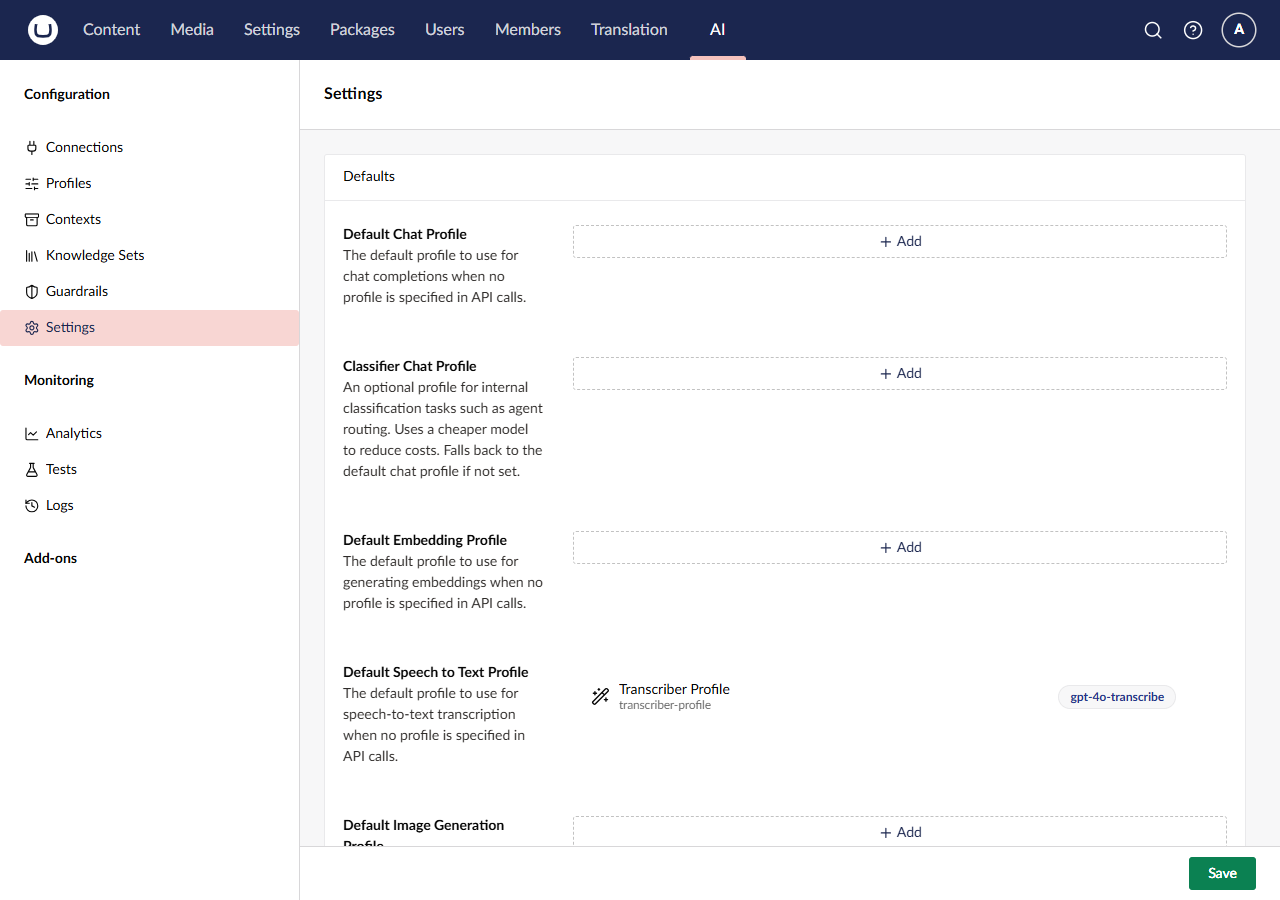
Tip
Each capability has its own default. We don't set a default chat profile, because our code always names
podcast-profile explicitly. Being explicit is a good habit when several features share one site.
✅ Checkpoint
- ⬜ Connections lists Workshop and Workshop Transcription. Both API keys show
$Umbraco:AI:Secrets:ApiKey(not the real key), the endpoints show$Umbraco:AI:Variables:ChatEndpointand$Umbraco:AI:Variables:TranscriptionEndpoint, and Test Connection succeeds on Workshop. - ⬜ Profiles lists Podcast Profile (
podcast-profile, Chat, Workshop connection) and Transcriber Profile (transcriber-profile, Speech to Text, Workshop Transcription connection). - ⬜ Contexts lists Brand Voice, and it's attached to the Podcast Profile.
- ⬜ Settings has the Transcriber Profile as the default speech-to-text profile.
🔍 Under the hood
Notice what isn't anywhere in the backoffice: your API key, or even which provider you use. The connections store references, and Umbraco AI resolves them from configuration every time it builds a client. That's why the database snapshot in each lesson branch can be shared safely and works for every attendee's provider, and why you could point production at Azure Key Vault without changing any settings.
The two prefixes do different jobs. Umbraco:AI:Secrets is for sensitive values, and Umbraco AI only lets you use it in
sensitive fields such as the API key. Umbraco:AI:Variables is for ordinary values that change between environments,
like our endpoints, and works in any field.
Notice too how the layers stack up. Our code will say "use podcast-profile". The profile decides the connection, model
and contexts. The connection decides the credentials. Swap any layer in the backoffice, and the code doesn't change.
🧯 Troubleshooting
"Configuration key '…' is not permitted in settings"
A $ reference points outside the allowed prefixes. Use exactly the references shown in Steps 6 and 8, and make sure
your user secrets were saved under the same names:
dotnet user-secrets list --project src/TheRabbitHole.Web
The model dropdown is empty or shows an authentication error
The connection couldn't list models. Check that:
- all three user secrets are set:
dotnet user-secrets list --project src/TheRabbitHole.WebshowsUmbraco:AI:Secrets:ApiKey,Umbraco:AI:Variables:ChatEndpointandUmbraco:AI:Variables:TranscriptionEndpoint - you restarted the site after setting them. User secrets are read at startup.
- your
ChatEndpointends in/v1/(https://api.openai.com/v1/orhttps://<resource>.services.ai.azure.com/openai/v1/) - the key belongs to that provider. An OpenAI key won't work against a Foundry endpoint, or the other way round.
OpenAI says "You exceeded your current quota"
Your OpenAI account has no credit. API usage is billed separately from ChatGPT. Add credit under Settings → Billing on platform.openai.com, wait a minute, and try again. See Bring your AI key.
Foundry says "deployment not found" (DeploymentNotFound)
Foundry looks for a deployment with the same name as the model. Check your deployments are named exactly gpt-4.1 and
gpt-4o-transcribe, that the Podcast Profile uses GPT 4.1 (not a dated or Mini version), and that your
TranscriptionEndpoint contains /deployments/gpt-4o-transcribe. A brand-new deployment can take a minute or two to
start answering.
Test Connection fails on Workshop Transcription
Expected after Step 8c on Foundry. See the warning in that step. Only worry if Workshop fails too.
The Transcriber Profile's Model dropdown is empty and disabled
Its connection is already using the transcription endpoint, which can't list models on Foundry. Temporarily set
Workshop Transcription's endpoint back to $Umbraco:AI:Variables:ChatEndpoint, fix the profile, then redo Step 8c.
I don't see the AI section
Make sure the site restarted after you added the packages, and that you're logged in as admin@example.com (an
Administrator). If you use another user, add the AI section to its user group under Users → User Groups.
The build fails with MEAI001
The NoWarn line from Step 3 is missing or in the wrong project. It belongs in src/TheRabbitHole.Core/TheRabbitHole.Core.csproj.
A NU1903 warning about Microsoft.OpenApi
That's a security advisory on a transitive dependency. It's a warning, not an error, and it's safe to ignore today.
🆘 Stuck?
Jump to the finished state of this lesson. Stop the site first (Ctrl+C), then:
git stash -u
git checkout lesson-1-end
dotnet run --project src/TheRabbitHole.Web
The branch includes the packages and the backoffice configuration for this lesson (it's in the site's database). You still need your user secrets from Lesson 0, Step 8, because your key and endpoints live outside the repo. Once they're set, the branch works whichever provider you use.
🚀 Stretch goals
- Explore Guardrails. Create a guardrail that blocks a word of your choice, attach it to the Podcast Profile, and see what happens in Lesson 2. (Remember to detach it afterwards.)
- A second context. Create a "Show Facts" context with a Text resource (host names, release schedule) and layer it onto the Podcast Profile.
- Read the docs: Umbraco AI concepts, especially how profiles, contexts and settings resolve.