Lesson 3: Show Metadata context
⏱️ Timebox: ~25 minutes · Starting branch:
lesson-2-end· Finished branch:lesson-3-end
Requirements tracker
✅ Transcribe podcast audio · ✅ Generate a summary and show notes · ✅ Cross-link mentioned episodes · ⬜ Validate guest details
Objective
Fix the first bug from Lesson 2. The show notes get episode #4 wrong (they leave it out, call it "the 500th episode", or mention it without a link), because the model only knows what's in the transcript. You'll teach it about the show's back catalogue by writing a custom context resource type, Show Metadata, which reads the show's name and its three latest episodes (number, title and URL) live from Umbraco's published content. Then you'll plug it in without touching the chat call:
compile (the type is discovered) → context (the type is used) → profile (the context is attached) → prompt (one line tells the model what to do with it)
By the end, the regenerated show notes mention The 500th Question by its real title and link to its page.
Note
Custom context resource types aren't in the official Umbraco AI documentation yet, so the API could change in a later version. This lesson was written against Umbraco.AI 17.3.5.
What you'll change
- New folder
src/TheRabbitHole.Core/ContextResources/with three files:ShowMetadataResourceSettings.cs: what an editor fills inShowMetadataResourceOutput.cs: the data we resolveShowMetadataResourceType.cs: the resource type that ties them together
src/TheRabbitHole.Core/PodcastEpisodeTranscriber.cs: one new line in the show notes prompt- Backoffice → AI: a new Podcast Metadata context, attached to the Podcast Profile next to Brand Voice
Steps
Step 1: How a resource type fits together
Nothing to type yet. Lecture 4's one-liner: resource types are like document types, but for context. You define the shape once in code, and editors create as many instances as they like in the backoffice. A resource type has three parts:
| Part | Think of it as… | Ours |
|---|---|---|
| Settings model | The properties an editor fills in when they add the resource to a context | ShowMetadataResourceSettings: a Site Root picker |
| Output model | The data you fetch each time the context is used | ShowMetadataResourceOutput: show name, description, latest episodes |
| Resource type | The class that fetches (ResolveDataAsync) and writes it for the model (FormatDataForLlm) |
ShowMetadataResourceType |
You've already used one: Brand Voice is a built-in resource type with four settings fields and its own formatting.
Step 2: Create the settings model
Create a new folder src/TheRabbitHole.Core/ContextResources, then create a new file
src/TheRabbitHole.Core/ContextResources/ShowMetadataResourceSettings.cs and add:
using Umbraco.AI.Core.EditableModels;

namespace TheRabbitHole.Core.ContextResources;

public sealed class ShowMetadataResourceSettings
{
    public Guid? SiteRootId { get; set; }
}
What's happening:
- This is what gets stored on each resource that uses our type. We only need one thing: which node is the site root.
- It's a
Guid?because a document picker stores the picked document's key, and "nothing picked yet" isnull.
Step 3: Turn the property into a document picker
Replace the property with an attributed version, so the whole file looks like this:
src/TheRabbitHole.Core/ContextResources/ShowMetadataResourceSettings.cs
using Umbraco.AI.Core.EditableModels;

namespace TheRabbitHole.Core.ContextResources;

public sealed class ShowMetadataResourceSettings
{
    [AIField(
        Label = "Site Root",
        Description = "Select the podcast site root (Home) node. Show metadata and the last 3 published episodes will be resolved from its descendants.",
        EditorUiAlias = "Umb.PropertyEditorUi.DocumentPicker",
        SortOrder = 10)]
    public Guid? SiteRootId { get; set; }
}
What's happening:
[AIField]generates the backoffice UI for you. Umbraco AI reads the settings class and builds a form with one field per attributed property. There are no Lit components, manifests or frontend build.EditorUiAliaspicks the property editor UI.Umb.PropertyEditorUi.DocumentPickeris the same document picker you use on content, so editors get a real content tree to pick from.Label,DescriptionandSortOrdercontrol how the field appears. It's the same attribute provider settings use (Lecture 4), so you'll see it all over Umbraco AI.
Step 4: Create the output model
Create a new file src/TheRabbitHole.Core/ContextResources/ShowMetadataResourceOutput.cs and add:
namespace TheRabbitHole.Core.ContextResources;

public sealed class ShowMetadataResourceOutput
{
    public string? ShowName { get; set; }

    public string? ShowDescription { get; set; }

    public IReadOnlyList<EpisodeSummary> LatestEpisodes { get; set; } = Array.Empty<EpisodeSummary>();
}

public sealed record EpisodeSummary(int Number, string Name, string Summary, string Url);
What's happening:
- This is the data your resource type resolves: any shape you like, from any source (content, an API, a database). The base class only requires a class with a parameterless constructor.
EpisodeSummaryholds everything the model needs to cite an episode properly: its number, its real title and its URL. It carries the episode'sSummarytoo; we won't send that to the model yet (see Stretch goals).
Step 5: Scaffold the resource type
Create a new file src/TheRabbitHole.Core/ContextResources/ShowMetadataResourceType.cs and add this bare scaffold. It
already has every using you'll need, so the next steps only touch the class.
using System.Text;
using TheRabbitHole.Core.Models;
using Umbraco.AI.Core.Contexts.ResourceTypes;
using Umbraco.Cms.Core.Models.PublishedContent;
using Umbraco.Cms.Core.Web;
using Umbraco.Extensions;

namespace TheRabbitHole.Core.ContextResources;

public sealed class ShowMetadataResourceType
    : AIContextResourceTypeBase<ShowMetadataResourceSettings, ShowMetadataResourceOutput>
{
    private readonly IUmbracoContextFactory _umbracoContextFactory;

    public ShowMetadataResourceType(
        IAIContextResourceTypeInfrastructure infrastructure,
        IUmbracoContextFactory umbracoContextFactory)
        : base(infrastructure)
    {
        _umbracoContextFactory = umbracoContextFactory;
    }

    public override Task<ShowMetadataResourceOutput?> ResolveDataAsync(
        ShowMetadataResourceSettings settings,
        CancellationToken cancellationToken = default)
    {
        return Task.FromResult<ShowMetadataResourceOutput?>(null);
    }

    protected override string FormatDataForLlm(ShowMetadataResourceOutput data)
    {
        return string.Empty;
    }
}
What's happening:
AIContextResourceTypeBase<TSettings, TOutput>is the base class, typed with your two models. When an editor fills in a Show Metadata resource in the backoffice (Step 11), Umbraco saves those settings with the context. Before each AI call, the base class turns the saved values back into aShowMetadataResourceSettingsobject and hands it to yourResolveDataAsync, so you never parse anything yourself.- The constructor passes
IAIContextResourceTypeInfrastructureto the base (it's what builds the backoffice form from your[AIField]s) and takes our own dependency,IUmbracoContextFactory. Resource types are created by dependency injection and live for the whole life of the site, so we inject a factory and create what we need per call. ResolveDataAsyncfetches the data.FormatDataForLlmturns it into prompt text. For now they return nothing.
Warning
Don't run the site yet. The base class constructor throws if the class is missing its [AIContextResourceType]
attribute. You'll add it in the very next step.
Step 6: Add the [AIContextResourceType] attribute
Add the attribute directly above the class declaration, so the top of the class looks like this:
src/TheRabbitHole.Core/ContextResources/ShowMetadataResourceType.cs
namespace TheRabbitHole.Core.ContextResources;

[AIContextResourceType("show-metadata", "Show Metadata",
    Description = "Podcast show metadata including the last 3 published episodes",
    Icon = "icon-mic")]
public sealed class ShowMetadataResourceType
    : AIContextResourceTypeBase<ShowMetadataResourceSettings, ShowMetadataResourceOutput>
What's happening:
"show-metadata"is the type's ID. It's saved with every resource that uses this type, so don't change it once you've created contexts with it."Show Metadata",DescriptionandIconare what editors see in the backoffice when they pick a resource type.- Discovery is automatic. Umbraco scans your code on startup and finds the class by its attribute, the same way it finds your composers. There's no registration code: compile, restart, and it's there. Tools work the same way in Lesson 4.
Step 7: Resolve the data, part 1: find the site root
Replace the ResolveDataAsync method with:
    public override Task<ShowMetadataResourceOutput?> ResolveDataAsync(
        ShowMetadataResourceSettings settings,
        CancellationToken cancellationToken = default)
    {
        if (settings.SiteRootId is null || settings.SiteRootId == Guid.Empty)
            return Task.FromResult<ShowMetadataResourceOutput?>(null);

        using var umbracoContext = _umbracoContextFactory.EnsureUmbracoContext();

        var root = umbracoContext.UmbracoContext?.Content.GetById(settings.SiteRootId.Value);
        if (root is null)
            return Task.FromResult<ShowMetadataResourceOutput?>(null);

        return Task.FromResult<ShowMetadataResourceOutput?>(null);
    }
What's happening:
- Returning
nullmeans "nothing to inject". No site root picked, or the node can't be found? Then the model gets no Show Metadata block at all, rather than an empty one. EnsureUmbracoContext()matters here.ResolveDataAsyncruns inside the chat call. For us, that's on the background worker from Lesson 2, where there's no HTTP request and therefore no Umbraco context. This creates one (or reuses the current request's), andusingdisposes it.Contentis the published content cache. It's fast, and it only contains published content, which is why you published episode 5 in Lesson 2.- The last
returnis temporary, so the method compiles. You'll replace it next.
Step 8: Resolve the data, part 2: the latest three episodes
Replace the whole ResolveDataAsync method again, this time with the finished version. Everything after
if (root is null) is new:
    public override Task<ShowMetadataResourceOutput?> ResolveDataAsync(
        ShowMetadataResourceSettings settings,
        CancellationToken cancellationToken = default)
    {
        if (settings.SiteRootId is null || settings.SiteRootId == Guid.Empty)
            return Task.FromResult<ShowMetadataResourceOutput?>(null);

        using var umbracoContext = _umbracoContextFactory.EnsureUmbracoContext();

        var root = umbracoContext.UmbracoContext?.Content.GetById(settings.SiteRootId.Value);
        if (root is null)
            return Task.FromResult<ShowMetadataResourceOutput?>(null);

        var home = root as Home;
        var episodes = root.Children<PodcastEpisodes>().First();
        var latestEpisodes = episodes
            .Children<PodcastEpisode>()
            .OrderByDescending(e => e.PublishDate ?? DateTimeOffset.MinValue)
            .Take(3)
            .Select(e => new EpisodeSummary(
                e.EpisodeNumber,
                e.Name,
                e.Summary ?? string.Empty,
                e.Url(mode: UrlMode.Absolute)))
            .ToList();

        var data = new ShowMetadataResourceOutput
        {
            ShowName = home?.SiteName ?? root.Name,
            ShowDescription = home?.SiteDescription,
            LatestEpisodes = latestEpisodes,
        };

        return Task.FromResult<ShowMetadataResourceOutput?>(data);
    }
What's happening:
root as Homegives us the ModelsBuilder model, so we can read the show's Name and Description fields (on Home's Site tab) as typed properties.Children<PodcastEpisodes>().First()finds the Episodes node under Home, then we take its three newest episodes by publish date. That's #5 (the episode you created), #4 and #3.Url(mode: UrlMode.Absolute)gives full URLs such ashttps://localhost:44339/episodes/the-500th-question/, so the model can write a link that works anywhere. The host comes from the site's configured application URL.- It runs on every call, so the data is never stale. Publish a new episode, and the very next call knows about it.
Step 9: Format the data for the model
Replace the FormatDataForLlm method with:
    protected override string FormatDataForLlm(ShowMetadataResourceOutput data)
    {
        var sb = new StringBuilder();

        if (!string.IsNullOrWhiteSpace(data.ShowName))
            sb.AppendLine($"Show: {data.ShowName}");

        if (!string.IsNullOrWhiteSpace(data.ShowDescription))
            sb.AppendLine($"Description: {data.ShowDescription}");

        if (data.LatestEpisodes.Count > 0)
        {
            sb.AppendLine("Latest episodes:");
            foreach (var episode in data.LatestEpisodes)
                sb.AppendLine($"- #{episode.Number} \"{episode.Name}\" — {episode.Url}");
        }

        return sb.ToString().TrimEnd();
    }
This produces something like:
Show: The Rabbit Hole
Description: The latest AI news in Umbraco
Latest episodes:
- #5 "Community, AI, and the Umbraco Way" — https://localhost:44339/episodes/community-ai-and-the-umbraco-way/
- #4 "The 500th Question" — https://localhost:44339/episodes/the-500th-question/
- #3 "The Great Migration" — https://localhost:44339/episodes/the-great-migration/
What's happening:
- If you don't override this method, the base class serialises your output to JSON. That works, but short, Markdown-style text works better (Lecture 4): fewer tokens spent on braces and quotes, clearer for the model, and readable when you open the logs.
- It's the same approach the built-in Brand Voice type takes with its
Tone:,Audience:… lines, which you saw in the Lesson 2 logs. - Look at what the model now has: episode 4's real title and a real URL to link to.
Full file so far
src/TheRabbitHole.Core/ContextResources/ShowMetadataResourceType.cs
using System.Text;
using TheRabbitHole.Core.Models;
using Umbraco.AI.Core.Contexts.ResourceTypes;
using Umbraco.Cms.Core.Models.PublishedContent;
using Umbraco.Cms.Core.Web;
using Umbraco.Extensions;

namespace TheRabbitHole.Core.ContextResources;

[AIContextResourceType("show-metadata", "Show Metadata",
    Description = "Podcast show metadata including the last 3 published episodes",
    Icon = "icon-mic")]
public sealed class ShowMetadataResourceType
    : AIContextResourceTypeBase<ShowMetadataResourceSettings, ShowMetadataResourceOutput>
{
    private readonly IUmbracoContextFactory _umbracoContextFactory;

    public ShowMetadataResourceType(
        IAIContextResourceTypeInfrastructure infrastructure,
        IUmbracoContextFactory umbracoContextFactory)
        : base(infrastructure)
    {
        _umbracoContextFactory = umbracoContextFactory;
    }

    public override Task<ShowMetadataResourceOutput?> ResolveDataAsync(
        ShowMetadataResourceSettings settings,
        CancellationToken cancellationToken = default)
    {
        if (settings.SiteRootId is null || settings.SiteRootId == Guid.Empty)
            return Task.FromResult<ShowMetadataResourceOutput?>(null);

        using var umbracoContext = _umbracoContextFactory.EnsureUmbracoContext();

        var root = umbracoContext.UmbracoContext?.Content.GetById(settings.SiteRootId.Value);
        if (root is null)
            return Task.FromResult<ShowMetadataResourceOutput?>(null);

        var home = root as Home;
        var episodes = root.Children<PodcastEpisodes>().First();
        var latestEpisodes = episodes
            .Children<PodcastEpisode>()
            .OrderByDescending(e => e.PublishDate ?? DateTimeOffset.MinValue)
            .Take(3)
            .Select(e => new EpisodeSummary(
                e.EpisodeNumber,
                e.Name,
                e.Summary ?? string.Empty,
                e.Url(mode: UrlMode.Absolute)))
            .ToList();

        var data = new ShowMetadataResourceOutput
        {
            ShowName = home?.SiteName ?? root.Name,
            ShowDescription = home?.SiteDescription,
            LatestEpisodes = latestEpisodes,
        };

        return Task.FromResult<ShowMetadataResourceOutput?>(data);
    }

    protected override string FormatDataForLlm(ShowMetadataResourceOutput data)
    {
        var sb = new StringBuilder();

        if (!string.IsNullOrWhiteSpace(data.ShowName))
            sb.AppendLine($"Show: {data.ShowName}");

        if (!string.IsNullOrWhiteSpace(data.ShowDescription))
            sb.AppendLine($"Description: {data.ShowDescription}");

        if (data.LatestEpisodes.Count > 0)
        {
            sb.AppendLine("Latest episodes:");
            foreach (var episode in data.LatestEpisodes)
                sb.AppendLine($"- #{episode.Number} \"{episode.Name}\" — {episode.Url}");
        }

        return sb.ToString().TrimEnd();
    }
}
Step 10: Run the site
Stop the site with Ctrl+C if it's running, then start it again so the new resource type is compiled and discovered:
dotnet run --project src/TheRabbitHole.Web
Step 11: Create the Podcast Metadata context
Compiling made the type available. Nothing uses it until a context does.
- Go to AI → Contexts and click Create. The context editor opens straight away.
- In the name box, type
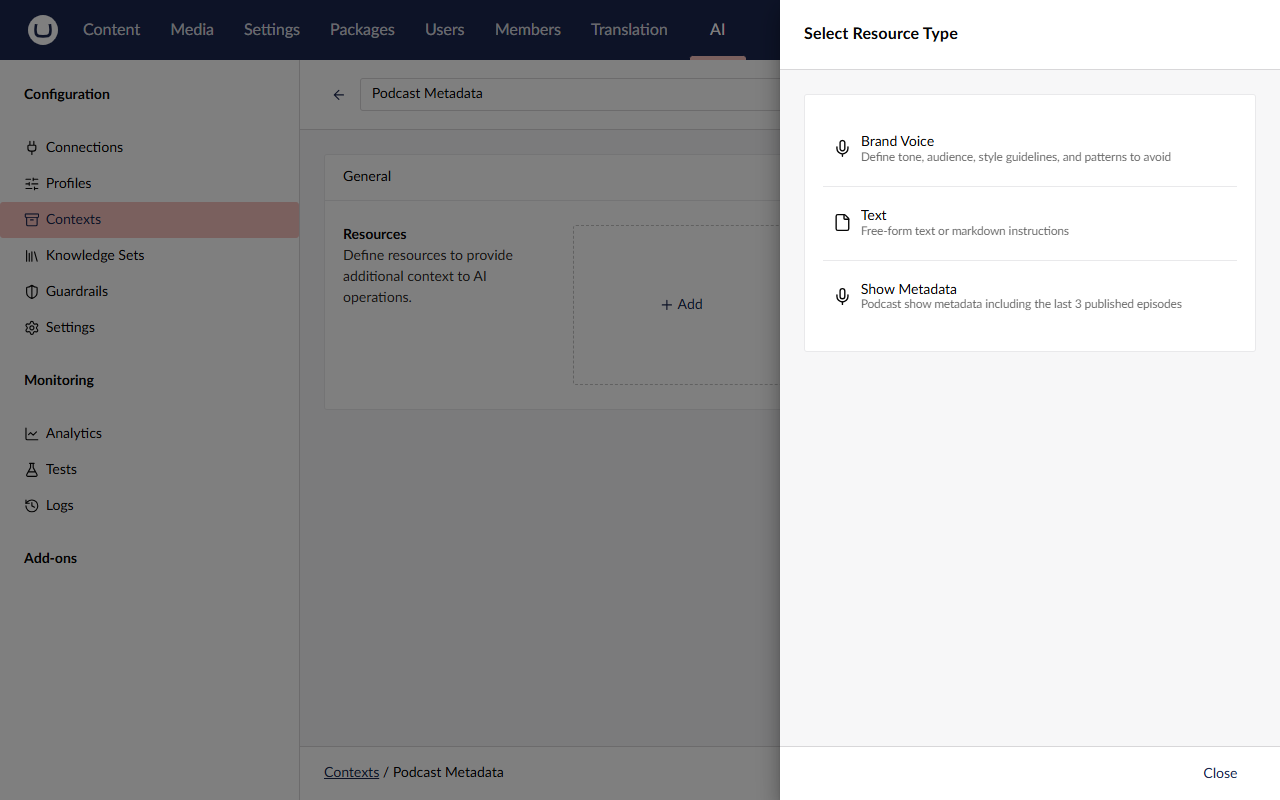
Podcast Metadata. The alias fills itself in aspodcast-metadata. - Under Resources, click + Add. The Select Resource Type dialog lists the two built-in types you met in Lesson 1, Brand Voice and Text, and now a third: Show Metadata, with the icon and description from your Step 6 attribute ("Podcast show metadata including the last 3 published episodes"). Pick Show Metadata.
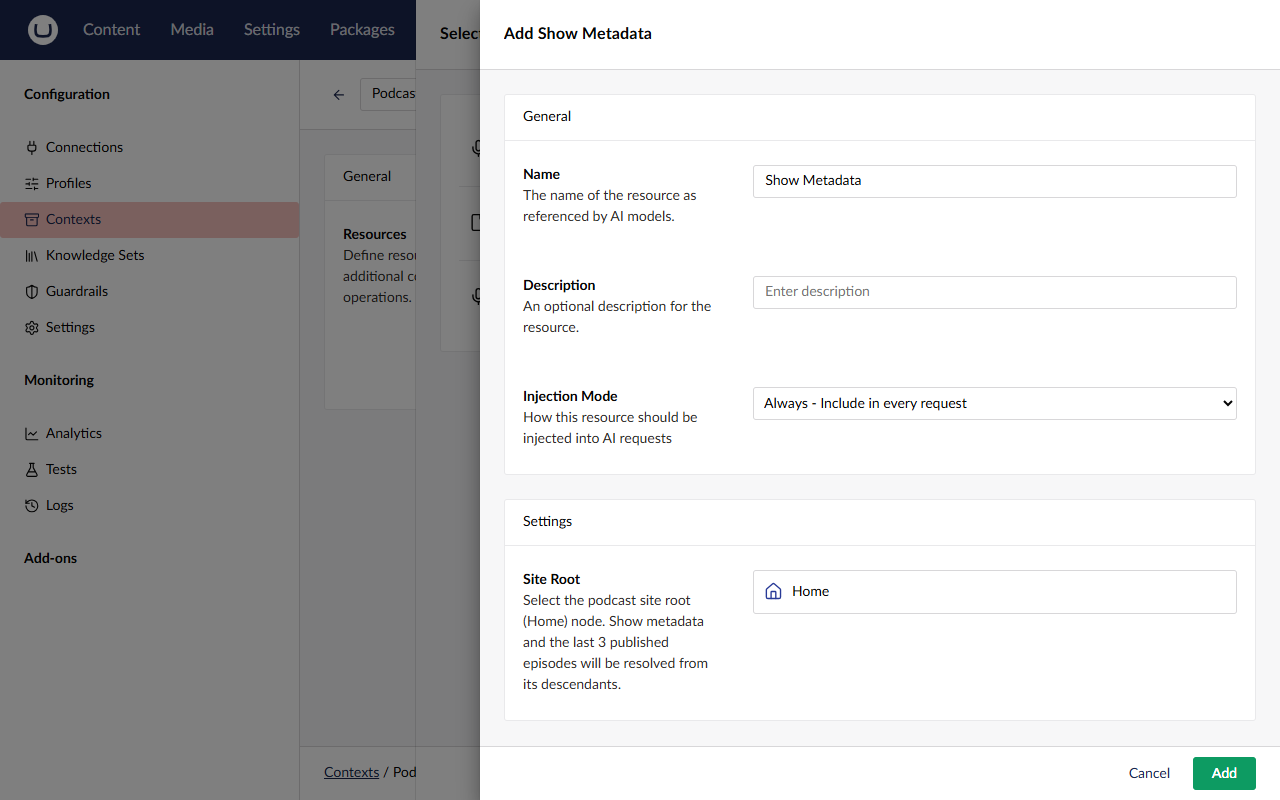
- The Add Show Metadata dialog opens, with two groups:
- General, which every resource has:
- Name: leave it as
Show Metadata. This becomes the resource's heading in the prompt. - Description: leave it empty.
- Injection Mode: leave it as Always - Include in every request.
- Name: leave it as
- Settings, which comes from your settings class:
- Site Root: click Choose, pick Home in the content tree, and click Choose again. This is the
document picker your
[AIField]generated, with your label and description.
- Site Root: click Choose, pick Home in the content tree, and click Choose again. This is the
document picker your
- General, which every resource has:
- Click Add to close the dialog.
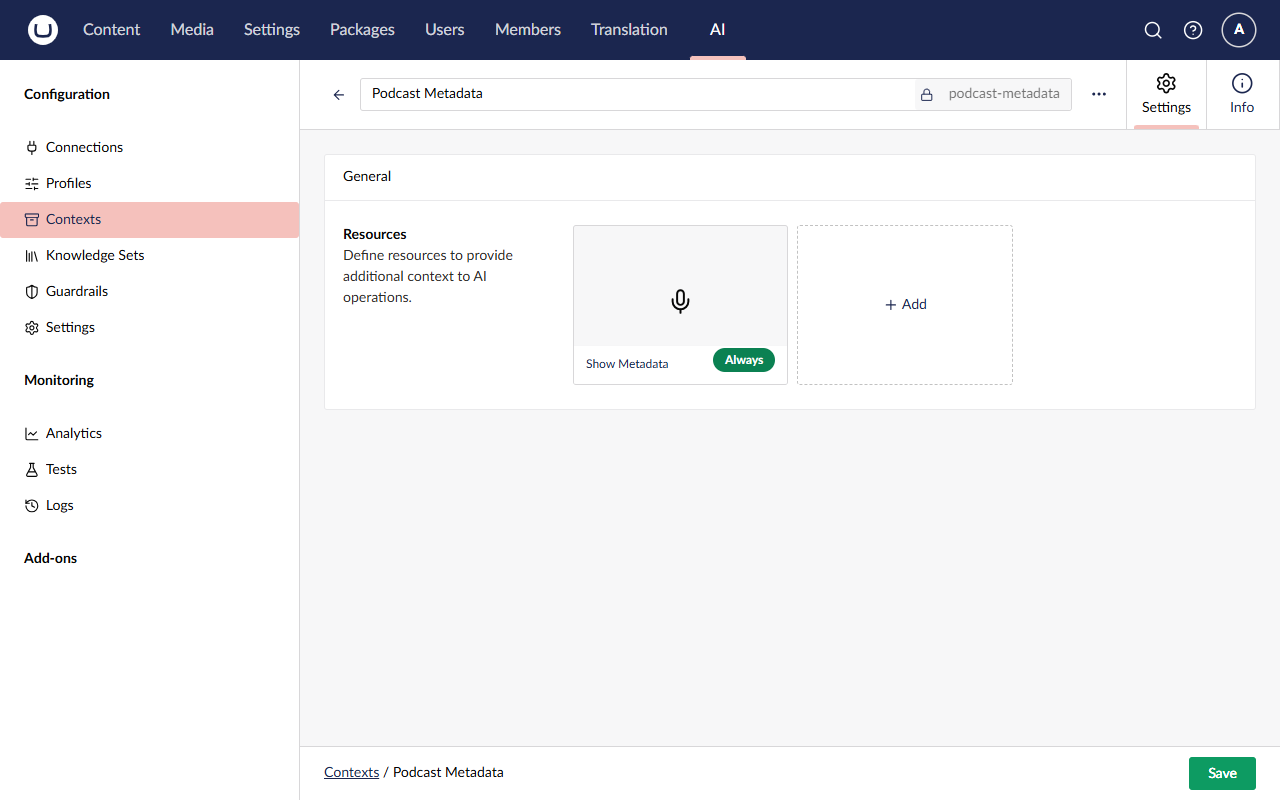
- Save the context. The Show Metadata resource card shows an Always badge.
Always or On-Demand? From Lecture 4:
- Always puts the resource straight into the system prompt on every call. It's predictable, but it costs tokens every time. That's right for small facts that are always relevant, like ours.
- On-Demand only tells the model the resource exists, and the model fetches it with a tool if it decides it needs it. That suits big reference material that's only sometimes relevant, at the cost of an extra round trip, and the risk that the model doesn't bother. You can try it in the Stretch goals.
Step 12: Attach it to the Podcast Profile
A context only reaches a model when a profile (or agent) uses it.
- Go to AI → Profiles and open Podcast Profile.
- Scroll to Contexts at the bottom of System Settings, where Brand Voice is already listed, and click + Add.
- In Select AI Context, choose Podcast Metadata, then click Select.
- Click Save.
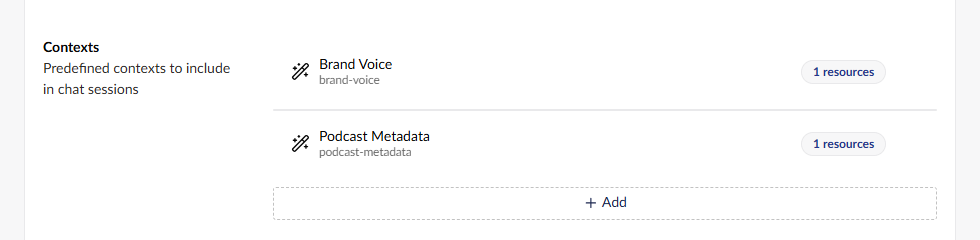
The profile now carries two layered contexts: Brand Voice (how to sound) and Podcast Metadata (what's true about the show).
Warning
Attach it to the Podcast Profile, the chat profile our show notes call uses. Not the Transcriber Profile: speech-to-text profiles don't use contexts.
Step 13: Nudge the show notes prompt
Knowledge alone isn't enough. The model also needs to know what you want done with it. In
src/TheRabbitHole.Core/PodcastEpisodeTranscriber.cs, find string showNotesPrompt = inside ProcessManualAsync and
replace the whole statement with:
src/TheRabbitHole.Core/PodcastEpisodeTranscriber.cs
            string showNotesPrompt =
                "You are a podcast producer. Given a raw transcript, write HTML show notes for publication: " +
                "a short overview paragraph, a bulleted list of key topics, and any resources or guests mentioned. " +
                "Respond with valid HTML only — no markdown, no code fences, no <html>/<body> wrappers.\n" +
                "\n" +
                "If a previous episode is mentioned, include it and link it to the show, but only if you know the URL.\n" +
                "\n" +
                "## Episode Context\n" +
                $"Episode Key: {contentKey}";
What's happening:
- Two new lines: the instruction, and a blank line to separate it from the Episode Context section.
- "Only if you know the URL" gives the model permission to link and a condition. Without the condition, models happily invent plausible-looking episode URLs. With it, they link only episodes they've actually been given URLs for, like the ones in the Show Metadata block.
- As Lecture 4 put it: knowledge plus a clear instruction fixes the bug. Either one on its own is less reliable.
- The summary prompt stays as it is. It's plain text for a listing card, with no links.
Step 14: Regenerate the show notes
Stop the site (Ctrl+C) and start it again, so your prompt change is compiled:
dotnet run --project src/TheRabbitHole.Web
Then, in the backoffice:
- In Content → Home → Episodes, open Community, AI, and the Umbraco Way.
- On the Content tab, clear only the Show Notes field: click into the editor, select everything (Ctrl+A, or Cmd+A on a Mac), and delete it. Leave the Transcript and Summary alone, so only the show notes call runs. There's no transcription this time, so it's faster and cheaper.
- Click Save and publish.
- Wait for the toast. It's much quicker than in Lesson 2: about 10 seconds, a little longer on some providers. Then refresh the page.
The new show notes should mention The 500th Question by its real title, with a link to its page. Where it appears
and how it's worded varies. When we tested this lesson, it was a "Previous episode: The 500th Question" line at the end. Hover over
the link (or click it on the site) to check it goes to https://localhost:44339/episodes/the-500th-question/.
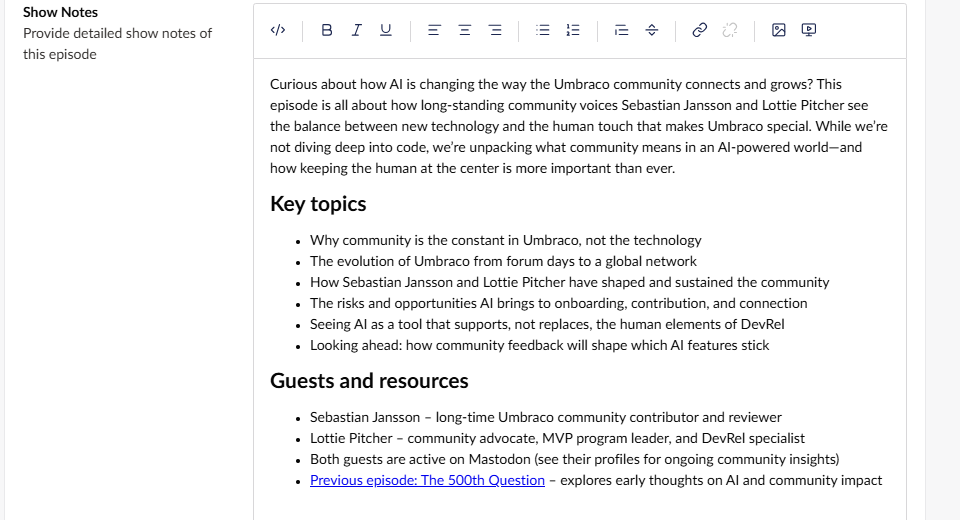
The guest names are probably still wrong. That's Lesson 4.
As in Lesson 2, the background job only saved a draft. Click Save and publish again to put the new show notes live.
✅ Checkpoint
- ⬜ AI → Contexts lists Podcast Metadata (
podcast-metadata), with one Show Metadata resource that has an Always badge, and Site Root set to Home. - ⬜ The Podcast Profile has two contexts: Brand Voice and Podcast Metadata.
- ⬜ The regenerated show notes mention The 500th Question and link to
…/episodes/the-500th-question/. - ⬜ The guest names are probably still wrong ("Sebastian", "Lottie"). That's expected: Lesson 4 fixes them.
LLM output varies. If this run didn't link the episode, clear the Show Notes and save again. Troubleshooting has more.
🔍 Under the hood
Open AI → Logs. There's just one new entry this time: an Inline-Chat call with the same ID as Lesson 2's show
notes call (733e4fb6… when we built this workshop), because it comes from the same WithAlias("podcast-episode-show-notes") line.
Click its timestamp to open Audit Log Details. In the Prompt:
- Your system prompt, now with the new "If a previous episode is mentioned…" line.
- A
## Contextsection with two blocks:### Brand Voice, as in Lesson 2, and right after it### Show Metadata. The Show Metadata block is exactly the text yourFormatDataForLlmproduced: theShow:line, theDescription:line and theLatest episodes:#5, #4 and #3 with their URLs. The heading is the resource name you left in Step 11. - In the Response, an
<a href="https://localhost:44339/episodes/the-500th-question/">link.
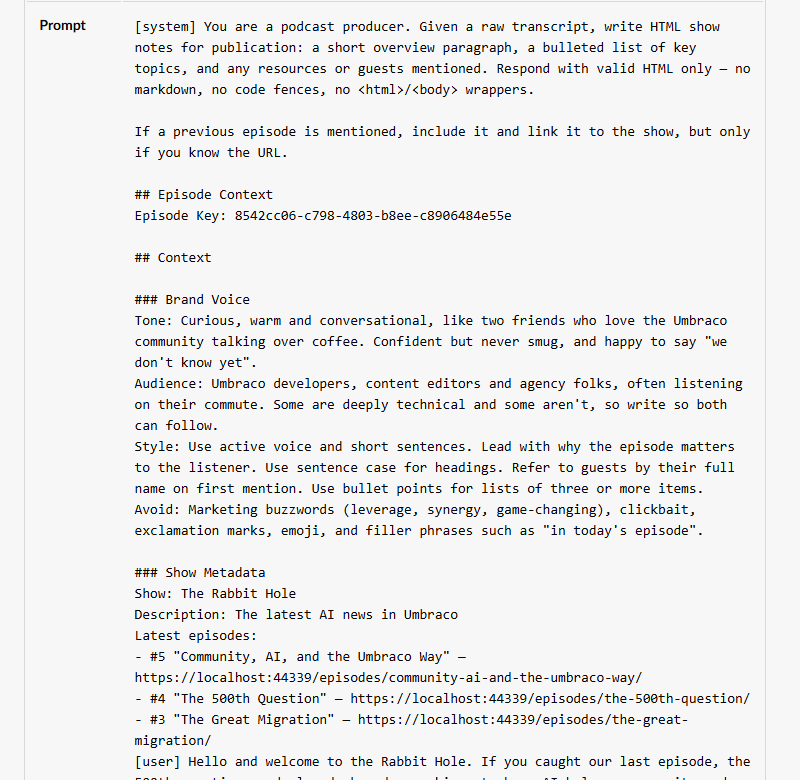
Notice that episode 5 lists itself under "Latest episodes". It's published, so it's one of the three newest. That's harmless: when we tested this lesson, the model simply ignored it and linked only The 500th Question.
That one screen shows the whole chain from Lecture 4: your class was discovered at startup, the context used it,
the profile attached the context, and the prompt told the model what to do with it. ResolveDataAsync ran during
this very call, on the background worker, which is why it needed EnsureUmbracoContext().
One more thing to notice: Always means always. Every call through the Podcast Profile now carries the Show Metadata block, including summary calls that don't need it. Compare Tokens with Lesson 2's show notes entry: when we built this workshop, the input went from about 1,130 to about 1,260 tokens, so the block (plus your new prompt line) costs roughly 130 tokens per call. That's small here, but it's the cost of Always, and the reason On-Demand exists.
🧯 Troubleshooting
Show Metadata isn't in the Select Resource Type list
- Did you restart the site after adding the files? Types are discovered at startup.
- Did the build succeed? Check the terminal for compile errors.
- Is the
[AIContextResourceType("show-metadata", "Show Metadata", …)]attribute on the class (Step 6), and is the classpublic?
An error mentioning missing required [AIContextResourceType] attribute
The base class constructor checks for the attribute and throws an InvalidOperationException without it. Add the
attribute from Step 6, then restart.
The Site Root field is missing, or it isn't a document picker
Check the [AIField] in ShowMetadataResourceSettings.cs (Step 3), especially the spelling of
EditorUiAlias = "Umb.PropertyEditorUi.DocumentPicker", then restart.
The show notes don't change, and there's no Show Metadata block in the logs
The context isn't reaching the call:
- Is Podcast Metadata attached to the Podcast Profile, and did you save the profile? It must be the chat profile, not the Transcriber Profile.
- Is Site Root set on the resource? With no site root,
ResolveDataAsyncreturnsnulland nothing is injected.
Failed to process podcast episode with "Sequence contains no elements"
root.Children<PodcastEpisodes>().First() found no Episodes node under the site root. You probably picked the wrong node
(for example Episodes instead of Home). Edit the Show Metadata resource, pick Home, and save the context.
The links point at the wrong address
Absolute URLs use the site's configured application URL, https://localhost:44339 (in
src/TheRabbitHole.Web/appsettings.Development.json). If you're running on a different port, the links will point at
44339. Switch back to the standard port, or update Umbraco:CMS:WebRouting:UmbracoApplicationUrl to match and restart.
It still says "500th episode", or doesn't link it
- LLM output varies. Clear the Show Notes and save again. One unlucky run doesn't mean it's broken.
- Open the logs and check the show notes call's prompt contains the Show Metadata block, with The 500th Question in it.
- Check the prompt contains the new "If a previous episode is mentioned…" line. If it doesn't, you didn't restart after Step 13.
I saved but nothing happened
The pipeline only regenerates empty fields. Make sure you cleared the Show Notes editor completely before saving.
🆘 Stuck?
Jump to the finished state of this lesson. Stop the site first (Ctrl+C), then:
git stash -u
git checkout lesson-3-end
dotnet run --project src/TheRabbitHole.Web
The branch includes the code and the backoffice configuration for this lesson (it's in the site's database), so you can carry straight on with the next lesson. Your API key lives in user-secrets, so it comes with you.
More detail: How to jump to a lesson's end branch.
🚀 Stretch goals
- Switch to On-Demand and watch the model decide. Edit the Show Metadata resource in Podcast Metadata, set
Injection Mode to On-Demand, and save. Clear the Show Notes and save the episode. In the logs, the system prompt
now lists Show Metadata under Available On-Demand Context Resources instead of including its content. Look for a
tool call that fetches it. Hint: agents get the built-in context tools automatically (you'll see
list_context_resourcesin Lesson 5's logs), but plain chat calls only get the tools you allow. This one is an experiment: see whether the model fetches it, and switch back to Always when you're done. - Give the model the episode summaries. In
FormatDataForLlm, add each episode's summary on the line after its title, then regenerate the show notes. Does the model link related episodes by topic, not just by name? Hint:sb.AppendLine($" {episode.Summary}");inside theforeach, but you'll need braces around the loop body. Compare the token counts in the logs. - Stop invented guest links too. The "only if you know the URL" rule is about episodes. If your show notes still
invent links for the guests (Mastodon profiles, for example), extend the prompt so the model only links URLs it has
actually been given, anywhere in the notes. Hint: one sentence in
showNotesPrompt. Clear the Show Notes and compare a few runs, because LLM output varies. - Describe the show. Add a sentence or two about what The Rabbit Hole is to the Brand Voice context (its Target Audience field is a good spot), and compare the overview paragraph. Hint: Show Metadata already sends Home's Description ("The latest AI news in Umbraco"). Which is the better home for it: static text in a context, or live content from the site?