Lesson 6: Hand the pipeline to Automate
⏱️ Timebox: ~20 minutes · Starting branch:
lesson-5-end· Finished branch:lesson-6-end
Requirements tracker
✅ Transcribe podcast audio · ✅ Generate a summary and show notes · ✅ Cross-link mentioned episodes · ✅ Validate guest details
Objective
All four requirements are done. This lesson makes the pipeline ready for production. Remember the two worries from Lecture 7:
- The queue lives in memory. If the site restarts mid-episode, the work is gone, with no retry and no record it ever happened.
- Every new reaction means new code. The "episode ready" toast is hard-coded SignalR. "Also post it to Slack" would mean another change and another deploy.
By the end of this lesson, Umbraco Automate owns the orchestration:
- A Podcast Production automation runs the Podcast Producer agent when an episode with audio is saved. Trigger events go into a database outbox, and every run is recorded step by step.
- Your own Podcast Episode Produced trigger turns the agent's report into a building block in the backoffice.
- A Podcast Notification automation reacts to it with the built-in Notify Editor action. You configure it instead of coding it.
What you'll change
src/TheRabbitHole.Web/TheRabbitHole.Web.csproj: add theUmbraco.AutomateandUmbraco.AI.Automatepackagessrc/TheRabbitHole.Core/TheRabbitHole.Core.csproj: add theUmbraco.Automate.Corepackagesrc/TheRabbitHole.Web/appsettings.Development.json: add theumbracoAutomateDbDSNconnection string- New:
src/TheRabbitHole.Core/PodcastEpisodeProducedNotification.cs - New:
src/TheRabbitHole.Core/Automate/Triggers/PodcastEpisodeProducedSettings.cs,PodcastEpisodeProducedOutput.csandPodcastEpisodeProducedTrigger.cs src/TheRabbitHole.Core/Tools/PublishEpisodeReportTool.cs: publish a notification instead of calling SignalRsrc/TheRabbitHole.Core/PodcastEpisodeTranscriber.cs: switch off the hand-rolled path- Backoffice: the Automations surface on the Podcast Producer agent, the Podcasting Workspace, and the Podcast Production and Podcast Notification automations
Steps
Step 1: Add the Automate packages
Stop the site (Ctrl+C). Then add the engine and the AI bridge to the web project:
dotnet add src/TheRabbitHole.Web package Umbraco.Automate --version 17.4.0
dotnet add src/TheRabbitHole.Web package Umbraco.AI.Automate --version 17.0.0
Then add the core types to the class library:
dotnet add src/TheRabbitHole.Core package Umbraco.Automate.Core --version 17.4.0
What's happening:
Umbraco.Automateis the automation engine. It brings the services, the Automation section, the Management API and the database migrations.Umbraco.AI.Automateconnects Automate to Umbraco AI. It adds the Run AI Agent and Transcribe Audio actions, plus the Automations surface that agents can opt in to.Umbraco.Automate.Coregoes in the class library, just likeUmbraco.AI.Coredid in Lesson 1. It has only the base classes and attributes you need to write a trigger, with no UI.
Step 2: Give Automate its own database
In src/TheRabbitHole.Web/appsettings.Development.json, find the ConnectionStrings block and replace it with:
  "ConnectionStrings": {
    "umbracoDbDSN": "Data Source=|DataDirectory|/Umbraco.sqlite.db;Cache=Shared;Foreign Keys=True;Pooling=True",
    "umbracoDbDSN_ProviderName": "Microsoft.Data.Sqlite",
    "umbracoAutomateDbDSN": "Data Source=|DataDirectory|/UmbracoAutomate.sqlite.db;Cache=Shared;Foreign Keys=True;Pooling=True",
    "umbracoAutomateDbDSN_ProviderName": "Microsoft.Data.Sqlite"
  },
What's happening:
- Automate keeps its own database: workspaces, automations and their versions, run history, and the outbox.
- The outbox is the durable replacement for our in-memory
Channel<Guid>. A trigger event is written to a database table first, and a background worker runs the steps from there. A restart doesn't lose an event that's waiting. - The docs recommend a dedicated database. Here it's a second SQLite file next to Umbraco's, created by the migrations on first start.
Step 3: Create the domain event
Our report tool will announce "this episode has been produced". In Umbraco, you announce things with a notification.
Create a new file src/TheRabbitHole.Core/PodcastEpisodeProducedNotification.cs and add:
using Umbraco.Cms.Core.Notifications;

namespace TheRabbitHole.Core;

public sealed class PodcastEpisodeProducedNotification(
    Guid episodeKey,
    string episodeTitle,
    string summary,
    string[] guestNames,
    string? relatedEpisodeTitle) : INotification
{
    public Guid EpisodeKey { get; } = episodeKey;
    public string EpisodeTitle { get; } = episodeTitle;
    public string Summary { get; } = summary;
    public string[] GuestNames { get; } = guestNames;
    public string? RelatedEpisodeTitle { get; } = relatedEpisodeTitle;
}
What's happening:
- It's a plain Umbraco
INotification, the same mechanism as theContentSavedNotificationour save handler listens to. Nothing in it is Automate-specific. - It carries the report the agent files through
publish_episode_report: the key, title, summary, guest names and the related episode it linked. - It describes something that happened in our domain. Whoever publishes it doesn't need to know who's listening.
Step 4: Describe the trigger's settings and output
A trigger has two models, just like the context resource type in Lesson 3: settings (what someone configures) and output (the data it produces).
Create a new file src/TheRabbitHole.Core/Automate/Triggers/PodcastEpisodeProducedSettings.cs and add:
using Umbraco.Automate.Core.Settings;

namespace TheRabbitHole.Core.Automate.Triggers;

public sealed class PodcastEpisodeProducedSettings
{
    [Field(
        Label = "Only episodes with guests",
        Description = "Only fire when at least one guest was credited in the show notes.",
        EditorUiAlias = "Umb.PropertyEditorUi.Toggle")]
    public bool OnlyWithGuests { get; set; }
}
What's happening:
[Field]is Automate's version of[AIField]from Lesson 3. Automate builds the settings UI from it, soOnlyWithGuestsbecomes a toggle labelled "Only episodes with guests" with no frontend code.- Every automation that uses this trigger gets its own copy of these settings. One automation can filter while another doesn't. You'll apply the filter in Step 5.
Create a new file src/TheRabbitHole.Core/Automate/Triggers/PodcastEpisodeProducedOutput.cs and add:
namespace TheRabbitHole.Core.Automate.Triggers;

public sealed class PodcastEpisodeProducedOutput
{
    public Guid EpisodeKey { get; init; }
    public string EpisodeTitle { get; init; } = string.Empty;

    public int GuestCount { get; init; } = 0;
}
What's happening:
- The output is what the trigger hands to the automation's steps. Every public property becomes a binding, in
camelCase:
${ trigger.episodeKey },${ trigger.episodeTitle }and${ trigger.guestCount }. - Output classes need no attributes. The properties are
init-only because the output is set once, when the event is created.
Step 5: Write the trigger
Now connect the three pieces. First, the bare minimum.
Create a new file src/TheRabbitHole.Core/Automate/Triggers/PodcastEpisodeProducedTrigger.cs and add:
using Umbraco.Automate.Core.Triggers;

namespace TheRabbitHole.Core.Automate.Triggers;

public sealed class PodcastEpisodeProducedTrigger(TriggerInfrastructure infrastructure)
    : NotificationTriggerBase<PodcastEpisodeProducedSettings, PodcastEpisodeProducedOutput,
        PodcastEpisodeProducedNotification>(infrastructure)
{
    public override IEnumerable<TriggerEvent> MapEvent(PodcastEpisodeProducedNotification notification)
    {
        return [];
    }
}
What's happening:
NotificationTriggerBaseis the base class for triggers that fire on an Umbraco notification. Its three type arguments tie together the files from Steps 3 and 4: settings, output and notification.- The primary constructor passes
TriggerInfrastructure(the shared services the base class needs) straight through. MapEventis the one method you must implement. For now it produces no events.
Warning
This compiles, but don't run the site yet. The base class reads the trigger's alias and name from a [Trigger]
attribute, and Automate only discovers classes that have one. You'll add it next.
Add the attribute. Add this comment and attribute directly above the public sealed class PodcastEpisodeProducedTrigger
line:
// Custom Umbraco.Automate trigger that fires when the AI production pipeline finishes an episode.
//
// This is a moment no built-in trigger can express: "Content Saved" fires on every save — including
// each intermediate field the podcast-producer agent writes mid-run — while this fires exactly once,
// when transcript, summary and show notes are all done. That's the point of a custom trigger: it
// surfaces *your* domain events in the Automate UI so editors can wire up reactions without code.
//
// No registration needed — Automate discovers [Trigger] classes via the TypeLoader and, because we
// extend NotificationTriggerBase, automatically subscribes to PodcastEpisodeProducedNotification for us.
[Trigger("theRabbitHole.episodeProduced", "Podcast Episode Produced",
    Description = "Fires when the AI production pipeline finishes an episode — transcript, summary and show notes are ready.",
    Group = "Podcast",
    Icon = "icon-mic")]
public sealed class PodcastEpisodeProducedTrigger(TriggerInfrastructure infrastructure)
What's happening:
- The first argument is the alias. Make it unique and prefix it with your project (the built-ins use
umbracoAutomate.*). Automations store it, so don't rename it later. - The name, description and icon appear in the Select Trigger picker, under the Podcast group.
- There's no registration step. Compare it with
PodcastEpisodeSavedHandler, which neededAddNotificationAsyncHandlerinUmbracoBuilderExtensions. Automate finds[Trigger]classes at startup, andNotificationTriggerBasesubscribes to the notification for you.
Map the notification to an event. Replace the scaffold MapEvent method with:
    // Maps the domain notification to a trigger event. No idempotency key: the publish_episode_report
    // tool's contract is "call exactly once per production run", so there's no duplicate source to dedupe.
    public override IEnumerable<TriggerEvent> MapEvent(PodcastEpisodeProducedNotification notification)
    {
        yield return new TriggerEvent<PodcastEpisodeProducedOutput>
        {
            TriggerAlias = Alias,
            InitiatorType = TriggerInitiatorType.System,
            InitiatorId = notification.EpisodeKey.ToString(),
            Output = new PodcastEpisodeProducedOutput
            {
                EpisodeKey = notification.EpisodeKey,
                EpisodeTitle = notification.EpisodeTitle,
                GuestCount = notification.GuestNames.Length
            },
        };
    }
What's happening:
- One notification becomes one trigger event. The method returns a sequence because some notifications, such as a batch save, carry several items.
TriggerAlias = Aliasuses the alias from the attribute.InitiatorTypeandInitiatorIdrecord who or what started the run, and they show up in the run history.Outputfills in the model from Step 4.GuestCountcomes from the guest names the agent reported.- Automate writes the event to its outbox and returns straight away, so the agent's tool call never waits for the reactions. The runs happen in the background.
- The comment explains the missing
IdempotencyKey. Built-in content triggers set one so that duplicate notifications collapse into one event in the outbox. We don't need one.
Filter per automation. Add this method directly below MapEvent:
    // Applies each automation's own settings to the event — the same event can fire one automation
    // and be filtered out by another.
    protected override bool CanHandle(PodcastEpisodeProducedOutput output, PodcastEpisodeProducedSettings? settings)
        => settings is not { OnlyWithGuests: true } || output.GuestCount > 0;
What's happening:
- Automate calls
CanHandleonce for each automation that uses this trigger, passing that automation's settings. If it returnsfalse, that automation doesn't run. settings is not { OnlyWithGuests: true }is true when there are no settings or the toggle is off, so the automation always fires. When the toggle is on, it fires only if the agent credited at least one guest.
Full file so far
using Umbraco.Automate.Core.Triggers;

namespace TheRabbitHole.Core.Automate.Triggers;

// Custom Umbraco.Automate trigger that fires when the AI production pipeline finishes an episode.
//
// This is a moment no built-in trigger can express: "Content Saved" fires on every save — including
// each intermediate field the podcast-producer agent writes mid-run — while this fires exactly once,
// when transcript, summary and show notes are all done. That's the point of a custom trigger: it
// surfaces *your* domain events in the Automate UI so editors can wire up reactions without code.
//
// No registration needed — Automate discovers [Trigger] classes via the TypeLoader and, because we
// extend NotificationTriggerBase, automatically subscribes to PodcastEpisodeProducedNotification for us.
[Trigger("theRabbitHole.episodeProduced", "Podcast Episode Produced",
    Description = "Fires when the AI production pipeline finishes an episode — transcript, summary and show notes are ready.",
    Group = "Podcast",
    Icon = "icon-mic")]
public sealed class PodcastEpisodeProducedTrigger(TriggerInfrastructure infrastructure)
    : NotificationTriggerBase<PodcastEpisodeProducedSettings, PodcastEpisodeProducedOutput,
        PodcastEpisodeProducedNotification>(infrastructure)
{
    // Maps the domain notification to a trigger event. No idempotency key: the publish_episode_report
    // tool's contract is "call exactly once per production run", so there's no duplicate source to dedupe.
    public override IEnumerable<TriggerEvent> MapEvent(PodcastEpisodeProducedNotification notification)
    {
        yield return new TriggerEvent<PodcastEpisodeProducedOutput>
        {
            TriggerAlias = Alias,
            InitiatorType = TriggerInitiatorType.System,
            InitiatorId = notification.EpisodeKey.ToString(),
            Output = new PodcastEpisodeProducedOutput
            {
                EpisodeKey = notification.EpisodeKey,
                EpisodeTitle = notification.EpisodeTitle,
                GuestCount = notification.GuestNames.Length
            },
        };
    }

    // Applies each automation's own settings to the event — the same event can fire one automation
    // and be filtered out by another.
    protected override bool CanHandle(PodcastEpisodeProducedOutput output, PodcastEpisodeProducedSettings? settings)
        => settings is not { OnlyWithGuests: true } || output.GuestCount > 0;
}
Step 6: Announce the event from the report tool
In Lesson 5, publish_episode_report pushed a SignalR message itself. Now it announces the domain event, and the
reactions become automations.
In src/TheRabbitHole.Core/Tools/PublishEpisodeReportTool.cs, replace the using lines at the top of the file with
these. The SignalR using goes, and Umbraco.Cms.Core.Events comes in:
using System.ComponentModel;
using Microsoft.Extensions.Logging;
using Umbraco.AI.Core.Tools;
using Umbraco.Cms.Core.Events;
using Umbraco.Cms.Core.Services;
Next, replace everything from the // This tool exists… comment down to the end of the constructor with:
// This tool exists as the agent's completion signal: calling it is the only way to report "episode ready"
// and deliver the structured report data. Rather than pushing a SignalR message itself (Lesson 5), it now
// announces a domain event. The PodcastEpisodeProducedTrigger surfaces that event in Umbraco Automate, so the
// reactions (toasts, emails, Slack…) become automations that editors compose in the UI.
[AITool("publish_episode_report", "Publish Episode Report", ScopeId = "podcast")]
public sealed class PublishEpisodeReportTool : EpisodeToolBase<PublishEpisodeReportArgs>
{
    private readonly IEventAggregator _eventAggregator;
    private readonly ILogger<PublishEpisodeReportTool> _logger;

    public PublishEpisodeReportTool(
        IContentService contentService,
        IEventAggregator eventAggregator,
        ILogger<PublishEpisodeReportTool> logger) : base(contentService)
    {
        _eventAggregator = eventAggregator;
        _logger = logger;
    }
Finally, replace the ExecuteAsync method with:
    protected override async Task<object> ExecuteAsync(
        PublishEpisodeReportArgs args,
        CancellationToken cancellationToken = default)
    {
        var (episode, error) = GetEpisodeOrError(args.EpisodeKey);
        if (episode is null)
            return error!;

        _logger.LogInformation(
            "Publishing episode report for {Id}: {Title} (guests: {GuestCount}, related: {Related})",
            args.EpisodeKey, args.EpisodeTitle, args.GuestNames.Length, args.RelatedEpisodeTitle ?? "none");

        // Announce the domain event. This code no longer knows or cares what the reactions are —
        // that's configured in the Automation section.
        await _eventAggregator.PublishAsync(
            new PodcastEpisodeProducedNotification(
                args.EpisodeKey,
                args.EpisodeTitle,
                args.Summary,
                args.GuestNames,
                args.RelatedEpisodeTitle),
            cancellationToken);

        return new { Success = true };
    }
What's happening:
IEventAggregatoris Umbraco's notification publisher, the same pipelineContentSavedNotificationgoes through.PublishAsynchands our notification to every subscriber, including the oneNotificationTriggerBaseset up for our trigger.- The tool no longer injects
IHubContext<PodcastHub>. Adding a Slack message or an email is now a backoffice change, not a code change. - Nothing changes for the agent. The tool's name, arguments and description are the same, so the Podcast Producer calls it exactly as before.
Full file so far
using System.ComponentModel;
using Microsoft.Extensions.Logging;
using Umbraco.AI.Core.Tools;
using Umbraco.Cms.Core.Events;
using Umbraco.Cms.Core.Services;

namespace TheRabbitHole.Core.Tools;

public sealed record PublishEpisodeReportArgs(
    [property: Description("The Umbraco content key (GUID) of the episode you have just finished.")]
    Guid EpisodeKey,
    [property: Description("The final episode title.")]
    string EpisodeTitle,
    [property: Description("The 1–2 sentence plain-text summary you wrote for this episode.")]
    string Summary,
    [property: Description("Canonical guest names credited in the show notes. Empty array if no guests were mentioned.")]
    string[] GuestNames,
    [property: Description("Title of another episode of the show you linked to from the show notes, or null if none.")]
    string? RelatedEpisodeTitle);

// This tool exists as the agent's completion signal: calling it is the only way to report "episode ready"
// and deliver the structured report data. Rather than pushing a SignalR message itself (Lesson 5), it now
// announces a domain event. The PodcastEpisodeProducedTrigger surfaces that event in Umbraco Automate, so the
// reactions (toasts, emails, Slack…) become automations that editors compose in the UI.
[AITool("publish_episode_report", "Publish Episode Report", ScopeId = "podcast")]
public sealed class PublishEpisodeReportTool : EpisodeToolBase<PublishEpisodeReportArgs>
{
    private readonly IEventAggregator _eventAggregator;
    private readonly ILogger<PublishEpisodeReportTool> _logger;

    public PublishEpisodeReportTool(
        IContentService contentService,
        IEventAggregator eventAggregator,
        ILogger<PublishEpisodeReportTool> logger) : base(contentService)
    {
        _eventAggregator = eventAggregator;
        _logger = logger;
    }

    public override string Description =>
        "File your production report once the episode is ready for publication. " +
        "Notifies connected backoffice clients that the episode has been processed and summarises what was produced. " +
        "Call exactly once, as the last thing you do, after transcript, summary, and show notes have all been saved.";

    protected override async Task<object> ExecuteAsync(
        PublishEpisodeReportArgs args,
        CancellationToken cancellationToken = default)
    {
        var (episode, error) = GetEpisodeOrError(args.EpisodeKey);
        if (episode is null)
            return error!;

        _logger.LogInformation(
            "Publishing episode report for {Id}: {Title} (guests: {GuestCount}, related: {Related})",
            args.EpisodeKey, args.EpisodeTitle, args.GuestNames.Length, args.RelatedEpisodeTitle ?? "none");

        // Announce the domain event. This code no longer knows or cares what the reactions are —
        // that's configured in the Automation section.
        await _eventAggregator.PublishAsync(
            new PodcastEpisodeProducedNotification(
                args.EpisodeKey,
                args.EpisodeTitle,
                args.Summary,
                args.GuestNames,
                args.RelatedEpisodeTitle),
            cancellationToken);

        return new { Success = true };
    }
}
Step 7: Switch off the hand-rolled path
Automate will run the agent from now on. If our queue ran it too, every save would produce the episode twice.
In src/TheRabbitHole.Core/PodcastEpisodeTranscriber.cs, find the ProcessAsync method and replace it with:
    // The main processing logic: transcribe the audio, generate show notes, save to Umbraco, and notify clients via SignalR.
    private async Task ProcessAsync(Guid contentKey, CancellationToken ct)
    {
        // Lesson 6: Umbraco Automate now runs the agent (see the "Podcast Production" automation),
        // so this hand-rolled path is switched off. In a real project you'd delete the queue,
        // the save handler and the SignalR hub at this point.
        // await ProcessManualAsync(contentKey, ct);
        // await ProcessAgentAsync(contentKey, ct);
        await Task.CompletedTask;
    }
What's happening:
- The save handler still queues episodes and the background service still reads the queue, but
ProcessAsyncnow does nothing. await Task.CompletedTask;keeps the methodasyncwithout a compiler warning about a missingawait.
Note
In a real project you'd delete PodcastEpisodeQueue, PodcastEpisodeSavedHandler, PodcastHub and the toast script at
this point. We keep them so the earlier lessons still make sense when you read their branches.
Step 8: Run the site and find the Automation section
dotnet run --project src/TheRabbitHole.Web
On first start, Automate runs its migrations and creates umbraco/Data/UmbracoAutomate.sqlite.db. It also gives the
Administrators group access to its section. You'll see it in the terminal: "The Umbraco Automate section has been
assigned to the Admin group".
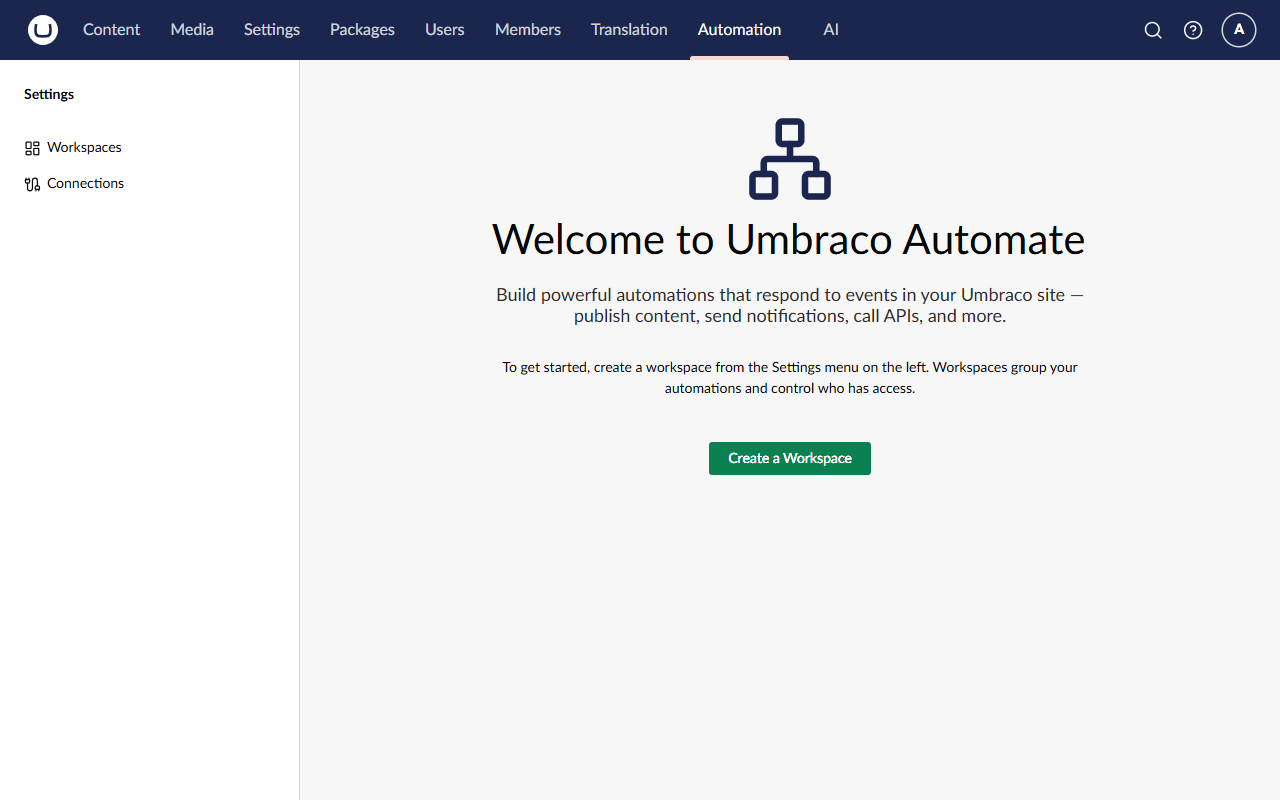
Open the backoffice (reload it if it was already open) and click the new Automation section in the top navigation. It opens on Welcome to Umbraco Automate, with a Create a Workspace button.
Note
Logged in as someone who isn't an Administrator? Add the Automation section to your user group under Users → User Groups, save, and reload the page.
Step 9: Let the agent run in automations
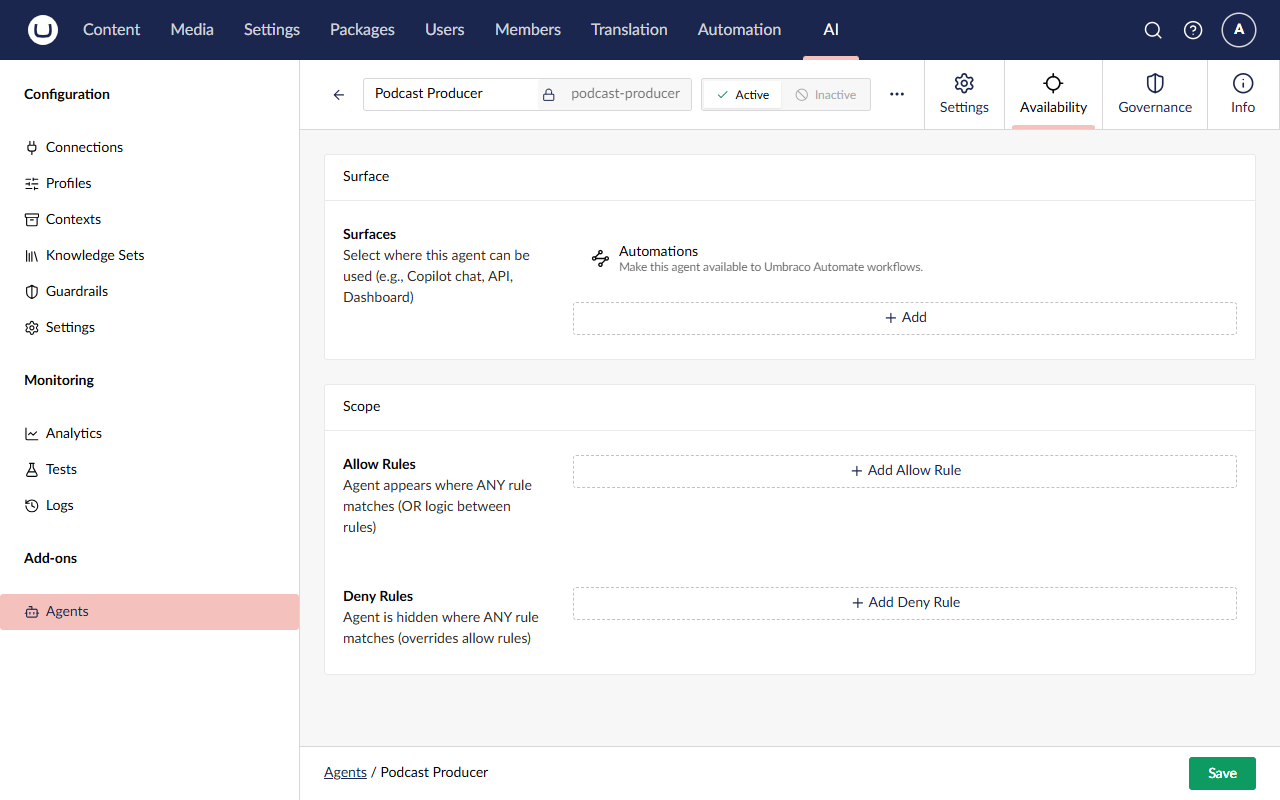
The Run AI Agent action only lists agents that have opted in to the Automations surface. Surfaces decide where an agent can appear (Lecture 6). In Lesson 5 we ran the agent from code, which doesn't need a surface.
- Go to AI → Agents (under Add-ons) and open Podcast Producer.
- Open the Availability tab.
- Under Surfaces, click + Add. In the Select Surface dialog, choose Automations ("Make this agent available to Umbraco Automate workflows.") and click Select.
- Click Save.
Step 10: Create the workspace
A workspace groups automations and sets the security boundary. Its automations run as the workspace's service account.
- On the Automation section's welcome screen, click Create a Workspace. (As the welcome text says, you can also create one from Workspaces under Settings in the tree.)
- Name it Podcasting Workspace. The alias fills in as
podcasting-workspace. - In the Membership box, set:
- Service Account Key: click Choose and pick Administrator in the user picker.
- User Groups: click Choose, select Administrators, and click Choose again.
- Allowed Connections: leave empty.
- Click Save.
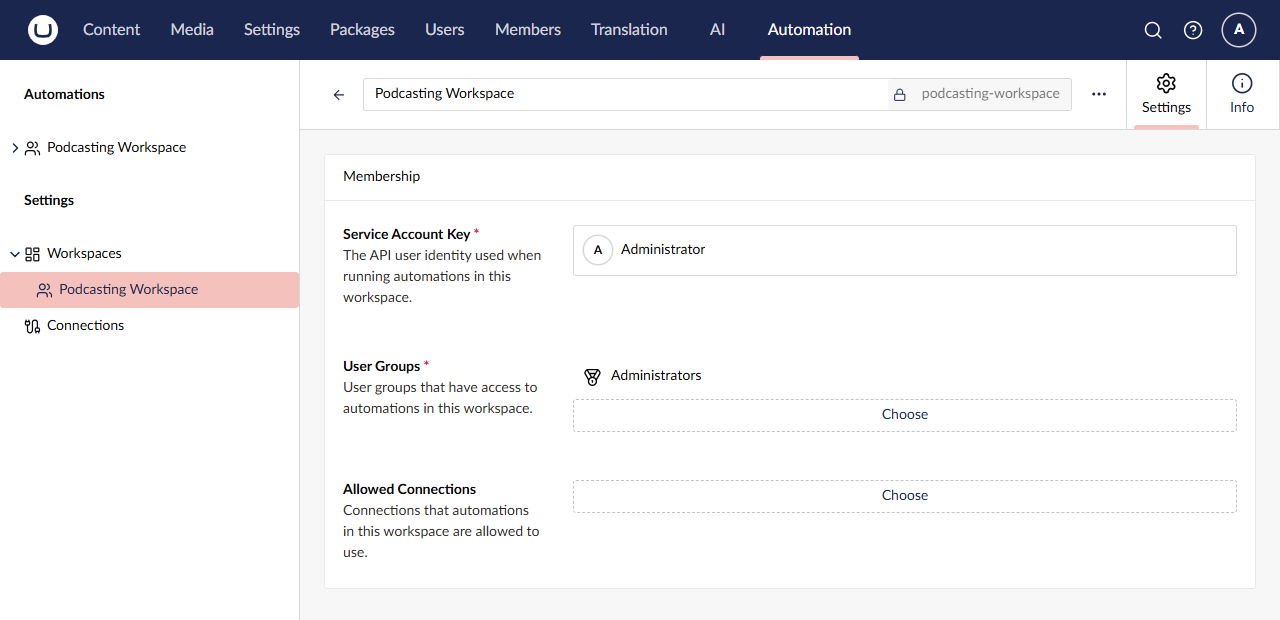
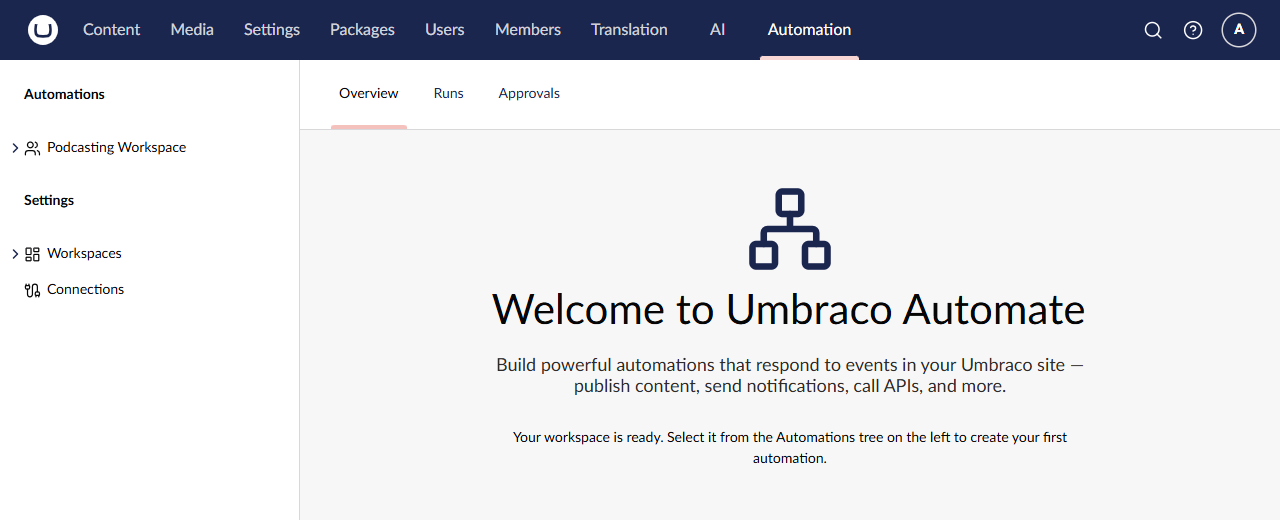
The tree now shows Automations → Podcasting Workspace. Click Automation in the top navigation again: the section's front page now has three tabs, Overview, Runs and Approvals, and tells you the workspace is ready.
What's happening:
- The service account is "the API user identity used when running automations in this workspace", including the agent in Run AI Agent. Steps check its section access and permissions. We use the Administrator today; on a real project, give it a dedicated user with only the access it needs.
- User groups decide who can see, edit and run the workspace's automations.
Step 11: Build the "Podcast Production" automation
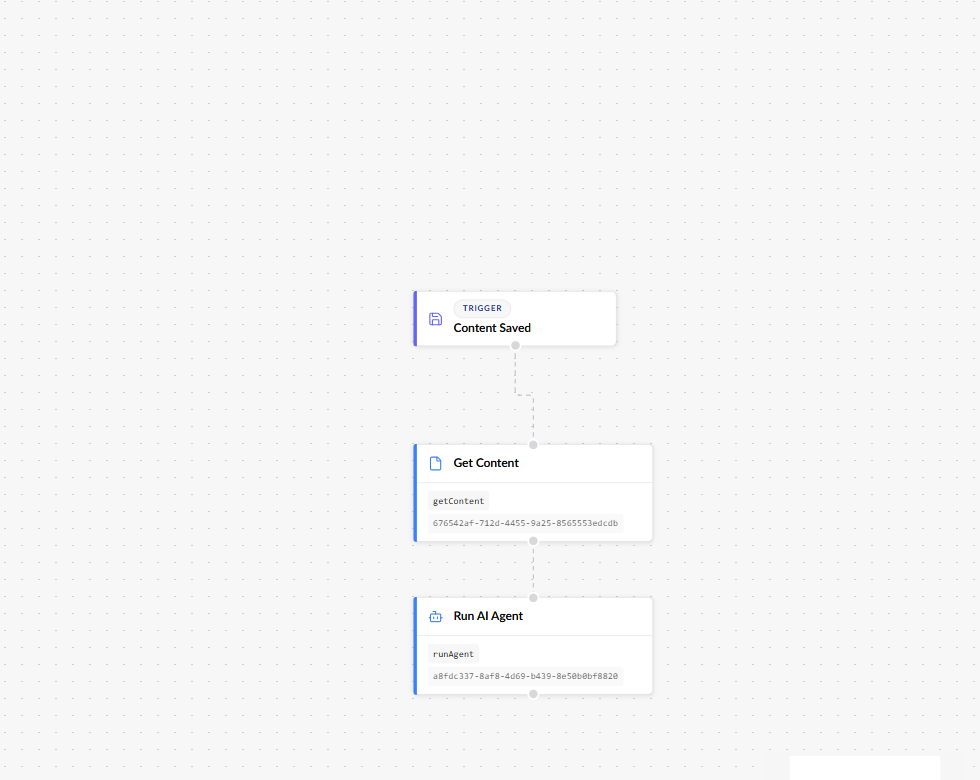
This automation replaces our save handler, queue and ProcessAgentAsync: when an episode is saved, get its content and,
if it has audio, run the Podcast Producer.
Create it. In the tree, open Podcasting Workspace (under Automations), click Create and choose Automation. (The other option, Folder…, is for organising automations.) The designer opens: a name and a description at the top, Design and Info tabs, an empty canvas with + ADD TRIGGER, and Save and Save and publish buttons. Name it Podcast Production. The description is optional; we used Produce podcast episode content from the recording.
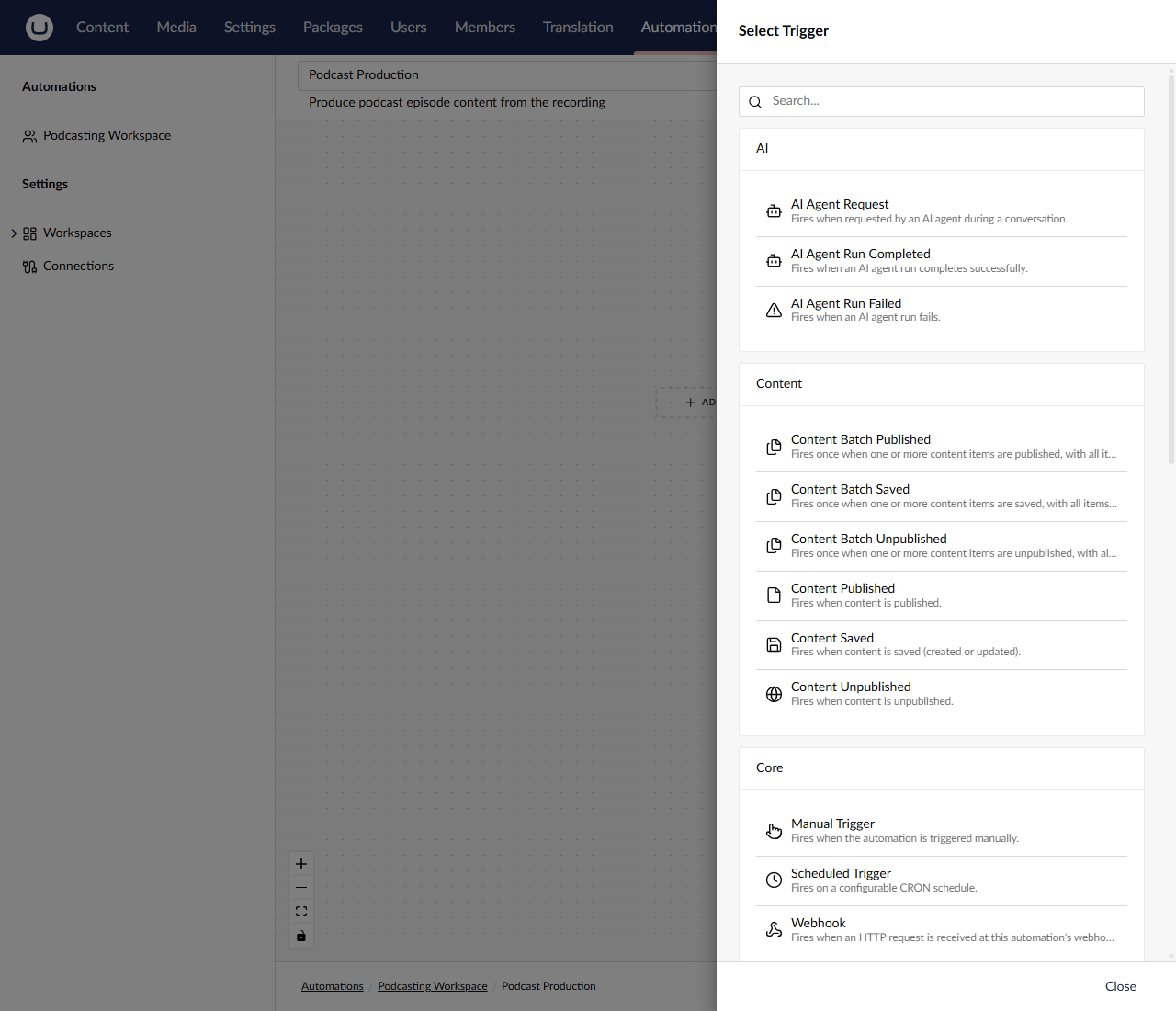
The trigger. Click + ADD TRIGGER on the canvas. The Select Trigger dialog groups the triggers: AI (AI Agent Request, AI Agent Run Completed, AI Agent Run Failed), Content (including Content Saved), Core (Manual Trigger, Scheduled Trigger, Webhook) and, further down, your own Podcast group. Choose Content Saved.
In the Content Saved settings:
- Content Types: click Choose and pick Podcast Episode.
- When triggered by another automation (under Advanced): leave it on Skip if this would loop, the default.
Then click Save.
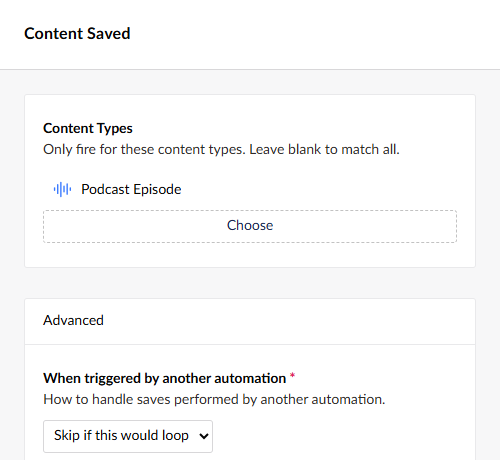
That second setting is Automate's loop guard. Remember the in-flight set from Lecture 3? The agent saves the same episode
once per save_episode_* tool, and each save raises Content Saved again. Automate tracks which automation caused an
event, and Skip if this would loop stops Podcast Production's own saves from starting Podcast Production again. You'll
see it in Step 13: one Save and publish, exactly one Podcast Production run.
Warning
Close every trigger and step panel with its Save button. Pressing Escape discards the step.
How to add a step. Click the small handle at the bottom of a node. A + appears; click it to open Select Action. The actions are grouped too: AI (Run AI Agent, Transcribe Audio), Content (Find Content, Get Content, Get Content Property, Notify Editor, Publish/Unpublish Content, Update Content Property), Control Flow (For Each, If, Parallel…) and more.
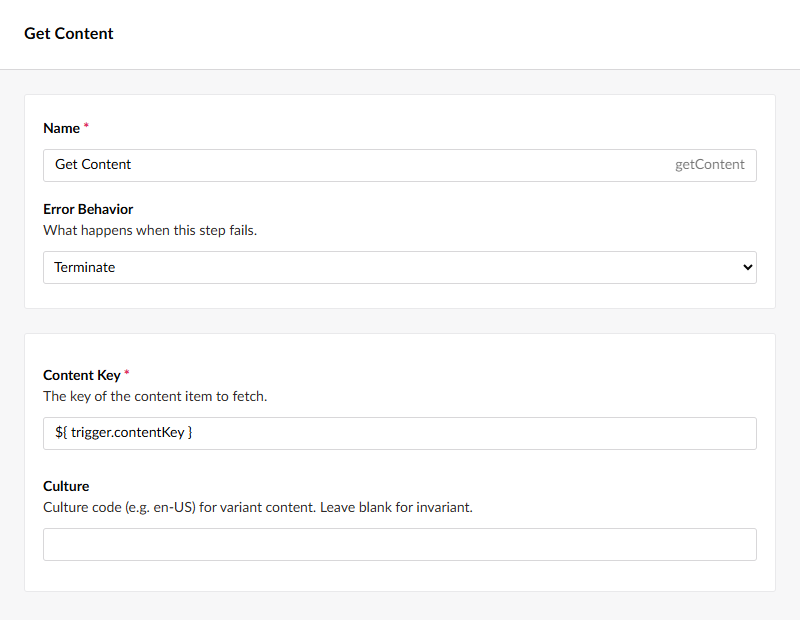
First action: Get Content. Add a step below the trigger node and choose Get Content (in the Content group). Set:
- Name: leave it as Get Content. Its alias, getContent, shows next to it. Later bindings refer to it.
- Error Behavior: leave it on Terminate.
- Content Key:
${ trigger.contentKey } - Culture: leave empty. Our episodes are invariant.
Click Save.
The trigger only knows the episode's key. Get Content loads its properties, so the next connection can check whether there's an audio file. It reads the published version, which matters when you test.
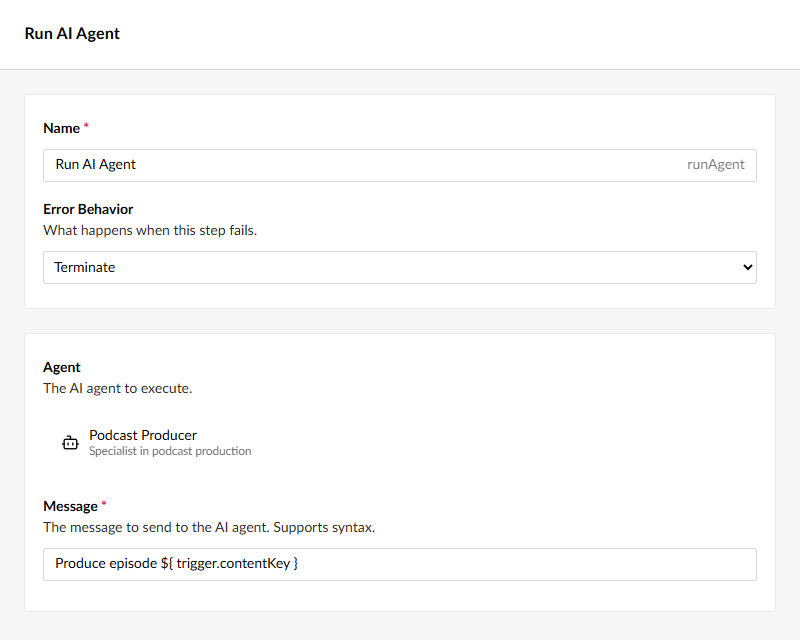
Second action: Run AI Agent. Add a step below Get Content and choose Run AI Agent (in the AI group). Set:
- Agent: click + Add. The Select Agent dialog lists only Podcast Producer, because it's the only agent on the Automations surface (Step 9). Choose it.
- Message:
Produce episode ${ trigger.contentKey }
Keep the step alias runAgent, and click Save.
It's the same message ProcessAgentAsync sent in Lesson 5, with the key now coming from a binding. The agent still does
all the work through its tools, and it runs as the workspace's service account.
The edge condition. Click the dashed line between Get Content and Run AI Agent. The Edge Conditions panel opens, saying there are no conditions yet. Click Add condition, and in Edit condition set:
- Left value:
${ steps.getContent.properties.audioFile } - Operator: is not empty (the Right value field disappears; you don't need it)
Click Save in Edit condition, then Save in Edge Conditions.
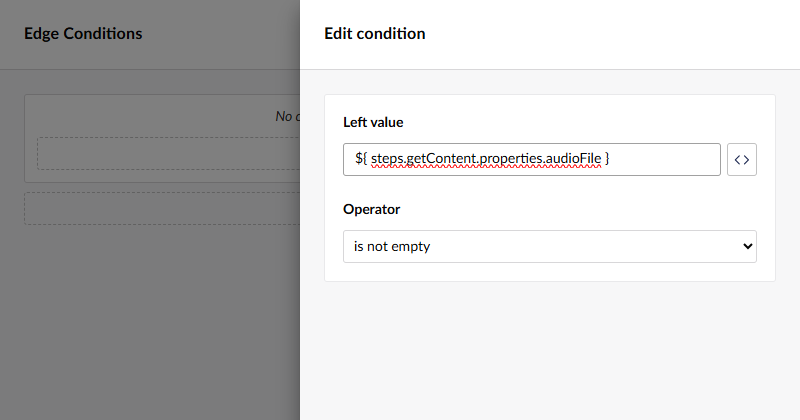
The connection is only followed when the condition is true. An episode without audio stops after Get Content and never
reaches the agent, so you don't burn tokens (remember what an agent run cost in Lesson 5). It's the same audio-file check
our save handler did in code. steps.getContent is the step alias, and audioFile is the property alias. The other
operators are equals, not equals, contains, not contains, starts with, ends with, greater than, less than, >=, <= and is
empty.
Note
The canvas doesn't mark a connection that has a condition: it looks just like one without. To check a condition, click the line again.
Publish it. Click Save and publish. Only the published version responds to triggers; a draft never runs.
Step 12: Build the "Podcast Notification" automation
This one replaces the SignalR hub and the toast script, with no code at all.
- In Podcasting Workspace, create another automation (Create → Automation) named Podcast Notification.
- Click + ADD TRIGGER. Scroll down to the Podcast group, or type
Podcastin the search box, and choose Podcast Episode Produced. That's your trigger from Step 5, with the name, description and icon from its[Trigger]attribute.
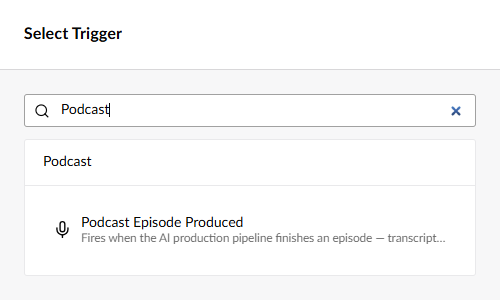
The trigger's settings show one toggle, Only episodes with guests. That's the
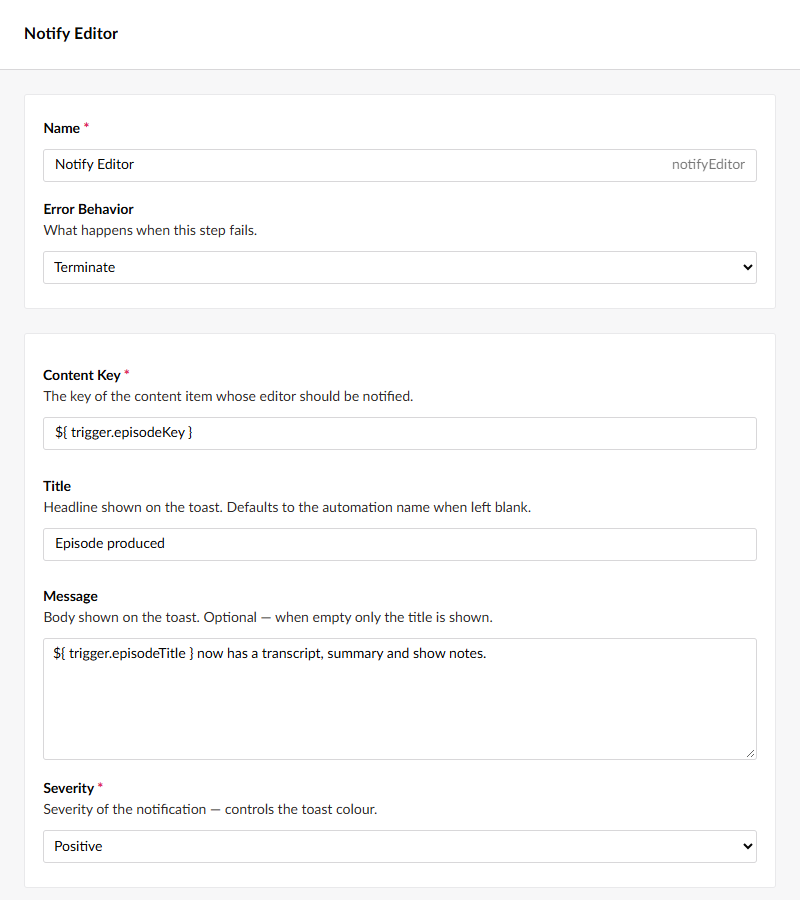
[Field]from Step 4, turned into UI with no frontend code. Leave it off and click Save.Add a step below the trigger, choose Notify Editor (in the Content group), and set:
- Content Key:
${ trigger.episodeKey } - Title:
Episode produced - Message:
${ trigger.episodeTitle } now has a transcript, summary and show notes. - Severity: Positive. The options are Default, Positive, Warning and Danger, and they set the toast's colour.
Click Save.
- Content Key:
Click Save and publish.
What's happening:
- Notify Editor is a built-in action (
umbracoAutomate.notifyEditor). It sends a realtime toast to any backoffice user who currently has that content item open. It ships with Automate, so there's nothing to write. - The Content Key binding is
${ trigger.episodeKey }, the camelCase name ofEpisodeKeyon your output model. It isn'ttrigger.contentKey: that's Content Saved's output, and our trigger doesn't have it. - The Message is bound too, on purpose, to show off what your custom trigger gives you.
${ trigger.episodeTitle }is the title the agent passed topublish_episode_report: the tool published the notification,MapEventcopied the title into your output model, and Automate made it a binding. Nobody wrote UI for any of it. - Both text fields are optional. Leave Title blank and it defaults to the automation name; leave Message blank and the toast shows only the title.
Tip
Your output model has a third property, guestCount. Once it works, try a message such as
${ trigger.episodeTitle } is ready with ${ trigger.guestCount } guest(s).
Step 13: Test it
Go to Content → Home → Episodes and open episode 5.
Clear the Summary and Show Notes fields.
Click Save and publish, not just Save.
Stay on the page. Within about 30 seconds, depending on your provider, one green toast appears: Episode produced, "Community, AI, and the Umbraco Way now has a transcript, summary and show notes." That's your Notify Editor step, with the episode title filled in from your trigger's output.
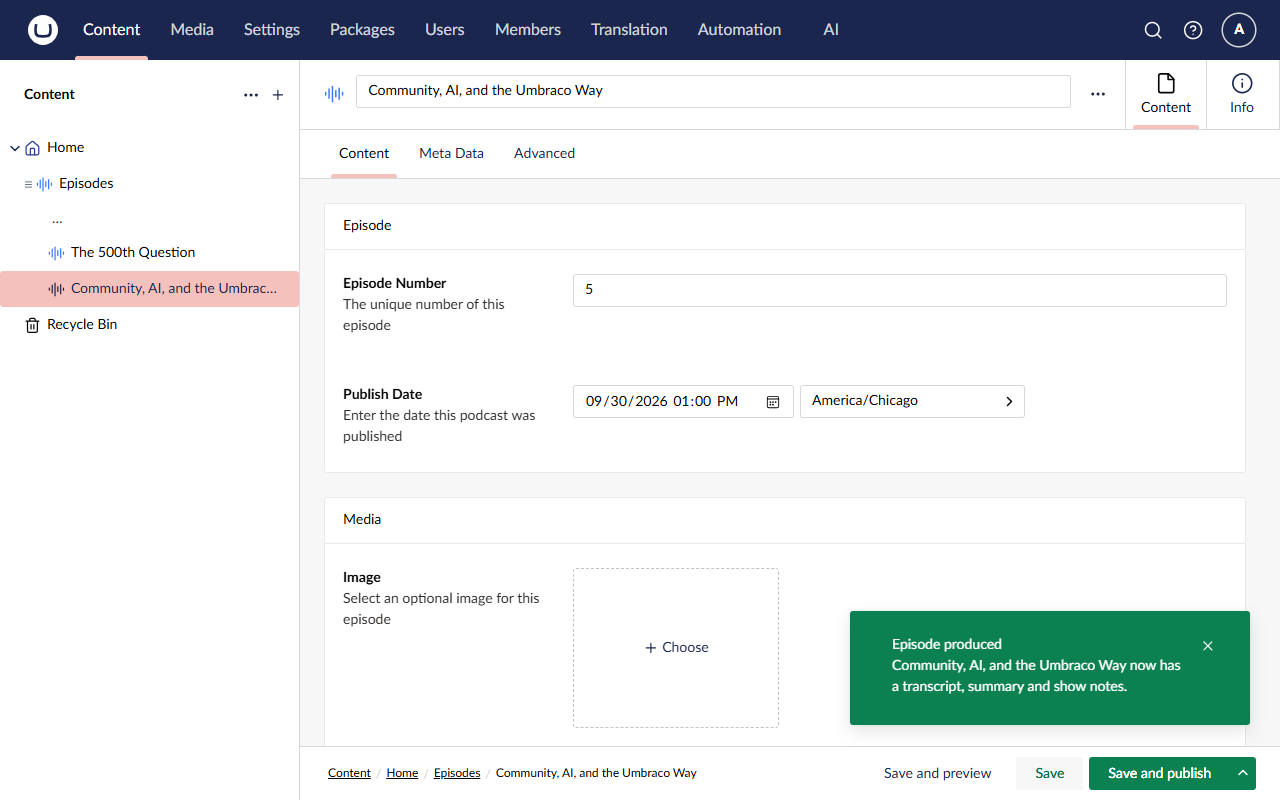
Reload the page. The summary and show notes are back.
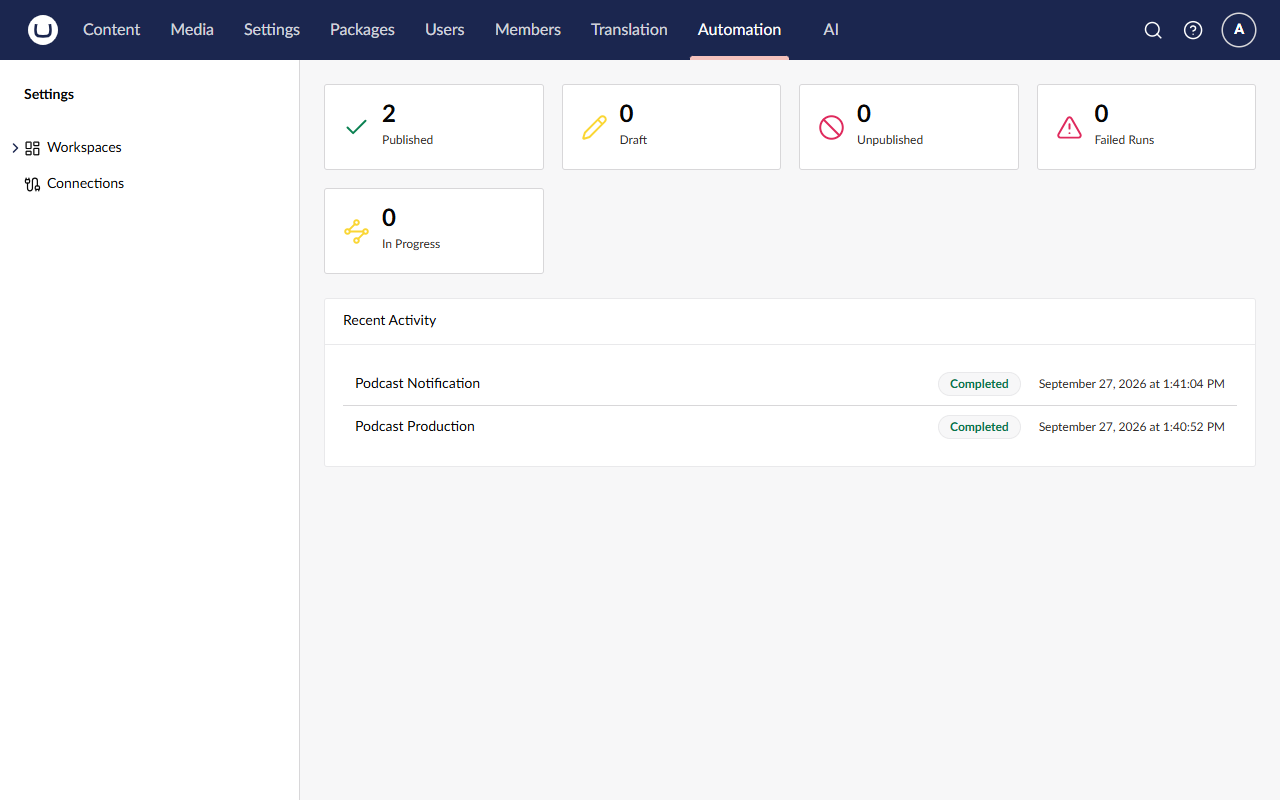
Go to the Automation section. Its Overview dashboard counts your automations (2 under Published) and lists the latest runs under Recent Activity: Podcast Notification and Podcast Production, both Completed.
Important
Save and publish matters here. Get Content reads the published version of the episode. If you only save, it takes its "not found" route (or sees the old published values), and Run AI Agent never runs.
You won't see Lesson 5's "Podcast episode processed" toast any more. Nothing sends it now, so the Notify Editor toast is the only one.
✅ Checkpoint
- ⬜ The Automation section shows Podcasting Workspace with Podcast Production and Podcast Notification, both published.
- ⬜ Podcast Producer has the Automations surface.
- ⬜ Saving and publishing episode 5 with an empty summary shows exactly one green Episode produced toast within about 30 seconds, and after a reload the summary and show notes are filled in again.
- ⬜ Recent Activity on the Overview (or the Runs tab) shows a completed Podcast Production run and a completed Podcast Notification run.
- ⬜ The Podcast Production run's steps, Get Content and Run AI Agent, are both Completed.
- ⬜ There's one Podcast Production run per Save and publish, not one per agent save.
The agent saves its changes as a draft, just as in Lessons 2 to 5. Publish the episode again if you want the website to show the new summary and show notes.
🔍 Under the hood
In Lesson 5, the only record of a run was the AI logs. Now you have a second view: Automate's run history.
The Overview dashboard. Besides Recent Activity, its cards count your automations (Published, Draft, Unpublished) and your runs (Failed Runs, In Progress). The Runs tab lists every run, and Approvals is where runs wait for a human (see the Stretch goals).
The run detail. Click the Podcast Production run. A Run panel opens (titled with the start of the run's ID), with two boxes:
- Steps: each step with its duration and status. When we built this workshop, Get Content took about 31 ms and Run AI Agent about 12 seconds, both Completed. Expand a step to see when it Started and Completed, and its Retry Count.
- Run Info: the run's Status, Started and Completed times, Initiated By (
systemfor this run) and the Automation Version that ran.
There's also a Replay button, which runs it again.
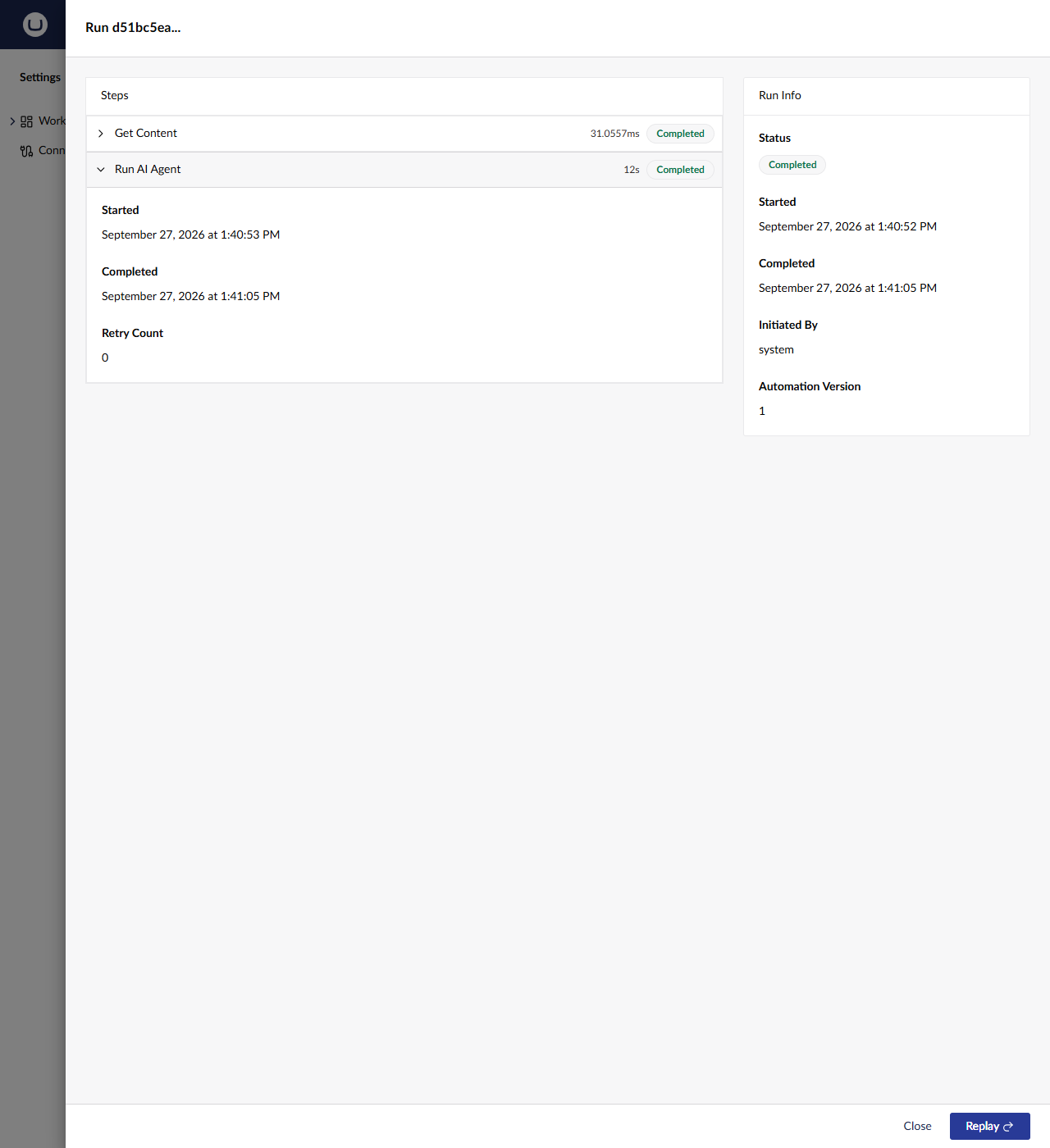
The run view is a record of timing and status, not a debugger: it doesn't show the resolved inputs or outputs of each
step. That's still useful. It tells you whether each step ran, how long it took, and whether it had to retry. For
what the agent did, go to the AI logs (below). Steps can still use each other's outputs while they run, as your edge
condition did with ${ steps.getContent.properties.audioFile }.
One run, not three. The agent saved the episode twice (save_episode_summary and save_episode_show_notes), and each
save raised Content Saved. Yet Recent Activity shows a single Podcast Production run. Automate knew those saves came from
Podcast Production itself, and Skip if this would loop dropped them.
The server log. The terminal tells the same story in three lines:
Starting run for automation podcast-production … from trigger umbracoAutomate.contentSaved
Executing AI agent …
Starting run for automation podcast-notification … from trigger theRabbitHole.episodeProduced
The last line is your custom trigger at work: theRabbitHole.episodeProduced is the alias from your [Trigger]
attribute.
The edge condition at work. Episodes 1 to 3 have no audio file. Save and publish one of them, and the new Podcast Production run stops after Get Content. Run AI Agent never runs, and no tokens are spent.
The AI logs. Go to AI → Logs. The agent's conversation is still all there, as one Agent entry: the tool calls, the skipped transcription and the report. Automate only records that Run AI Agent completed and how long it took; the AI section sees every turn. The difference is who started it. It's no longer our background service but Automate's Run AI Agent step, running as the workspace's service account. Open the entry and look at User: it now says Administrator (the service account you chose for the workspace), where Lesson 5's runs said Anonymous. That's the audit trail working: every automated AI call is attributable to an identity you control.
🧯 Troubleshooting
The Agent picker in Run AI Agent is empty
The Select Agent dialog only lists agents on the Automations surface. Repeat Step 9, make sure you clicked Save on the agent, then close and reopen the Run AI Agent step.
A step I just added disappeared
You probably closed its settings panel with Escape, which discards the step. Add it again, and close the panel with its Save button.
The run stops after Get Content, or Get Content says "not found"
Get Content reads the published version of the episode, so an item that has only been saved isn't found. It also sees the last published properties, so an audio file you added but haven't published doesn't count.
- Test with Save and publish, not Save.
- Check the edge condition's left value is exactly
${ steps.getContent.properties.audioFile }, and that the Get Content step's alias isgetContent. - Then clear the summary and show notes and Save and publish again.
Runs stay in Pending and never start
Automate runs steps in the background, and it only does that once Umbraco knows its own application URL. init already
sets Umbraco:CMS:WebRouting:UmbracoApplicationUrl to https://localhost:44339 in
appsettings.Development.json.
If you run the site on a different port (see Lesson 0's troubleshooting), update that value to match and restart. The Automation Execution Eligibility health check (Settings → Health Checks, group Umbraco Automate) tells you whether this node can run automations.
"Podcast Episode Produced" isn't in the trigger list
- Check that the class has the
[Trigger(...)]attribute from Step 5. Without it, Automate doesn't discover the class. - Stop the site, then run it again so it rebuilds. If that doesn't help, run
dotnet cleanfirst. - Hard-refresh the browser (Ctrl+F5). The backoffice caches the list of triggers.
The agent runs twice for one save
- Check Step 7. If
ProcessAsyncstill callsProcessAgentAsync, our old queue runs the agent as well as Automate. The console log showsRunning podcast-producer agent for episode …when the old path runs. - Check you haven't published two copies of Podcast Production.
- Check the trigger's When triggered by another automation setting is Skip if this would loop.
No Notify Editor toast
- Is Podcast Notification published? Only published automations run.
- Is Content Key exactly
${ trigger.episodeKey }?${ trigger.contentKey }resolves to nothing for this trigger. - Did you stay on episode 5's editor page? The toast only shows to people who have that content item open.
- Did the agent call
publish_episode_reportthis time? Check AI → Logs. LLMs vary: if it skipped the report, clear the summary and show notes and Save and publish again. - Is there a Podcast Notification run at all? If not, look at Podcast Production's run first.
🆘 Stuck?
Jump to the finished state of this lesson. Stop the site first (Ctrl+C), then:
git stash -u
git checkout lesson-6-end
dotnet run --project src/TheRabbitHole.Web
The branch includes the code and the backoffice configuration for this lesson (it's in the site's database), so you can carry straight on with the next lesson. Your API key lives in user-secrets, so it comes with you.
🚀 Stretch goals
Put a human in the loop. In Podcast Production, add Request Approval after Run AI Agent, with a Prompt such as
Review the AI's summary and show notes for ${ trigger.contentName }. From its Approved handle, add Publish
Content with Content Key ${ trigger.contentKey }. Both actions are built in. Hint: the run pauses until someone
approves it on the Automation section's Approvals tab. The AI drafts, a person signs off, and Automate publishes.
Try "Only episodes with guests". Turn it on in the Podcast Notification trigger, save and publish, and produce an
episode whose report credits no guests. Hint: CanHandle runs before a run is created, so a filtered-out event leaves
no row in Runs at all. Check the guestNames the agent passed to publish_episode_report in AI → Logs.
Transcribe with zero code. Umbraco.AI.Automate ships a Transcribe Audio action. Set its Audio source to
${ steps.getContent.properties.audioFile }, then add Update Content Property with Content Key
${ trigger.contentKey }, Property Alias transcript and Value ${ steps.transcribeAudio.text }. Compare it
with the code you wrote in Lesson 2. When is configuration enough, and when do you want code? (This one's an experiment:
the action accepts a media key, a media picker value or a file path. Check the step's result in the run to see whether
it understood the upload field.)
Write a custom action. Notify Editor is built in, but you can write your own action the same way you wrote the
trigger: a settings class with [Field], an output class, and a class with an [Action] attribute that derives from
ActionBase<TSettings, TOutput>. This skeleton for a "Log guest appearance in CRM" action isn't on any branch. It's a
starting point:
using Umbraco.Automate.Core.Actions;
using Umbraco.Automate.Core.Settings;

namespace TheRabbitHole.Core.Automate.Actions;

public sealed class LogGuestAppearanceSettings
{
    [Field(Label = "Episode Key", Description = "The episode whose guests should be logged.", SupportsBindings = true)]
    public string EpisodeKey { get; set; } = string.Empty;
}

public sealed class LogGuestAppearanceOutput
{
    public int GuestsLogged { get; init; }
}

[Action("theRabbitHole.logGuestAppearance", "Log Guest Appearance in CRM",
    Description = "Records each credited guest's appearance against their CRM contact.",
    Group = "Podcast", Icon = "icon-users")]
public sealed class LogGuestAppearanceAction(ActionInfrastructure infrastructure)
    : ActionBase<LogGuestAppearanceSettings, LogGuestAppearanceOutput>(infrastructure)
{
    public override Task<ActionResult> ExecuteAsync(ActionContext context, CancellationToken cancellationToken)
    {
        // Bindings such as ${ trigger.episodeKey } are already resolved here.
        var settings = context.GetSettings<LogGuestAppearanceSettings>();
        if (!Guid.TryParse(settings.EpisodeKey, out var episodeKey))
        {
            return Task.FromResult(ActionResult.Failed(
                new ArgumentException("A valid Episode Key is required."), StepRunErrorCategory.Validation));
        }

        // TODO: read the episode's guest emails, look them up with HubSpotGuestClient and log the appearance.
        return Task.FromResult(Success(new LogGuestAppearanceOutput { GuestsLogged = 0 }));
    }
}
Hint: return Failed(..., StepRunErrorCategory.Validation) for bad configuration so Automate doesn't retry pointlessly,
and let network errors throw so the step's retry settings apply. Restart, and the action appears under Podcast in the
Select Action picker. Add it to Podcast Notification with Episode Key ${ trigger.episodeKey }.