Lesson 2: Transcribe, summarise, write show notes
⏱️ Timebox: ~27 minutes · Starting branch:
lesson-1-end· Finished branch:lesson-2-end
Requirements tracker
✅ Transcribe podcast audio · ✅ Generate a summary and show notes · ⬜ Cross-link mentioned episodes · ⬜ Validate guest details
Objective
Make The Rabbit Hole produce its own episodes. When an editor saves an episode with an audio file, the site will:
- transcribe the audio with
IAISpeechToTextService - write a short summary and HTML show notes with
IAIChatService - save all three back to the episode and pop up a toast in the backoffice
These are the two core services from Lecture 3. By the end of the lesson the first two requirements are ticked, and you'll have spotted two bugs that the rest of Part 1 and Part 2 will fix.
What you'll change
src/TheRabbitHole.Core/PodcastEpisodeTranscriber.cs: threeusinglines and the body of the emptyProcessManualAsyncmethod- Backoffice → Content: create episode 5, Community, AI, and the Umbraco Way
- Backoffice → AI → Logs: read-only, to see what was actually sent to the model
Steps
Step 1: Tour the provided transcriber
Nothing to type in this step. Open src/TheRabbitHole.Core/PodcastEpisodeTranscriber.cs and get your bearings, because
the client's site already has all the plumbing from Lecture 3:
- An editor saves an episode.
PodcastEpisodeSavedHandler(aContentSavedNotificationhandler) checks it's apodcastEpisodewith an audio file, writes its key toPodcastEpisodeQueue, and returns straight away. The save is never kept waiting for AI. PodcastEpisodeTranscriberis aBackgroundServicethat reads keys from the queue for as long as the site runs (theExecuteAsyncloop below).- For each key,
ProcessAsynccallsProcessManualAsync, which is empty. That's your job today. (The extra hop exists because Lesson 5 adds an agent-based alternative next to it.)
Here's the loop, already in the file:
src/TheRabbitHole.Core/PodcastEpisodeTranscriber.cs (already there, don't type it)
    protected override async Task ExecuteAsync(CancellationToken stoppingToken)
    {
        // Continuously read from the queue until the service is stopped.
        // Each content key represents a podcast episode to process.
        await foreach (var contentKey in queue.Reader.ReadAllAsync(stoppingToken))
        {
            // Mark the episode as in-flight so the save-notification handler ignores any saves
            // that happen during processing (otherwise every save we make would re-enqueue it).
            if (!queue.BeginProcessing(contentKey))
                continue;

            try
            {
                // Run the processing logic in an isolated context to avoid any AsyncLocal state
                // (like logging scopes) from flowing into the background work.
                await RunIsolated(() => ProcessAsync(contentKey, stoppingToken));
            }
            catch (Exception ex)
            {
                logger.LogError(ex, "Failed to process podcast episode {Id}", contentKey);
            }
            finally
            {
                queue.EndProcessing(contentKey);
            }
        }
    }
A few details worth noticing:
- Loop prevention. At the end of processing we save the episode, which raises another
ContentSavedNotification.BeginProcessingputs the key in an in-flight set, and the saved handler skips any key in that set, so our own save doesn't queue the episode again.EndProcessingremoves it in thefinally. - Errors never kill the loop. Anything that goes wrong is logged as
Failed to process podcast episode, and the worker moves on to the next key. Remember that message: it's the first thing to search for when something breaks. IsRichTextEmpty(at the bottom of the file) exists because the Show Notes field is a Tiptap rich text editor. Clear it in the backoffice and it's still not empty: Umbraco stores a small JSON envelope with<p></p>markup. A plainstring.IsNullOrWhiteSpacecheck would think there are show notes, and "clear the field and save to regenerate" would never work.
Deep dive: why RunIsolated?
The saved handler runs inside the editor's request, which carries ambient state in AsyncLocal values (logging
scopes, Umbraco scopes and so on). ExecutionContext.SuppressFlow() stops that state leaking into the background work,
so each episode is processed with a clean slate, as if it were its own little request.
Step 2: Add the AI usings
At the top of PodcastEpisodeTranscriber.cs, replace the whole using block with this one. Three lines are new:
Microsoft.Extensions.AI, Umbraco.AI.Core.Chat and Umbraco.AI.Core.SpeechToText.
src/TheRabbitHole.Core/PodcastEpisodeTranscriber.cs
using System.Net;
using Microsoft.AspNetCore.SignalR;
using Microsoft.Extensions.AI;
using Microsoft.Extensions.DependencyInjection;
using Microsoft.Extensions.Hosting;
using Microsoft.Extensions.Logging;
using Umbraco.AI.Core.Chat;
using Umbraco.AI.Core.SpeechToText;
using Umbraco.Cms.Core.IO;
using Umbraco.Cms.Core.PropertyEditors;
using Umbraco.Cms.Core.Serialization;
using Umbraco.Cms.Core.Services;
using Umbraco.Extensions;
What's happening:
Umbraco.AI.Core.SpeechToTextandUmbraco.AI.Core.Chatgive you the two Umbraco AI services.Microsoft.Extensions.AIgives youChatMessageandChatRole. As Lecture 1 said, Umbraco AI is built on Microsoft.Extensions.AI, so the message types are standard .NET, not something Umbraco invented.
Step 3: Create a scope and resolve the services
Find the empty ProcessManualAsync method and replace the whole method (including the // Lesson 2 comment and
await Task.CompletedTask;) with:
src/TheRabbitHole.Core/PodcastEpisodeTranscriber.cs
    private async Task ProcessManualAsync(Guid contentKey, CancellationToken ct)
    {
        // Create a new scope to resolve services for this unit of work, ensuring we have a clean context
        // for Umbraco services and AI clients.
        using var scope = scopeFactory.CreateScope();
        var sp = scope.ServiceProvider;
        var contentService = sp.GetRequiredService<IContentService>();
        var mediaFileManager = sp.GetRequiredService<MediaFileManager>();
        var stt = sp.GetRequiredService<IAISpeechToTextService>();
        var chat = sp.GetRequiredService<IAIChatService>();
        var jsonSerializer = sp.GetRequiredService<IJsonSerializer>();
    }
What's happening:
- Why a scope? A
BackgroundServiceis a singleton: one instance for the life of the site. Many Umbraco and Umbraco AI services are scoped (one per request). Injecting a scoped service into a singleton's constructor would either throw at startup or quietly keep one instance alive forever. So we do what ASP.NET Core does for every request: create a scope for this unit of work, resolve what we need from it, and letusingdispose everything when the method ends. IContentServiceloads and saves the editable (draft) version of content.MediaFileManageropens files from Umbraco's media file system, which is where the uploaded MP3 lives.IAISpeechToTextServiceandIAIChatServiceare the two stars of Lecture 3.IJsonSerializeris whatIsRichTextEmptyneeds to read the Tiptap JSON.
Note
The next five snippets all go inside this method, one below the other. Each step tells you which line to add it under. There's a "full file" at the end of Step 8 so you can check your work.
Step 4: Load the episode
Directly below the var jsonSerializer = … line, add:
        // Load the content item to process. We have the content key from the queue, but we need to load the full item
        var content = contentService.GetById(contentKey);
        if (content is null)
            return;

        bool contentHasChanged = false;
What's happening:
- The queue only carries a
Guid, which keeps it small and cheap. Here we load the full, current episode. The episode might have been deleted while it sat in the queue, hence thenullcheck. contentHasChangedimplements a habit from Lecture 3: save once, notify once. Each step below flips it totruewhen it fills a field. If nothing needed doing, we don't save and don't send a toast.
Step 5: Transcribe the audio
Directly below bool contentHasChanged = false;, add:
        // Check if the episode has already been processed (e.g. if a transcript already exists) to avoid duplicate work.
        string transcript = content.GetValue<string>("transcript") ?? string.Empty;
        if (string.IsNullOrWhiteSpace(transcript))
        {
            var audioPath = content.GetValue<string>("audioFile");
            if (string.IsNullOrWhiteSpace(audioPath))
                return;

            logger.LogInformation("Transcribing podcast episode {Id}", contentKey);

            await using var audio = mediaFileManager.FileSystem.OpenFile(audioPath);
            var sttResponse = await stt.TranscribeAsync(
                b => b.WithAlias("podcast-episode-transcription"),
                audio, ct);
            transcript = sttResponse.Text;

            content.SetValue("transcript", transcript);
            contentHasChanged = true;
        }

        if (string.IsNullOrWhiteSpace(transcript))
            return;
What's happening:
- Only fill what's empty. If the episode already has a transcript, we skip the slowest and most expensive call entirely. This rule is what lets you clear a field later and regenerate just that part.
- The
audioFileupload field stores a media path such as/media/abc123/episode.mp3.MediaFileManager.FileSystemopens it as a stream, and it works the same whether media lives on disk or in blob storage. TranscribeAsync(builder, stream, ct), as on the Lecture 3 slide. The builder lambda describes the request:WithAlias("podcast-episode-transcription")is required. It names this call site, not a profile. It's the breadcrumb that ties an entry in the AI logs back to this line of code.- There's no
WithProfile(...), so Umbraco AI uses the default speech-to-text profile from AI → Settings. That's the Transcriber Profile you set in Lesson 1, Step 11.
- The final guard stops here if transcription came back empty. There's nothing to summarise.
Step 6: Write the summary
Directly below that final if (string.IsNullOrWhiteSpace(transcript)) return; guard, add:
        var summary = content.GetValue<string>("summary") ?? string.Empty;
        if (string.IsNullOrWhiteSpace(summary))
        {
            string summaryPrompt =
                "You are a podcast producer. Given a raw transcript, write a concise 1–2 sentence summary of the episode " +
                "suitable for a listing card. Respond with plain text only — no markdown, no HTML, no quotes.\n" +
                "\n" +
                "## Episode Context\n" +
                $"Episode Key: {contentKey}";

            var summaryResponse = await chat.GetChatResponseAsync(
                b => b.WithAlias("podcast-episode-summary")
                    .WithProfile("podcast-profile"),
                [
                    new ChatMessage(ChatRole.System, summaryPrompt),
                    new ChatMessage(ChatRole.User, transcript)
                ], ct);

            summary = summaryResponse.Text;
            content.SetValue("summary", summary);
            contentHasChanged = true;
        }
What's happening:
- The prompt is the job description and the rules, and it spells out the format: plain text only, no markdown, no HTML, no quotes. Models happily add all three if you don't say so.
- The
Episode Keyline isn't used yet. It pays off in Lesson 4, when the model needs the episode's key to look up its guests with a tool. GetChatResponseAsync(builder, messages, ct)has the same shape as speech-to-text, with two builder calls this time:WithAlias("podcast-episode-summary"): a different alias for a different call site.WithProfile("podcast-profile"): which model and settings to use. Mixing up the call alias and the profile alias is the classic mistake from Lecture 3.
- The messages are standard Microsoft.Extensions.AI
ChatMessages in a C# collection expression. The System message holds the job and the rules; the User message holds the material, which is the transcript. - Notice what isn't here: the Brand Voice. The Podcast Profile carries that context, so Umbraco AI injects it for you. You'll see it with your own eyes in Under the hood.
summaryResponse.Textis the model's answer as a string.
Step 7: Write the show notes
Directly below the summary block's closing }, add:
        var showNotes = content.GetValue<string>("showNotes") ?? string.Empty;
        if (IsRichTextEmpty(showNotes, jsonSerializer))
        {
            string showNotesPrompt =
                "You are a podcast producer. Given a raw transcript, write HTML show notes for publication: " +
                "a short overview paragraph, a bulleted list of key topics, and any resources or guests mentioned. " +
                "Respond with valid HTML only — no markdown, no code fences, no <html>/<body> wrappers.\n" +
                "\n" +
                "## Episode Context\n" +
                $"Episode Key: {contentKey}";

            var showNotesResponse = await chat.GetChatResponseAsync(
                b => b.WithAlias("podcast-episode-show-notes")
                    .WithProfile("podcast-profile"),
                [
                    new ChatMessage(ChatRole.System, showNotesPrompt),
                    new ChatMessage(ChatRole.User, transcript)
                ], ct);

            showNotes = showNotesResponse.Text;
            content.SetValue("showNotes", showNotes);
            contentHasChanged = true;
        }
What's happening:
- Same pattern, three differences:
- The emptiness check is
IsRichTextEmpty, because Show Notes is a rich text field (see Step 1). - The prompt asks for HTML, and explicitly says no code fences. Without that, many models wrap their HTML in Markdown code fences, and you'd see the fence characters on your page.
- It gets its own alias,
podcast-episode-show-notes. That's the entry you'll open in the logs shortly.
- The emptiness check is
- We send the transcript again. Each call is independent: the model doesn't remember the summary call. Keep that in mind for Lecture 6, when we compare this step-by-step approach with an agent.
Step 8: Save and notify the editor
Directly below the show notes block's closing }, as the last thing in the method, add:
        // Save the transcript, summary and show notes back to the content item.
        if (contentHasChanged)
        {
            contentService.Save(content);
            logger.LogInformation("Podcast episode {Id} transcribed, summarised and show notes saved", contentKey);

            // Notify any connected backoffice clients that this episode has been processed,
            // so they can update the UI in real time if needed.
            await hub.Clients.All.SendAsync("episodeProcessed", contentKey, content.Name, ct);
        }
What's happening:
- One save for everything that changed. This save raises
ContentSavedNotificationagain, and loop prevention from Step 1 makes the handler ignore it. - It's a plain save, not a publish. The AI's work lands as a draft, so an editor can review it before it goes live.
SendAsync("episodeProcessed", …)pushes a SignalR message to every connected backoffice. The providedpodcast-notifications.jslistens for it and shows the toast.
Full file so far
src/TheRabbitHole.Core/PodcastEpisodeTranscriber.cs
using System.Net;
using Microsoft.AspNetCore.SignalR;
using Microsoft.Extensions.AI;
using Microsoft.Extensions.DependencyInjection;
using Microsoft.Extensions.Hosting;
using Microsoft.Extensions.Logging;
using Umbraco.AI.Core.Chat;
using Umbraco.AI.Core.SpeechToText;
using Umbraco.Cms.Core.IO;
using Umbraco.Cms.Core.PropertyEditors;
using Umbraco.Cms.Core.Serialization;
using Umbraco.Cms.Core.Services;
using Umbraco.Extensions;

namespace TheRabbitHole.Core;

// Background service that processes podcast episodes from the queue: transcribes the audio, generates show notes
// using AI, and saves the results back to Umbraco.
public class PodcastEpisodeTranscriber(PodcastEpisodeQueue queue, IServiceScopeFactory scopeFactory,
    IHubContext<PodcastHub> hub, ILogger<PodcastEpisodeTranscriber> logger) : BackgroundService
{
    protected override async Task ExecuteAsync(CancellationToken stoppingToken)
    {
        // Continuously read from the queue until the service is stopped.
        // Each content key represents a podcast episode to process.
        await foreach (var contentKey in queue.Reader.ReadAllAsync(stoppingToken))
        {
            // Mark the episode as in-flight so the save-notification handler ignores any saves
            // that happen during processing (otherwise every save we make would re-enqueue it).
            if (!queue.BeginProcessing(contentKey))
                continue;

            try
            {
                // Run the processing logic in an isolated context to avoid any AsyncLocal state
                // (like logging scopes) from flowing into the background work.
                await RunIsolated(() => ProcessAsync(contentKey, stoppingToken));
            }
            catch (Exception ex)
            {
                logger.LogError(ex, "Failed to process podcast episode {Id}", contentKey);
            }
            finally
            {
                queue.EndProcessing(contentKey);
            }
        }
    }

    // Isolate the worker from producer-thread AsyncLocal state (e.g. ambient scopes).
    private static Task RunIsolated(Func<Task> action)
    {
        using (ExecutionContext.SuppressFlow())
            return Task.Run(action);
    }

    // The main processing logic: transcribe the audio, generate show notes, save to Umbraco, and notify clients via SignalR.
    private async Task ProcessAsync(Guid contentKey, CancellationToken ct)
    {
        await ProcessManualAsync(contentKey, ct);
    }

    private async Task ProcessManualAsync(Guid contentKey, CancellationToken ct)
    {
        // Create a new scope to resolve services for this unit of work, ensuring we have a clean context
        // for Umbraco services and AI clients.
        using var scope = scopeFactory.CreateScope();
        var sp = scope.ServiceProvider;
        var contentService = sp.GetRequiredService<IContentService>();
        var mediaFileManager = sp.GetRequiredService<MediaFileManager>();
        var stt = sp.GetRequiredService<IAISpeechToTextService>();
        var chat = sp.GetRequiredService<IAIChatService>();
        var jsonSerializer = sp.GetRequiredService<IJsonSerializer>();

        // Load the content item to process. We have the content key from the queue, but we need to load the full item
        var content = contentService.GetById(contentKey);
        if (content is null)
            return;

        bool contentHasChanged = false;

        // Check if the episode has already been processed (e.g. if a transcript already exists) to avoid duplicate work.
        string transcript = content.GetValue<string>("transcript") ?? string.Empty;
        if (string.IsNullOrWhiteSpace(transcript))
        {
            var audioPath = content.GetValue<string>("audioFile");
            if (string.IsNullOrWhiteSpace(audioPath))
                return;

            logger.LogInformation("Transcribing podcast episode {Id}", contentKey);

            await using var audio = mediaFileManager.FileSystem.OpenFile(audioPath);
            var sttResponse = await stt.TranscribeAsync(
                b => b.WithAlias("podcast-episode-transcription"),
                audio, ct);
            transcript = sttResponse.Text;

            content.SetValue("transcript", transcript);
            contentHasChanged = true;
        }

        if (string.IsNullOrWhiteSpace(transcript))
            return;

        var summary = content.GetValue<string>("summary") ?? string.Empty;
        if (string.IsNullOrWhiteSpace(summary))
        {
            string summaryPrompt =
                "You are a podcast producer. Given a raw transcript, write a concise 1–2 sentence summary of the episode " +
                "suitable for a listing card. Respond with plain text only — no markdown, no HTML, no quotes.\n" +
                "\n" +
                "## Episode Context\n" +
                $"Episode Key: {contentKey}";

            var summaryResponse = await chat.GetChatResponseAsync(
                b => b.WithAlias("podcast-episode-summary")
                    .WithProfile("podcast-profile"),
                [
                    new ChatMessage(ChatRole.System, summaryPrompt),
                    new ChatMessage(ChatRole.User, transcript)
                ], ct);

            summary = summaryResponse.Text;
            content.SetValue("summary", summary);
            contentHasChanged = true;
        }

        var showNotes = content.GetValue<string>("showNotes") ?? string.Empty;
        if (IsRichTextEmpty(showNotes, jsonSerializer))
        {
            string showNotesPrompt =
                "You are a podcast producer. Given a raw transcript, write HTML show notes for publication: " +
                "a short overview paragraph, a bulleted list of key topics, and any resources or guests mentioned. " +
                "Respond with valid HTML only — no markdown, no code fences, no <html>/<body> wrappers.\n" +
                "\n" +
                "## Episode Context\n" +
                $"Episode Key: {contentKey}";

            var showNotesResponse = await chat.GetChatResponseAsync(
                b => b.WithAlias("podcast-episode-show-notes")
                    .WithProfile("podcast-profile"),
                [
                    new ChatMessage(ChatRole.System, showNotesPrompt),
                    new ChatMessage(ChatRole.User, transcript)
                ], ct);

            showNotes = showNotesResponse.Text;
            content.SetValue("showNotes", showNotes);
            contentHasChanged = true;
        }

        // Save the transcript, summary and show notes back to the content item.
        if (contentHasChanged)
        {
            contentService.Save(content);
            logger.LogInformation("Podcast episode {Id} transcribed, summarised and show notes saved", contentKey);

            // Notify any connected backoffice clients that this episode has been processed,
            // so they can update the UI in real time if needed.
            await hub.Clients.All.SendAsync("episodeProcessed", contentKey, content.Name, ct);
        }
    }

    // The Tiptap rich-text editor persists even a manually cleared field as a JSON envelope
    // with "<p></p>" markup and empty block collections, so a plain IsNullOrWhiteSpace check
    // will report it as non-empty.
    private bool IsRichTextEmpty(string? value, IJsonSerializer jsonSerializer)
    {
        if (string.IsNullOrWhiteSpace(value))
            return true;

        if (!RichTextPropertyEditorHelper.TryParseRichTextEditorValue(value, jsonSerializer, logger, out var rte))
            return false;

        if (rte.Blocks?.ContentData is { Count: > 0 })
            return false;

        var stripped = WebUtility.HtmlDecode(rte.Markup?.StripHtml() ?? string.Empty);
        return string.IsNullOrWhiteSpace(stripped);
    }
}
Step 9: Run the site
If the site is still running from Lesson 1, stop it with Ctrl+C. Then start it again, which also builds your changes:
dotnet run --project src/TheRabbitHole.Web
Wait for Now listening on: https://localhost:44339. If the build fails, check the Troubleshooting section below.
Step 10: Create episode 5
Time to give the pipeline some work. Open https://localhost:44339/umbraco and go to the Content section.
- Expand Home and click Episodes. It opens on its Child items view, with the four existing episodes shown as cards.
- Click Create Podcast Episode, above the cards.
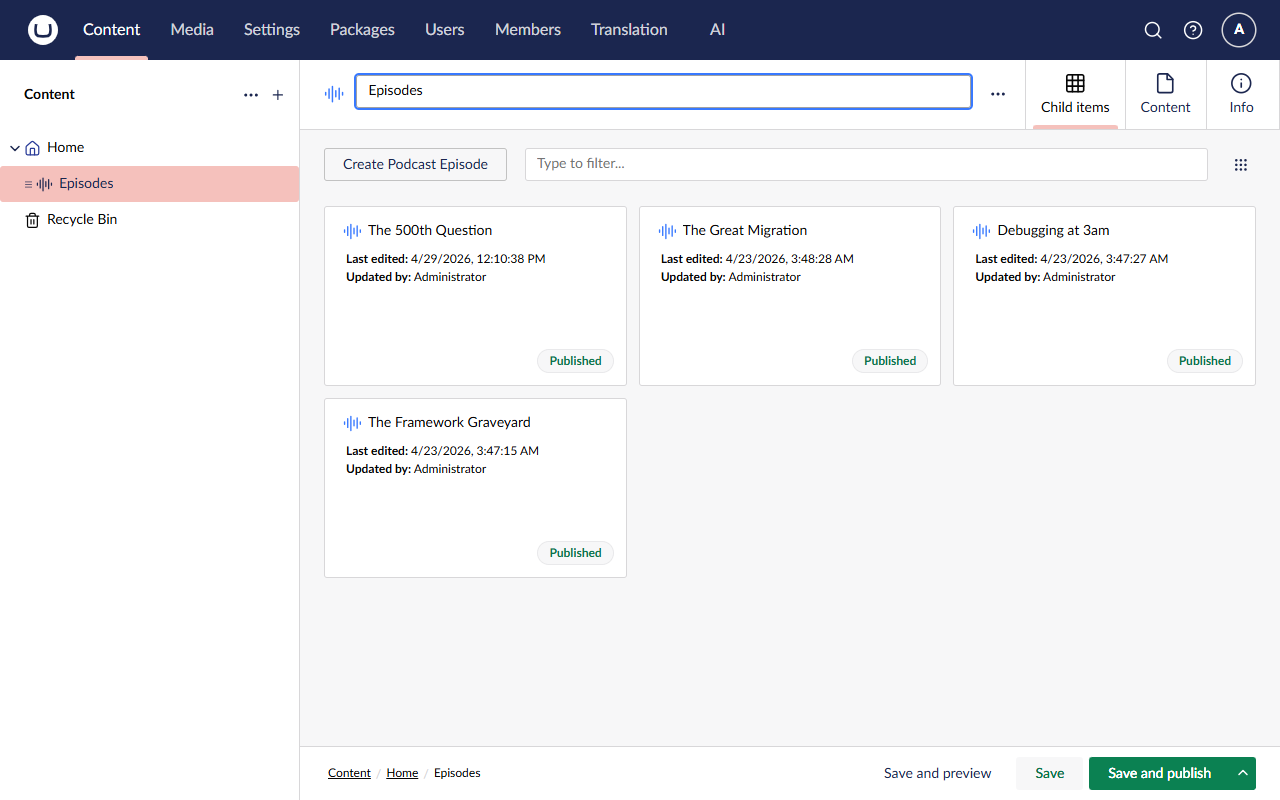
- In the name field at the top, enter
Community, AI, and the Umbraco Way. - The editor has three tabs: Content, Meta Data and Advanced. Everything you need is on Content, grouped
under Episode, Media, Content and Guests. Fill in:
- Episode Number:
5 - Publish Date: today's date. Any time is fine. Leave the time zone picker next to it as it is.
- Image: leave it empty. The site falls back to the show's artwork.
- Audio File: click the Click to upload area and pick
assets/audio/the_rabbit_hole_episode_5.mp3from the folder where you cloned the repo. Wait until an audio player and the file name (with Clear file(s) next to it) appear before moving on. - Duration:
4 - Summary, Show Notes and Transcript: leave them empty. That's the AI's job.
- Guests: click Add to get one row per email, and enter
sebastiaan.janssen@example.comandlotte.pitcher@example.com.
- Episode Number:
- Leave the Meta Data and Advanced tabs as they are.
Important
Don't skip the guests. The audio only says their names. In Lesson 4 the model looks these email addresses up in the CRM to get the names right, so without them Lesson 4 has nothing to work with.
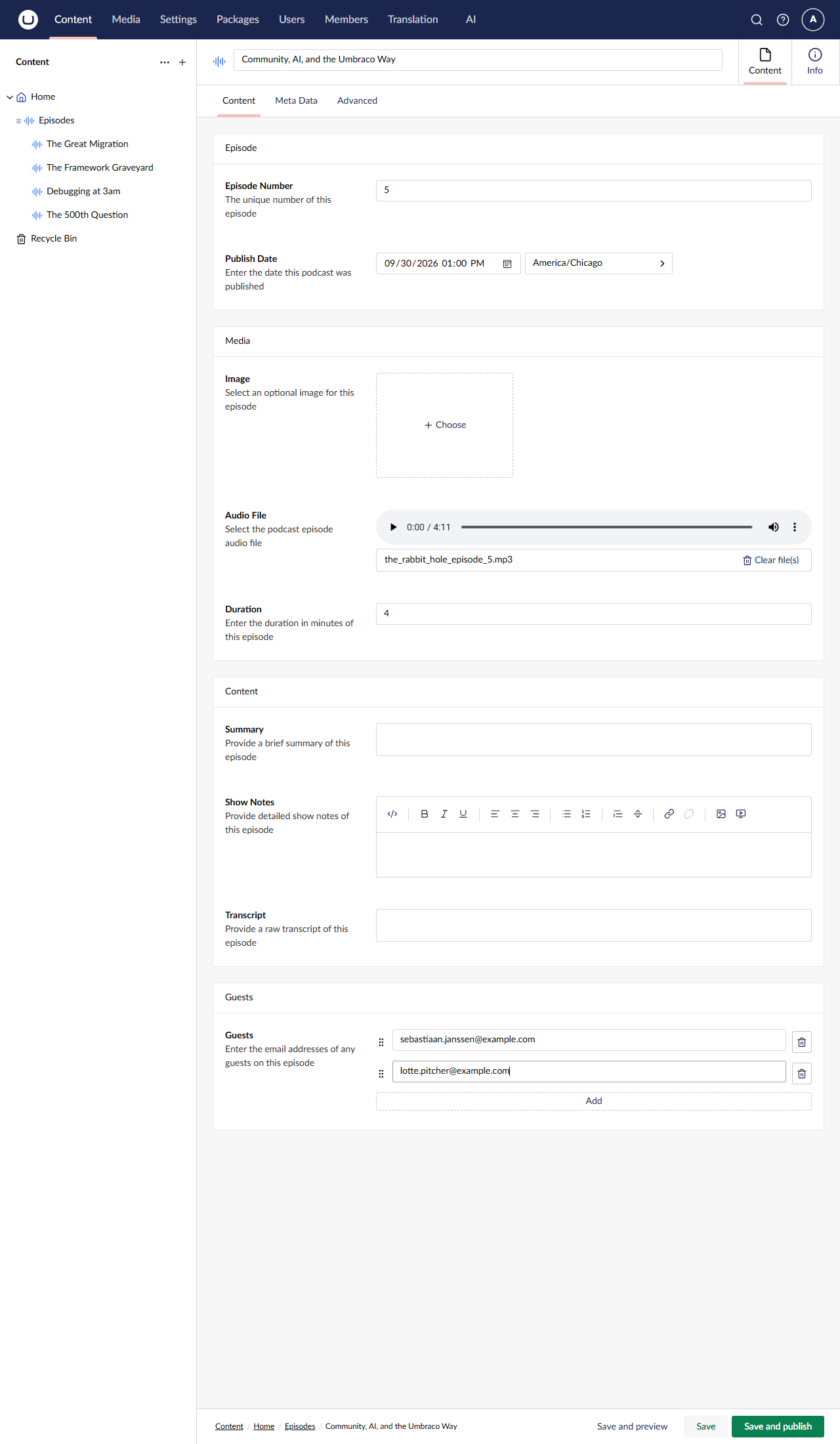
- Click Save and publish.
Why publish, not just save? Either one triggers our pipeline, because publishing saves too. Publishing also puts episode 5 on the live site (it shows up under Recent Episodes on the homepage), and later lessons rely on it being published: Lesson 3's context reads published episodes, and in Lesson 6 Umbraco Automate reads published content.
Step 11: Wait for the toast, then refresh
Transcribing four minutes of audio plus two chat calls takes up to a minute, depending on your provider. Transcription
is most of that. Watch the terminal running the site. You should see
Transcribing podcast episode …, and later Podcast episode … transcribed, summarised and show notes saved. Then a green
toast appears in the backoffice: Podcast episode processed, "Community, AI, and the Umbraco Way — transcript and show
notes are ready."
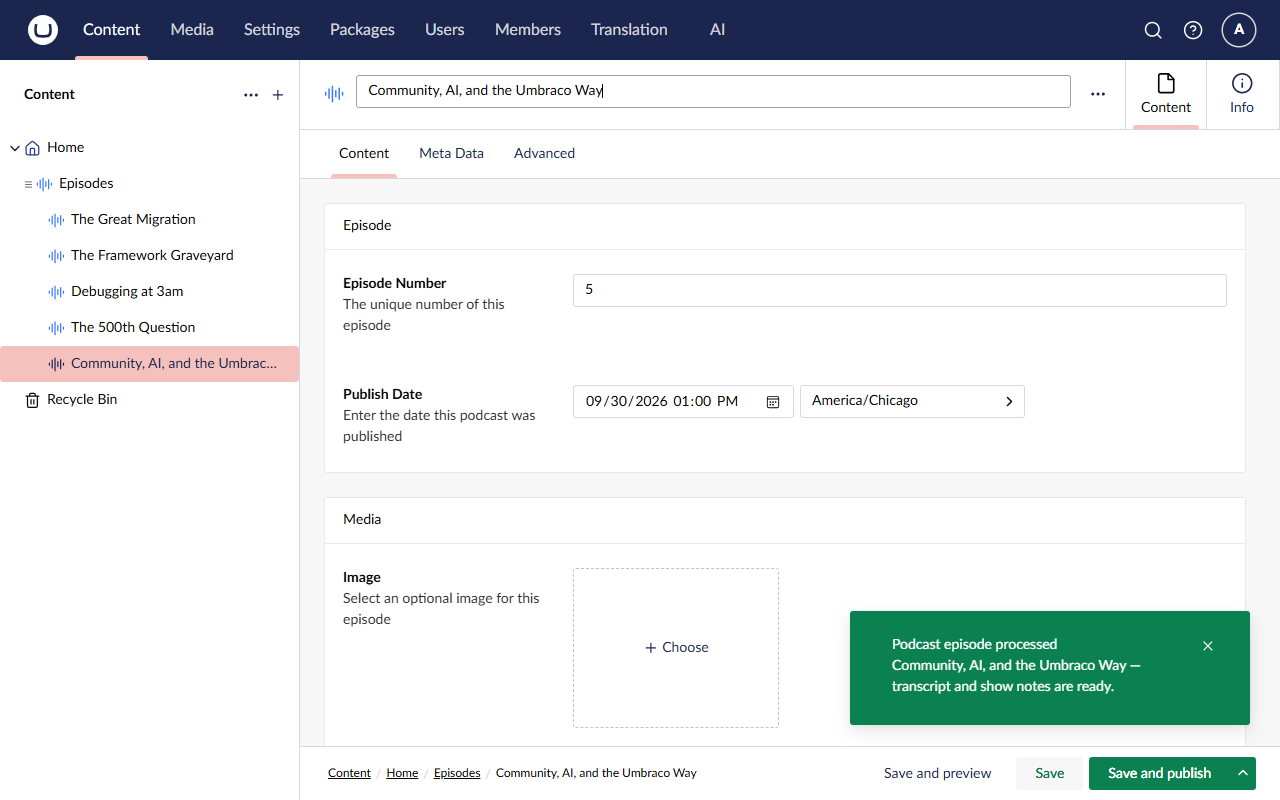
Now refresh the page (F5). The editor loaded the episode before the background job saved it, so until you refresh you're looking at the old, empty fields.
Warning
Don't click Save before you refresh. The editor would save the empty fields it's still showing over the AI's work, and the whole pipeline would run again.
After the refresh, Transcript, Summary and Show Notes are filled in.
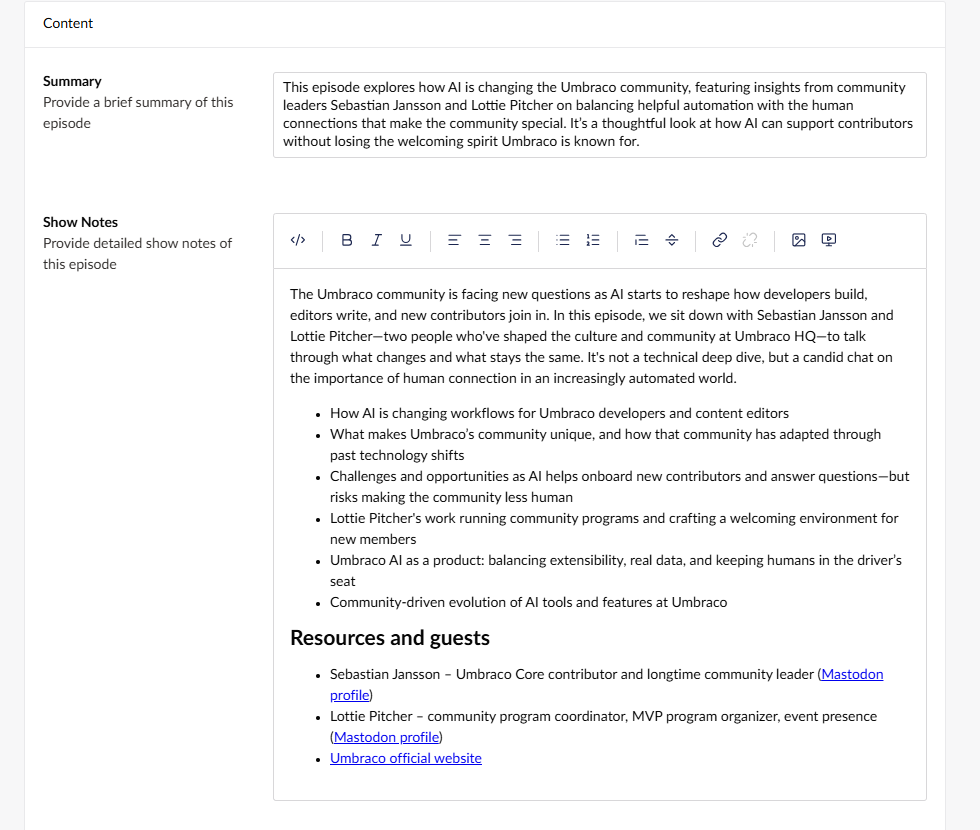
Remember that the background job only saved (Step 8), so the new text is a draft. To see it on the site, click Save and publish once more. Nothing is regenerated, because all three fields are already filled. Then open https://localhost:44339 and click through to the episode.
✅ Checkpoint
- ⬜ The Podcast episode processed toast appeared, within about a minute of saving.
- ⬜ After a refresh, episode 5 has a Transcript, a short plain-text Summary, and HTML Show Notes with an overview paragraph and a bulleted list of topics.
- ⬜ After publishing again, the episode page on the site shows the summary, the notes and the transcript.
- ⬜ You've read the summary and the show notes carefully, looking for mistakes.
Spot the two bugs
The client would send this back. Read what the show notes say about the previous episode, and how they spell the guests' names. Compare them with the Episodes list in the backoffice and with the guest emails you entered. While you're there, check any links the show notes contain.
Reveal the two bugs
- The previous episode. The hosts mention their last episode, episode #4, "The 500th Question". The model has no idea what that is, so it gets it wrong in one way or another. It varies from run to run: the episode is left out altogether, mislabelled as "the 500th episode", or mentioned but not linked, because the model doesn't know the URL.
- The guests' names. When we tested this lesson, the model wrote "Sebastian Jansson" (or "Sebastian Janssen") and "Lottie Pitcher". The correct spellings are Sebastiaan Janssen and Lotte Pitcher. Speech-to-text writes what it hears, and the model believes the transcript.
Your wording will differ, because LLM output varies from run to run.
Both bugs have the same root cause: the model only knows what's in the transcript. Bug 1 needs knowledge about our show, which is a context (Lesson 3, next). Bug 2 needs the ability to look something up, which is a tool (Lesson 4, after the break).
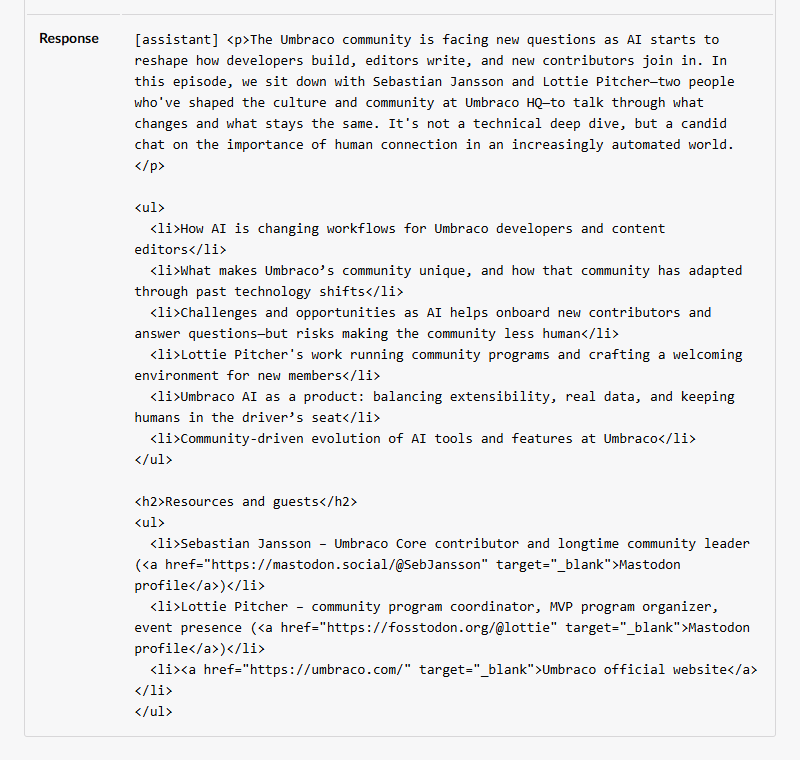
Bonus: a hallucination. When we tested this lesson, the show notes gave both guests a Mastodon profile link, with plausible-looking URLs. The transcript only says the guests are "on Mastodon". The model invented the addresses. That's a hallucination: confident, well-formatted and wrong. Check yours. Lesson 4 gives the model the guests' real details.
🔍 Under the hood
Where did the Brand Voice come in? You never mentioned it in C#. Let's look at what was actually sent to the model.
Go to AI → Logs. The run created three entries, newest first:
- the show notes chat call: Feature Inline-Chat, Profile Podcast-Profile, Model
gpt-4.1 - the summary chat call: also Inline-Chat on the Podcast Profile
- the transcription: Feature Inline-Speech-To-Text, Profile Transcriber-Profile, Model
gpt-4o-transcribe
You can't search the list for your call aliases. Instead, under each Feature name there's an ID that Umbraco AI derives from your call alias, so every call from the same
WithAlias(...)line always gets the same ID. When we built this workshop, the show notes call was733e4fb6…and the summary7df279d3…. Make a note of yours: they stay the same for the rest of the workshop. You can also tell the two chat calls apart by Tokens (input / output): the show notes call has far more output tokens (ours had about 1,100 / 380 for the show notes against 1,100 / 64 for the summary).- the show notes chat call: Feature Inline-Chat, Profile Podcast-Profile, Model
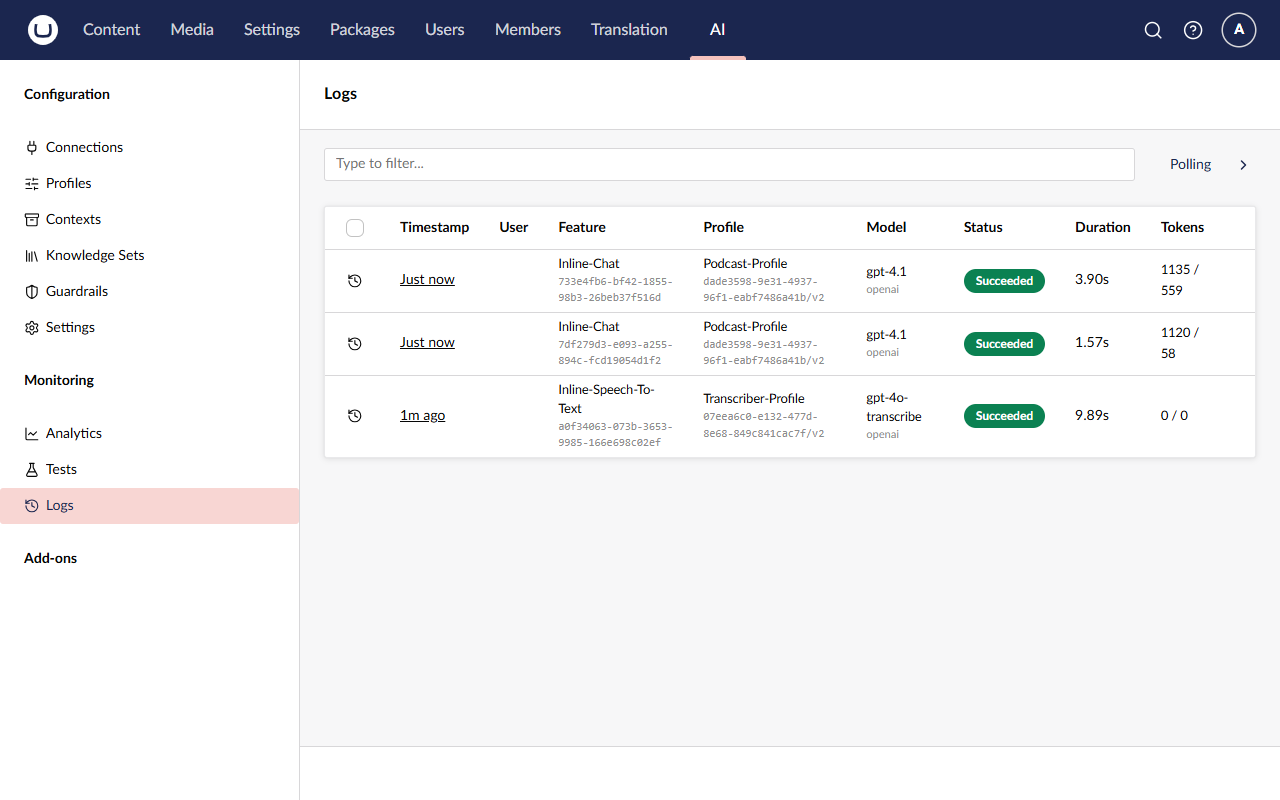
- Look at the transcription entry's Profile: the Transcriber Profile. Your code never named it. That's the default from Settings at work.
- Click the timestamp of the show notes entry (the newest one, with the most output tokens). The Audit Log
Details panel opens, with Timestamp, Duration, Status, User, Feature, Profile, Provider, Model and Tokens at the top.
User says Anonymous, because the work ran on a background service, not in anyone's request. Scroll down to the
Prompt:
- It starts with
[system]and yourshowNotesPrompt, word for word, including the## Episode Contextsection from your code. - Below that is a
## Contextsection that you didn't write, with a### Brand Voiceheading (or whatever you named the resource in Lesson 1) and lines startingTone:,Audience:,Style:andAvoid:. That's the Brand Voice context from Lesson 1. The Podcast Profile carries it, and Umbraco AI appended it to your system message on the way out. - Then comes
[user]and the transcript. Look for "Sebastian", "Lottie" and "500th question". The two bugs start right here.
- It starts with
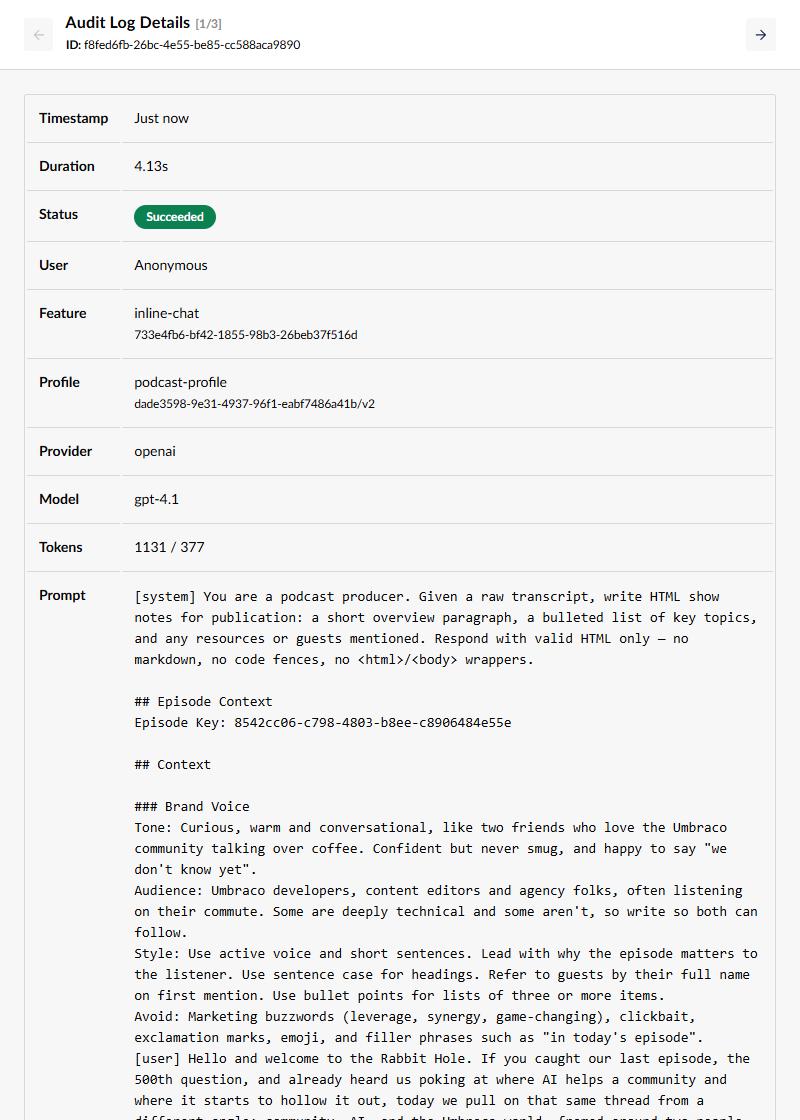
- Scroll further to the Response. It starts with
[assistant], followed by the HTML that ended up in Show Notes. If your run invented Mastodon links, you'll see the made-up URLs right there in thehrefs. Then look back at Tokens (input / output): almost all of the input tokens are the transcript.
Tip
The counter (1/3) and the arrows at the top of Audit Log Details step through the entries in the list, so you can move from the show notes call to the summary call without closing the panel.
This is Lecture 2's mental model made visible: code asks for a profile by alias, and the profile brings its model, settings and contexts. Change the Brand Voice in the backoffice, and the next call picks it up with no deployment.
Deep dive: how the Brand Voice text is produced
Every context resource has a resource type, and the resource type decides how its data is written into the prompt.
The built-in Brand Voice type turns its four fields into short Label: value lines. It doesn't send raw JSON. Umbraco AI
then adds every "Always" resource under ## Context, one ### <resource name> heading each.
Hold on to that picture. In Lesson 3 you'll write your own resource type, with your own formatting, and see it show up right next to Brand Voice.
🧯 Troubleshooting
No toast after two minutes
Look at the terminal running the site and search for Failed to process podcast episode. The exception underneath
tells you what went wrong. The usual suspects:
No default speech-to-text profile. The transcription call doesn't name a profile, so it needs a default. Set Transcriber Profile in AI → Settings (Lesson 1, Step 11).
The transcription connection. Transcription goes through the Workshop Transcription connection, whose endpoint must be
$Umbraco:AI:Variables:TranscriptionEndpoint(Lesson 1, Step 8). On Foundry, that user secret must be the transcription deployment URL, not the/openai/v1/endpoint.A user secret is missing. Check the key is stored under exactly
Umbraco:AI:Secrets:ApiKeyand both endpoints underUmbraco:AI:Variables, then restart the site.dotnet user-secrets list --project src/TheRabbitHole.WebA profile alias typo. The code asks for
podcast-profile. Check the alias on your Podcast Profile.
Then clear the fields that are still empty (they probably all are), and Save again. See also Nothing happens after I save an episode.
401 or 403 errors from the provider
- 401 Unauthorized means the provider didn't accept the key. The user secret is missing or wrong, or you set it after
starting the site. User secrets are read at startup, so restart after changing them. Also check that the OpenAI API
Key field on both connections, Workshop and Workshop Transcription, is exactly
$Umbraco:AI:Secrets:ApiKey. - 403 Forbidden means the key works but isn't allowed to use that model or deployment. Check the model on both profiles. On OpenAI, check your project's model permissions; on your own Foundry, check both deployments exist.
- 429 Too Many Requests on OpenAI with "You exceeded your current quota" means the account has no credit. Add some under Settings → Billing. Any other 429 is a rate limit: wait a few seconds, clear the fields and save again.
Nothing at all in the terminal, not even "Transcribing podcast episode"
The episode was never processed. Most likely it has no audio file: the saved handler skips episodes without one, and
so does ProcessManualAsync. Check the upload finished (an audio player and the file name show under Audio File),
then save again.
The other possibility: the transcript was already filled in, so transcription was skipped. See the next item.
I saved again and nothing happened
That's by design. The code only generates what's missing, so if the transcript, summary and show notes are all filled
in, there's nothing to do: no save, no toast. Clear the fields you want regenerated and save again. Clear the Show
Notes editor completely; IsRichTextEmpty copes with the empty <p></p> it leaves behind.
The show notes contain code fences or Markdown, or look odd
LLM output varies from run to run, and sometimes the model ignores an instruction. Clear Show Notes and save to regenerate just that field. If it keeps happening, try tightening the prompt. That's the first stretch goal.
The values appeared, but I never saw a toast
The toast script loads the SignalR client from the internet (esm.sh). If that's blocked, the pipeline still works, but
the backoffice never hears about it. Open your browser's developer console and look for [TheRabbitHole] Could not connect to podcast hub. You can carry on without the toast: wait a minute after saving, then refresh.
Build error: MEAI001
Microsoft.Extensions.AI marks its speech-to-text types as experimental. Add
<NoWarn>$(NoWarn);MEAI001</NoWarn> to src/TheRabbitHole.Core/TheRabbitHole.Core.csproj, as in
Lesson 1, Step 3.
Build error: IAIChatService, ChatMessage or ChatRole could not be found
One of the three using lines from Step 2 is missing. If Umbraco.AI itself can't be found, the Umbraco.AI.Core
package reference from Lesson 1 is missing from src/TheRabbitHole.Core/TheRabbitHole.Core.csproj.
🆘 Stuck?
Jump to the finished state of this lesson. Stop the site first (Ctrl+C), then:
git stash -u
git checkout lesson-2-end
dotnet run --project src/TheRabbitHole.Web
The branch includes the code and the backoffice state for this lesson (it's in the site's database), including episode 5 (published, with its generated transcript, summary and show notes saved as a draft on top), so you can carry straight on with the next lesson. Your API key lives in user-secrets, so it comes with you.
More detail: How to jump to a lesson's end branch.
🚀 Stretch goals
- Tweak the summary prompt and compare. For example, ask for "exactly one sentence, under 25 words". Restart, clear only Summary, save, and open the old and new summary entries in the logs side by side. Hint: both entries share the same Feature ID, because they come from the same alias.
- Change the temperature on the profile. Open AI → Profiles → Podcast Profile, set
Temperature to
0.2, save, then regenerate the summary. Try1.2next. Hint: no code change or restart is needed. That's the point of profiles. If your model rejects a temperature, clear the field again. - See where the tokens go. Open AI → Analytics and look at the By Profile and By Model breakdowns. Hint: the transcript is sent twice (summary and show notes), so input tokens dwarf output tokens. Remember this number for Lesson 5.